

Test in Studio Chat
Use the Studio test chat to validate agent behavior interactively before deploying to production. The agent responds using the same execution pipeline as production, including:- Tool calls and their results.
- Flow step transitions.
- Handoffs between agents.
- Guardrail checks on inputs and outputs.
Start a Test Session
- Open your project in Studio.
- To test the full project, go to the Overview page and click Test your agents. For multi-agent projects, Studio defaults to the project’s entry agent (usually the supervisor).
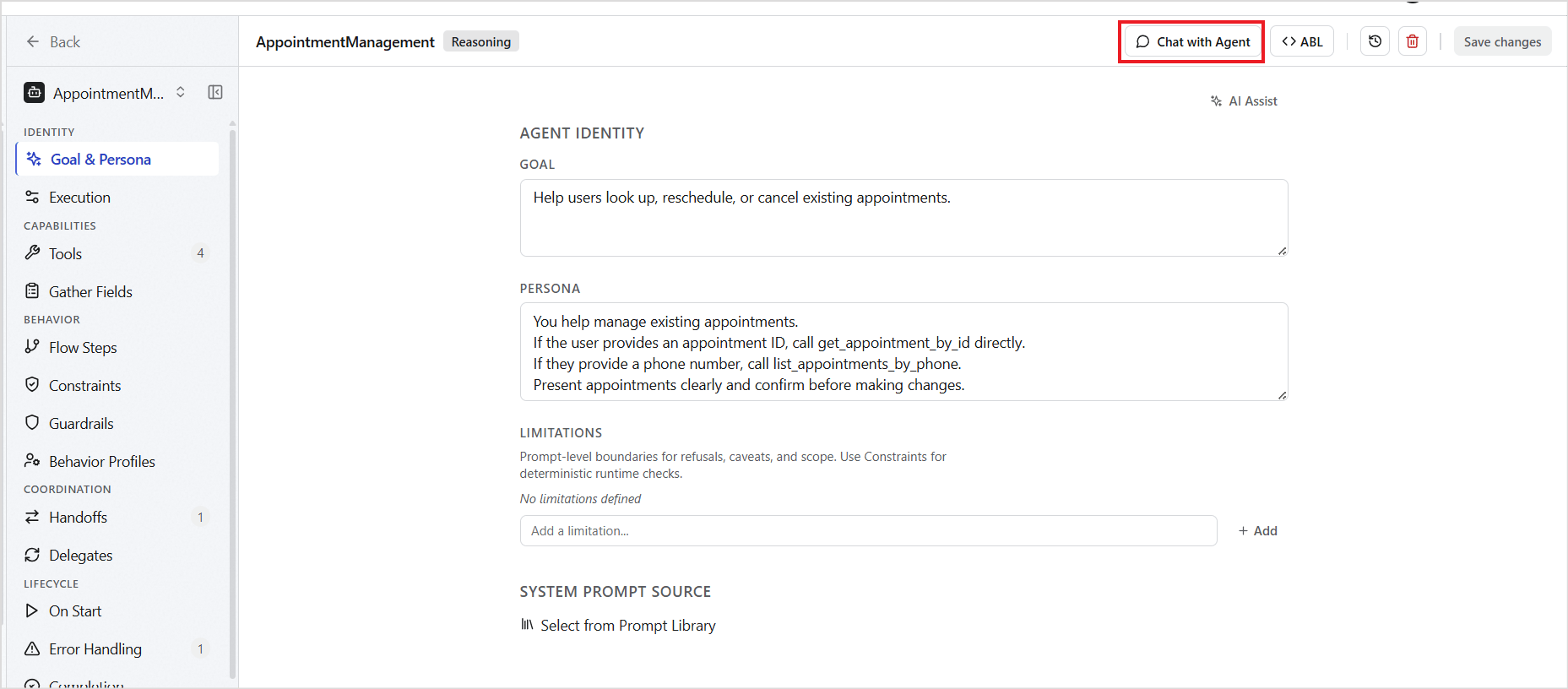
- To test an individual agent in isolation, go to the Agent page and click Chat with Agent.
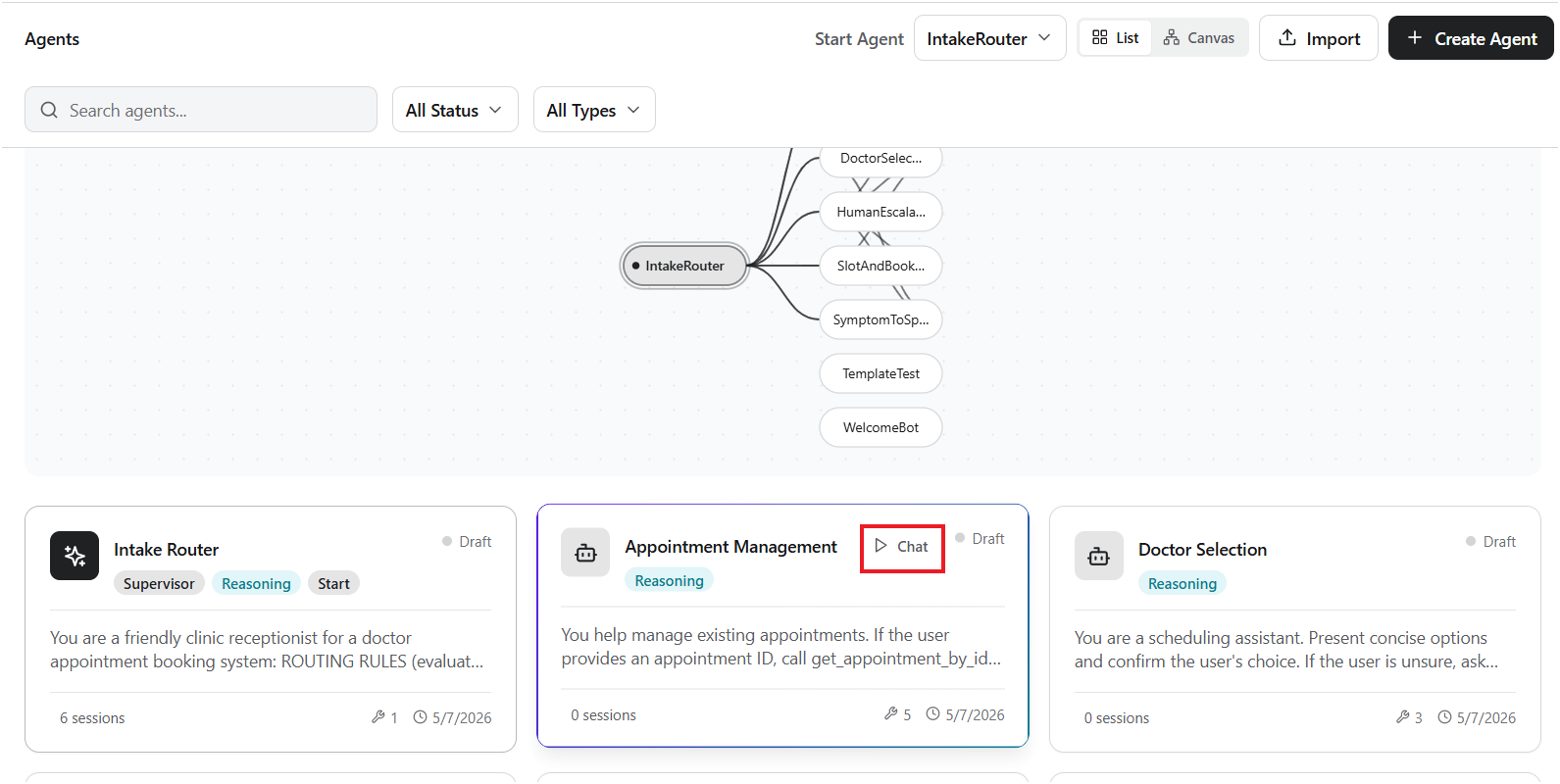
- Or use the Chat option next to any agent on the Overview page.
- Studio creates a test session. Type a message in the chat input and press Enter.
- Each agent response message includes metadata such as:
- Executed flow step
- Tool invocations
- Response time
Debug View
The Session Debug view provides real-time visibility into agent execution during a conversation. Use it to inspect responses, trace execution flow, monitor token usage, and diagnose runtime issues. The left panel displays active and historical chat sessions. The center panel shows the live conversation between the user and the agent, including routed responses and workflow progression. The right-side diagnostics panel provides detailed runtime insights such as trace events, model usage, token consumption, session identifiers, and timeout diagnostics in real-time.Using Traces to Debug
Use traces to inspect every decision, tool call, state update, and handoff during execution.- Open your project in Studio.
- Navigate to Sessions and select a session.
- Click the Traces tab to view the full execution trace.
- Use filters to narrow results by event type, agent, or time range.