

from and to date tokens follow this range, all applicable widgets update.
When a project has no dashboards, the page shows No dashboards yet. Select New dashboard to create your first one.
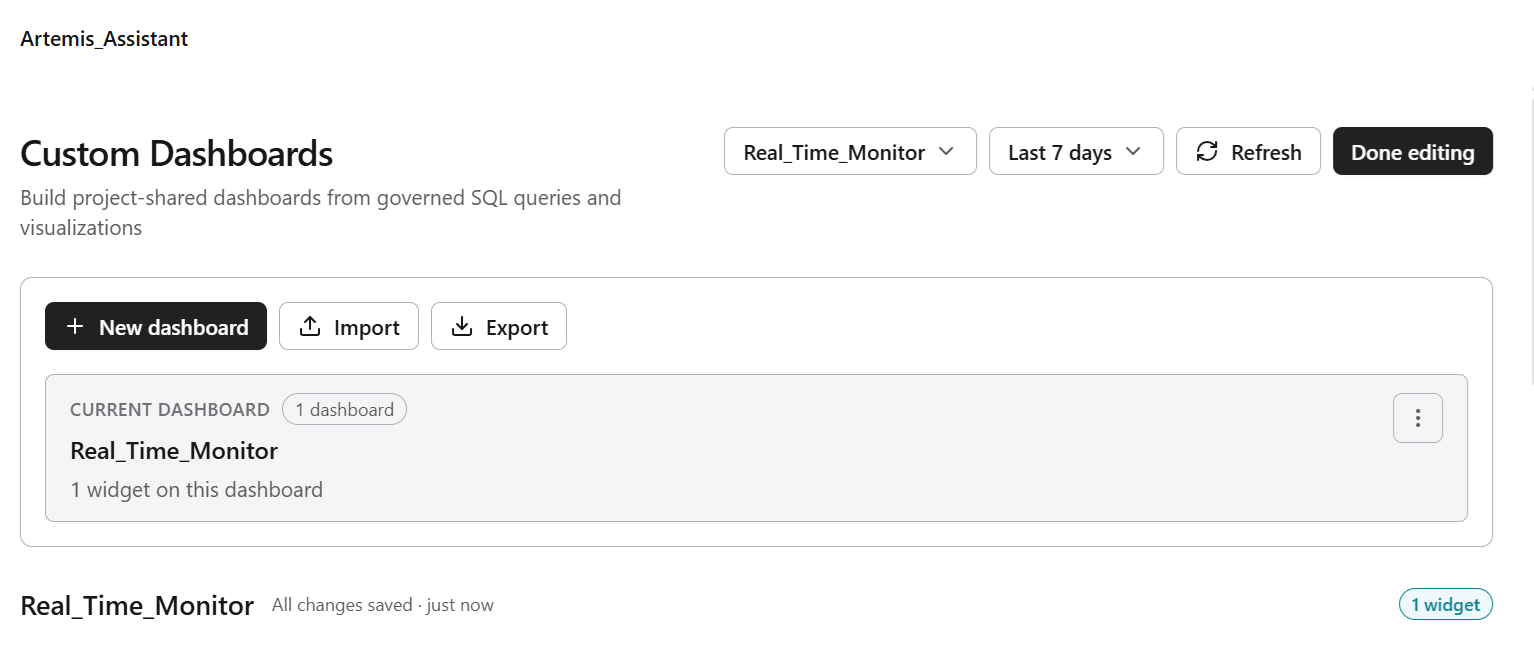
Dashboard actions
Build a widget
Each visualization on a dashboard is a widget. You build a widget in the widget editor, which opens as Untitled widget with three tabs.
To build a widget:
- Open a dashboard and start a new widget.
- On Query data, select a table from the table list, for example
abl_platform.platform_events. - Write your SQL, or use Columns to insert column names. Select Run query to test it.
- Open Preview rows to confirm the query returns what you expect.
- Open Visualize and choose how to display the result set.
- Select Save widget. To discard your changes, select Cancel.
Example of Query scoping
The platform scopes queries to the current tenant and project by default. Let us considerabl_platform.platform_events as the query table. Use the date tokens when a widget should follow the dashboard date range.
The following query counts events over time and follows the dashboard date range: