

- Navigation: Settings > AI Configuration
- Required role: Owner or Admin
LLM Providers
The Agent Platform is provider-neutral. Agents can use models from multiple LLM providers, and you can switch between them without changing agent definitions.- Navigation: Settings > AI Configuration > LLM Providers
- Required role: Owner or Admin
How Model Resolution Works
Model configuration follows a layered approach. When the runtime executes an agent, it resolves the model through a five-level priority cascade, stopping at the first match:
If no model is resolved at any level, the request fails with a clear error. The platform never falls back to a hard-coded default.
Fallback Chains
Configure fallback models to handle provider outages or rate limits. When the primary model fails (timeout, rate limit, or provider error), the runtime automatically retries with each fallback in order. The agent receives a response regardless of which model served it, and analytics track which model was used. Configure fallback models:- Go to Settings > AI Configuration > Models.
- Select a registered model.
- In the Fallback section, add one or more fallback models in priority order.
- Click Save.
Context Window Management
The runtime automatically manages the context window to stay within model limits:- Tool result compression — Large tool results are compressed before being added to the conversation.
- Prior turn truncation — Tool results from previous turns are replaced with short placeholders.
- Conversation compaction — When conversation history grows beyond the Compaction Threshold, older messages are summarized to reduce token usage while preserving context.
Cost and Token Tracking
Every LLM call tracks token usage and estimated cost, broken down by agent, project, model, and time period:Supported Providers
Each provider requires its own credentials configured in the Credentials tab:Credentials
The Credentials tab lists all provider credentials registered in your workspace, grouped by provider. Each credential card shows the name, provider, creation date, and the number of models using that credential. Add a credential:- Go to AI Configuration > LLM Providers > Credentials.
- Click + Add Credential.
- Enter a Name (for example, Production OpenAI), select a Provider, and enter the API Key.
- Click Add Credential.
API keys are encrypted at rest and never displayed in plaintext after the initial entry.
Model Catalog
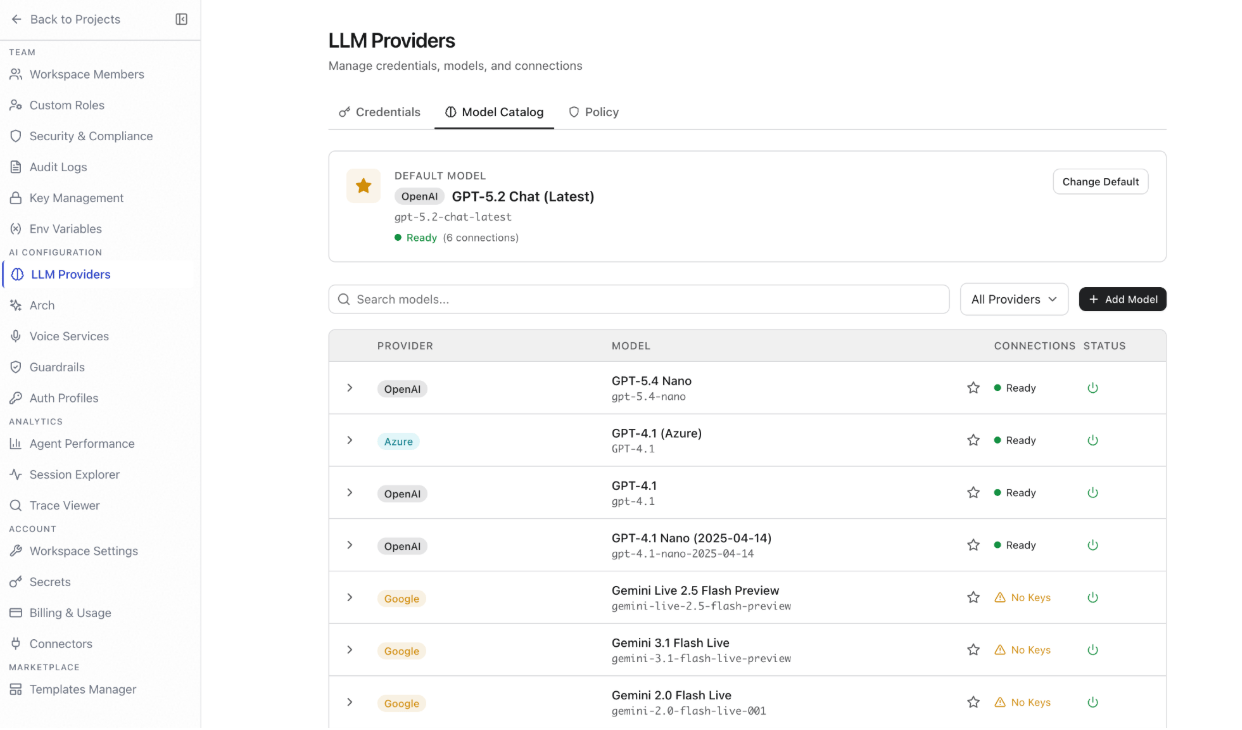
The Model Catalog tab lists all models registered in your workspace. Each row shows the provider, model name, model ID, linked credentials, and status. The top of the page shows the current Default Model with a Change Default button. Set the default model: The default model is used when no other model resolves through the model resolution chain. Click the star icon on any model row, or click Change Default in the default model banner. Add a model from the catalog:- Go to AI Configuration > LLM Providers > Model Catalog.
- Click + Add Model, browse or search for a provider model.
- Review and configure the available model settings.
- Click Add to Workspace.
- Go to AI Configuration > LLM Providers > Model Catalog.
- Click + Add Model, then select the Custom Model tab.
- Fill in the following fields:
- Click Add to Workspace.
- Connections — Shows credentials linked to this model. Click + Add Key to connect a credential. A model with no credentials shows No Keys status and cannot serve requests.
- Settings — Configure Temperature, Max Output Tokens, Top P, Compaction Threshold, Tier, and Response Mode.
- Capabilities — Enable supported capabilities: Default for Tier, Tools, Vision, Streaming, and Realtime Voice.
Model Tiers
Tiers decouple agent definitions from specific model choices. Agents reference tiers, and the platform resolves the tier to a specific model at runtime:
Project-level tier overrides:
Projects inherit the workspace’s model configuration but can customize how tiers map to operations. Go to Project > Settings > LLM Configuration to override tiers per operation:
Overrides apply only to the current project. Other projects continue using workspace defaults.
Policy
The Policy tab controls how the platform resolves credentials when multiple credential sources are available. Select a credential policy and click Save Policy:Troubleshooting
Arch
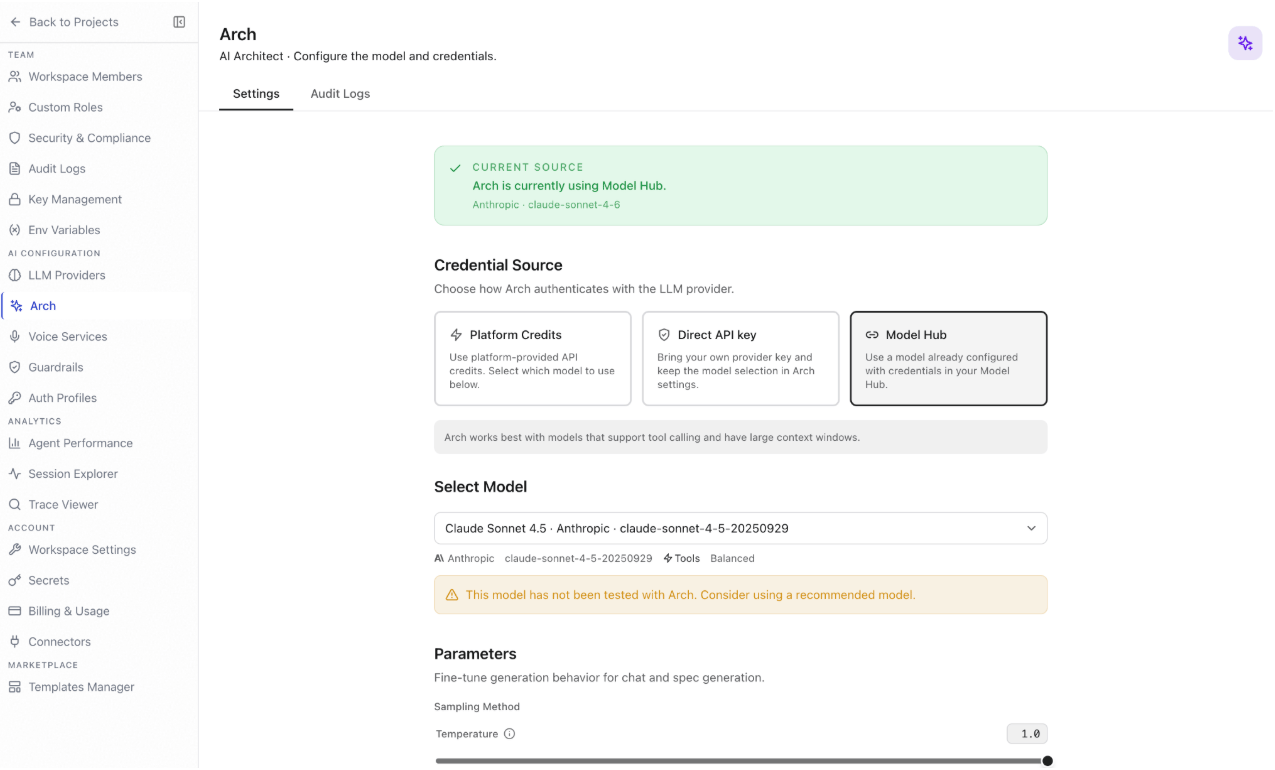
Arch is the AI Architect component of the Agent Platform. It manages the model and credentials used for agent specification generation and chat-based orchestration.- Navigation: Settings > AI Configuration > Arch
- Required role: Owner or Admin
Settings
Current source: The Current Source banner displays the active credential source and model Arch is currently using, for example Model Hub · OpenAI · gpt-5.2. Credential source: Choose how Arch authenticates with the LLM provider:Arch works best with models that support tool calling and have large context windows.
Click Save Changes to apply updates.
Audit Logs
The Audit Logs tab shows Arch session activity for the selected time range, including cost, error count, and a browsable session list. Summary metrics:
Sessions list:
The list displays all Arch sessions. Use Has Errors to show only sessions with errors, or Today to show only today’s sessions. Each session row shows the session ID, timestamp, number of turns, and current phase. Click a session to view the full execution flow in the detail panel.
Voice Services
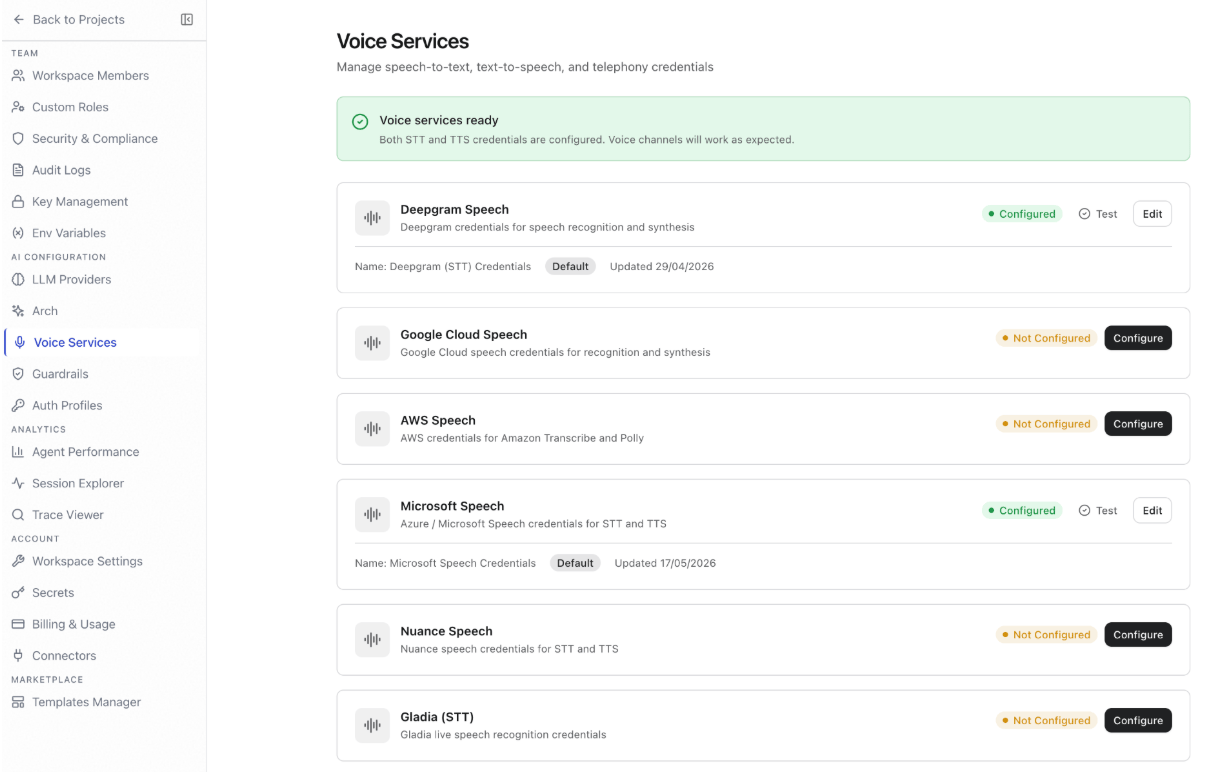
Voice Services manages credentials for speech-to-text (STT) and text-to-speech (TTS) providers that power voice-enabled agent interactions.- Navigation: Settings > AI Configuration > Voice Services
- Required role: Owner or Admin
Supported Providers
Each provider shows its current configuration status. Providers that haven’t been configured display Not Configured.
Configure a Provider
- Go to Settings > AI Configuration > Voice Services.
- Find the provider you want to configure and click Configure.
- Enter the provider credentials in the configuration dialog.
- Click Save.
Guardrails
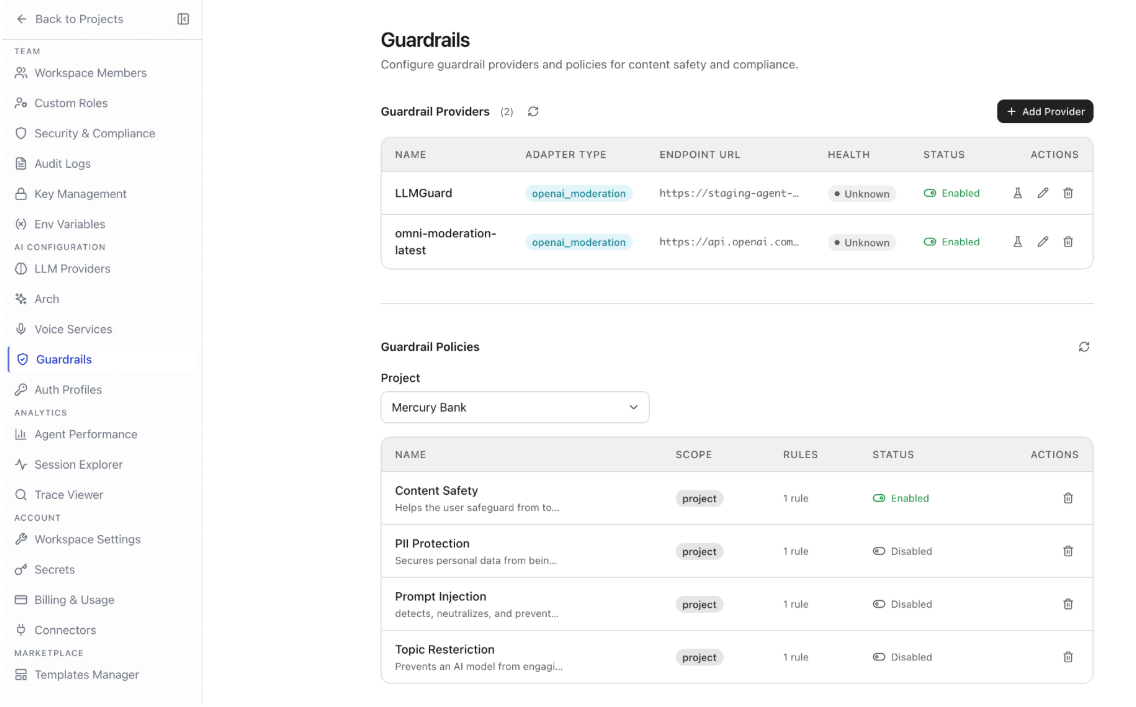
Workspace guardrails define organization-wide content safety policies that apply across all agents. They evaluate agent inputs and outputs against configurable safety categories and take a configured action — block, warn, or log — when content violates a policy.- Navigation: Settings > AI Configuration > Guardrails
- Required role: Owner or Admin
Guardrail Providers
Guardrail providers are the evaluation services that assess content against your policies. Configure at least one provider before creating policies. Add a provider:- Go to Settings > AI Configuration > Guardrails.
- Click Add Provider.
- In the dialog, configure the provider using the Form or YAML tab.
- Click Add Provider to save.
Retry configuration:
Provider health monitoring:
The platform periodically checks provider health. When a provider becomes unhealthy, its circuit breaker activates. After repeated failures, the circuit breaker opens and stops sending requests. After the reset timeout, it allows a test request through.
When a provider’s circuit breaker is open, the platform follows the configured fail mode:
- Fail-open — Content is delivered without guardrail evaluation. Violations may go undetected.
- Fail-closed — Content is blocked until the provider recovers. Safer, but may interrupt service.
Guardrail Policies
Guardrail policies define the rules applied to agent inputs and outputs for a specific project. Select the target project from the Project dropdown in the Guardrail Policies section. Content safety categories:
Each category has a configurable threshold from 0.0 to 1.0. Lower thresholds flag more content; higher thresholds flag only high-confidence violations.
Create a policy:
- Select the target project from the Project dropdown.
- Click Create policy.
- Enter a policy name and description.
- Select the categories to evaluate.
- For each category, set:
- Threshold — Sensitivity level (0.0 = flag everything, 1.0 = flag only high-confidence violations).
- Action — What happens when content is flagged:
- Block — Prevent the response from reaching the end user. A fallback message is shown instead.
- Warn — Deliver the response with a warning annotation visible to operators.
- Log — Record the violation for analytics without affecting the response.
- Set whether the policy evaluates inbound messages, outbound responses, or both.
- Click Save.
- Open the project in Studio.
- Go to Project settings > Guardrails.
- Toggle on the workspace guardrail policies to enforce for this project.
- Optionally adjust thresholds at the project level. Project settings override workspace defaults when more restrictive.
- Workspace policies evaluate first. If a workspace guardrail blocks content, the project guardrail is not consulted.
- Project policies add specificity — use them for domain-specific rules, for example blocking financial advice in a customer support agent.
- The most restrictive action wins. If the workspace policy says warn but the project policy says block for the same category, the content is blocked.
Auth Profiles
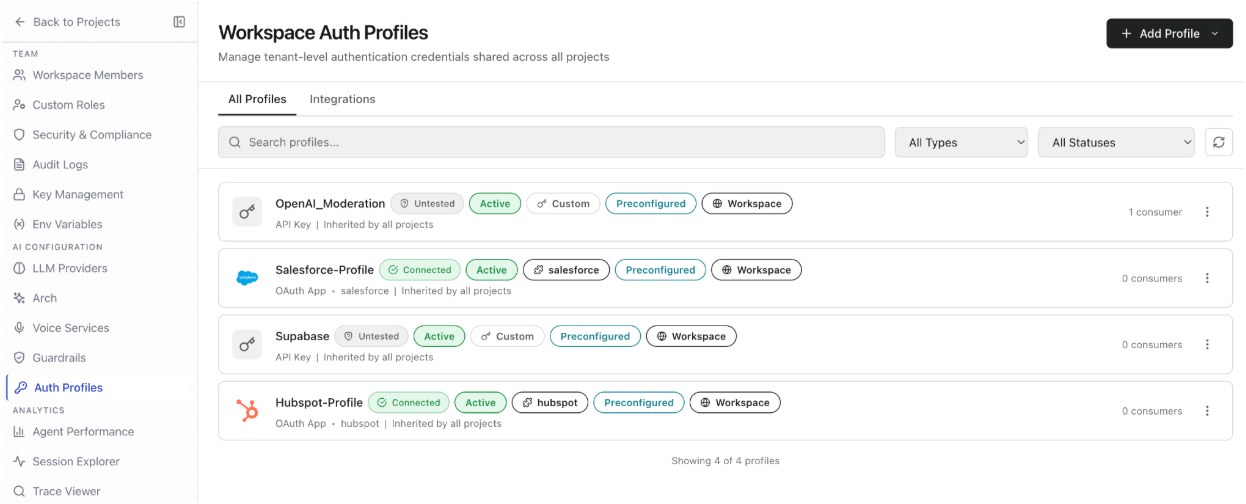
Auth profiles store authentication configurations that agent tools use to call external services securely. Profiles are managed centrally at the workspace level and reused across all projects.- Navigation: Settings > AI Configuration > Auth Profiles
- Required role: Owner or Admin
All Profiles
The All Profiles tab lists all auth profiles configured for the workspace. Use the toolbar to search by profile name, filter by authentication type, or filter by status (active or inactive). Add a profile: Click Add Profile. Two profile types are available:
Supported auth types:
Auth profile credentials are encrypted at rest and never exposed in logs or agent responses.
Guardrail providers that require credentials must reference an auth profile. Raw API keys are not accepted directly in the guardrail provider configuration.