

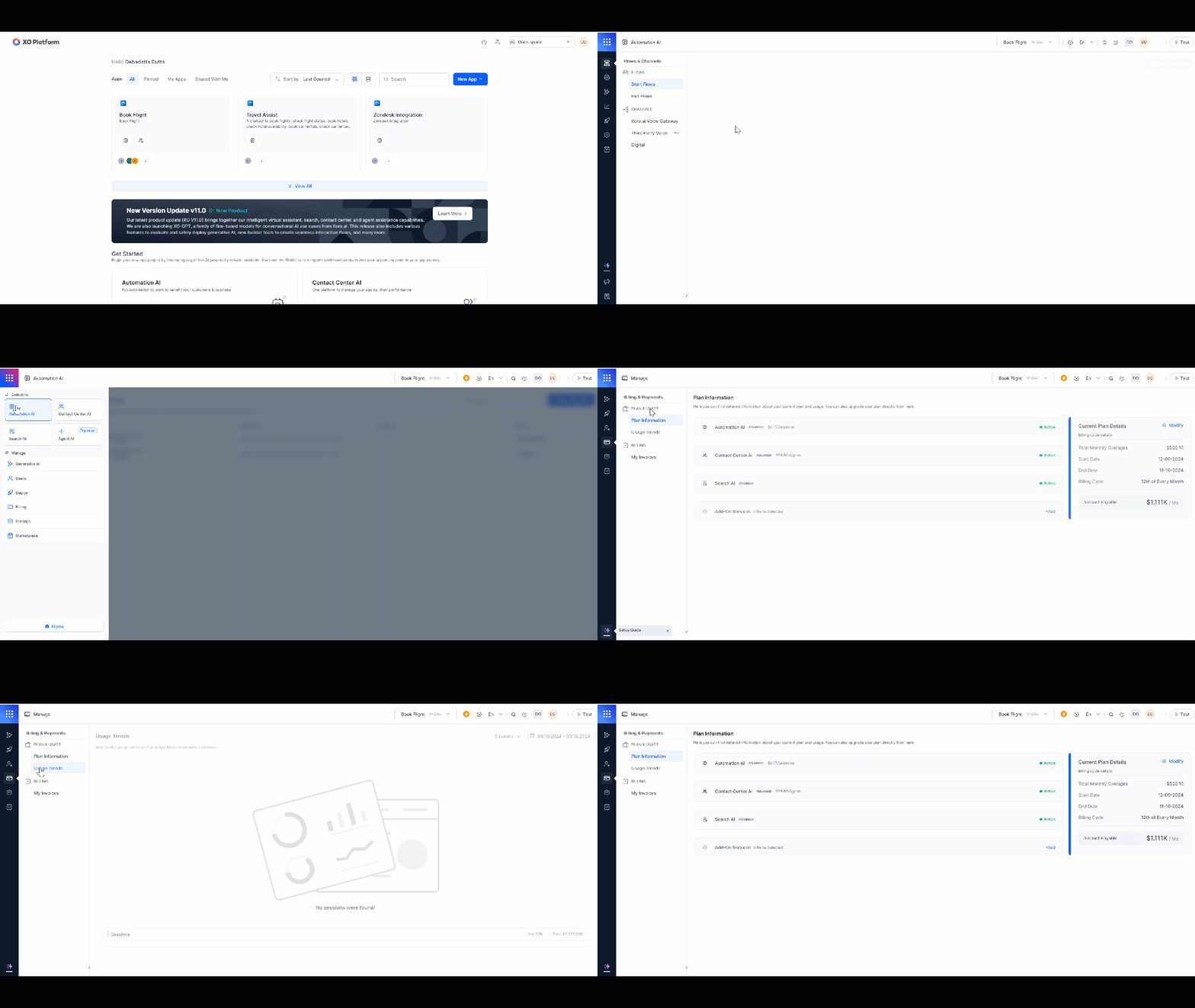
Plans
The platform offers the following plans:How Billing Works
Billing is calculated differently depending on the product.Automation AI
- Billed per 15-minute billing session of user conversation.
- Example: A 31-minute conversation = 3 sessions (0-15 min, 16-30 min, 31-end).
- Sessions are tracked per app. In dynamic routing, the Parent app has its own sessions; sessions routed to a linked app are attributed to that linked app only.
Search AI
- Included in Automation AI; uses the same 15-minute billing session.
- Enterprise users can ingest up to 1 GB of data by default, with an additional 1% allowance. Contract-specific limits override this default.
Contact Center AI
Billed per agent seat:Agent AI
Billed per agent seat, same as Contact Center AI.Add-ons
Billed separately from the base plan.Plan Information
The Plan Information section shows your current plan and product usage. You can upgrade or modify your plan directly from here.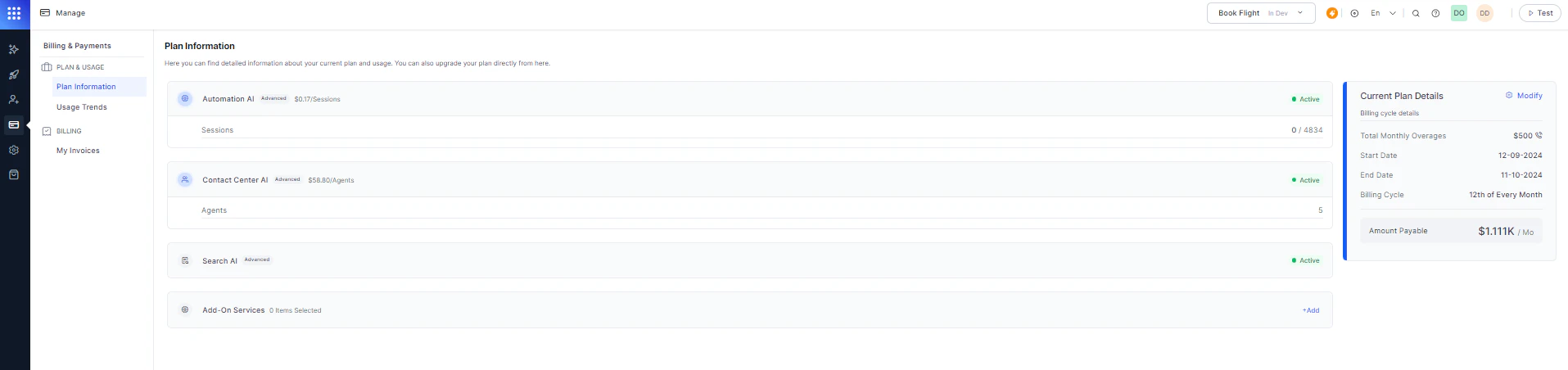
Usage Trends
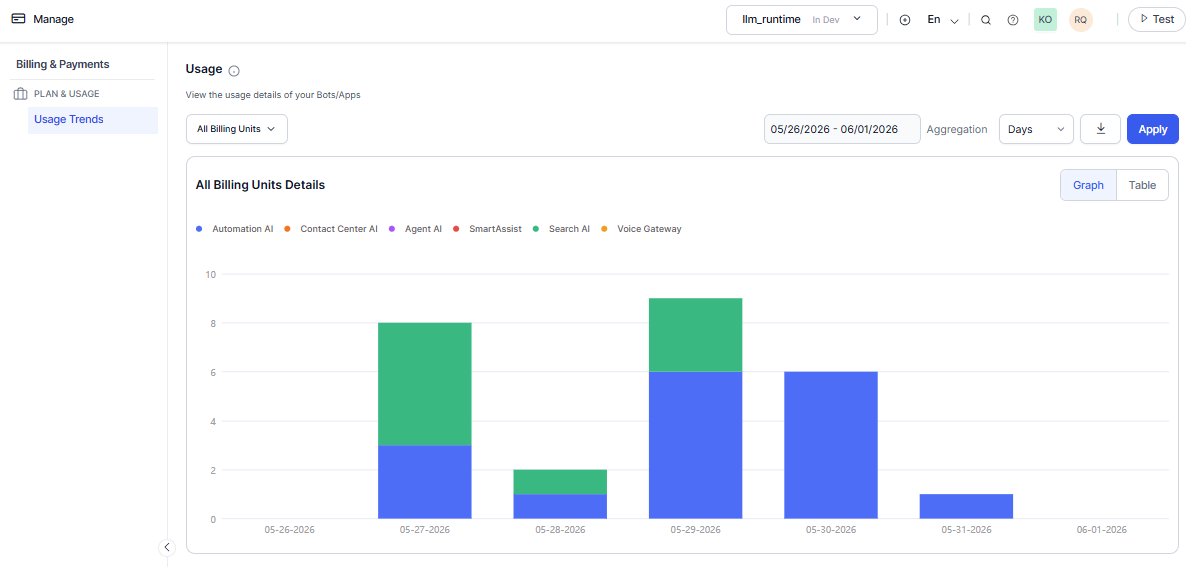
The Usage Trends dashboard provides a consolidated view of billing data across all your apps, such as Automation AI, Contact Center AI, Agent AI, Search AI, SmartAssist, and Voice Gateway. Filtering options:- Filter by individual app.
- Select a predefined range: 24 hours, 7 days, 30 days, or 90 days.
- Set a custom date range.
Payment Methods
The following payment methods are available when adding funds.PayPal
Link your PayPal email account to the platform’s payment gateway..png?fit=max&auto=format&n=UJnJlsEf5wx91A-J&q=85&s=d43f77be5c8f0eae40247faa6ee98afd)
Credit / Debit Card
Enter your card number, account holder name, expiry date, and CVV. Confirm with an OTP..png?fit=max&auto=format&n=UJnJlsEf5wx91A-J&q=85&s=f038c771de9345565d529b0f3d7f1865)
Wire Transfer
Transfers funds directly from one bank account to another..png?fit=max&auto=format&n=UJnJlsEf5wx91A-J&q=85&s=c86c9c20e63e53e75398e41f77600a2f)
-
When you place a wire transfer order, it’s registered with a pending payment clearance status. You receive an email from Paypro with steps to complete the transfer.
.png?fit=max&auto=format&n=UJnJlsEf5wx91A-J&q=85&s=8e8d89633969c0c3cf6e9c16333eaed9)
- Wire transfers take 4-8 business days. The Platform loads the paid credits after a successful wire transfer. If your balance is low and your wire transfer is pending, add funds using an alternative method (credit card or PayPal).
Subscribe or Modify a Plan
- Navigate to Manage > Plan & Usage.
-
In Plan Information, click Subscribe (for a new plan) or Modify (to change your current plan).
.png?fit=max&auto=format&n=UJnJlsEf5wx91A-J&q=85&s=3fa091d0d44df74969faa1852beb3e06)
.png?fit=max&auto=format&n=UJnJlsEf5wx91A-J&q=85&s=58c74bca19d9b306c750839cfdd0f862)
-
Select a plan and click Proceed and Modify.
.png?fit=max&auto=format&n=UJnJlsEf5wx91A-J&q=85&s=e869198c989a40d1fdeea3899667f7eb)
- Enter your Billing Information, select a Payment Method, and enter payment details.
-
Click SUBMIT ORDER.
.png?fit=max&auto=format&n=UJnJlsEf5wx91A-J&q=85&s=febf08a88ac07856deb92c6240b36be3)
Deployment Flow
The following rules govern app deployment approvals in a Standard Workspace.Invoices
Invoices are available for Standard Accounts only (subscriptions to Usage Plans and Support Plans). Enterprise Account invoices aren’t displayed.View Invoices
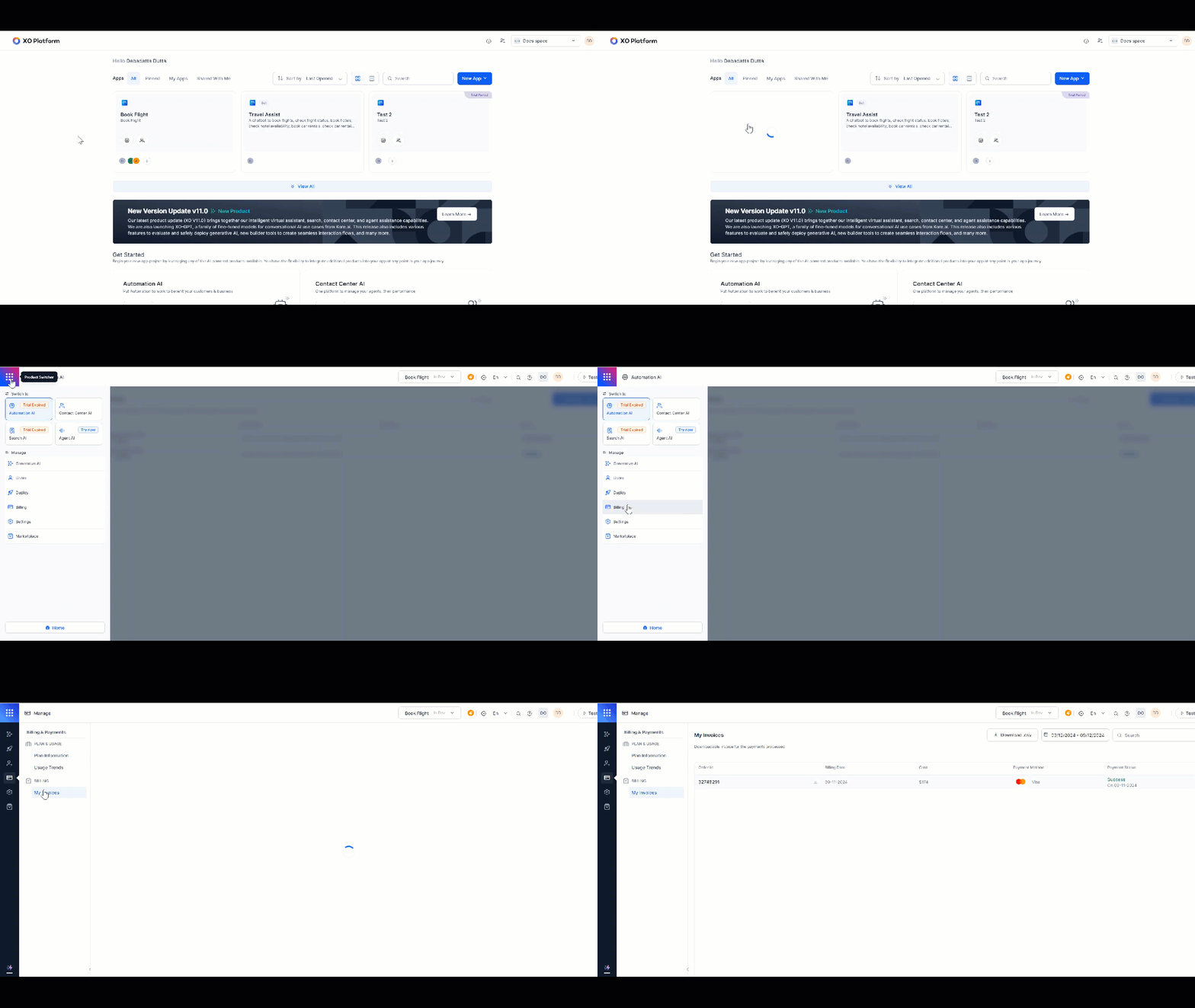
- Log in to the Platform and select the app for which you need the invoice.
-
Navigate to Product Switcher > Billing > Manage > My Invoices.
-
Invoices are listed in chronological order with the following fields:
- Order ID
- Billing Date
- Cost
- Payment Method
- Payment Status
-
Select the Download icon to download an invoice as a PDF. You can also export the billing report as a
.csvfile.