

Access
Go to Automation AI > Evaluation > Playground. Alternatively, select the Test icon in the top right corner of the Platform.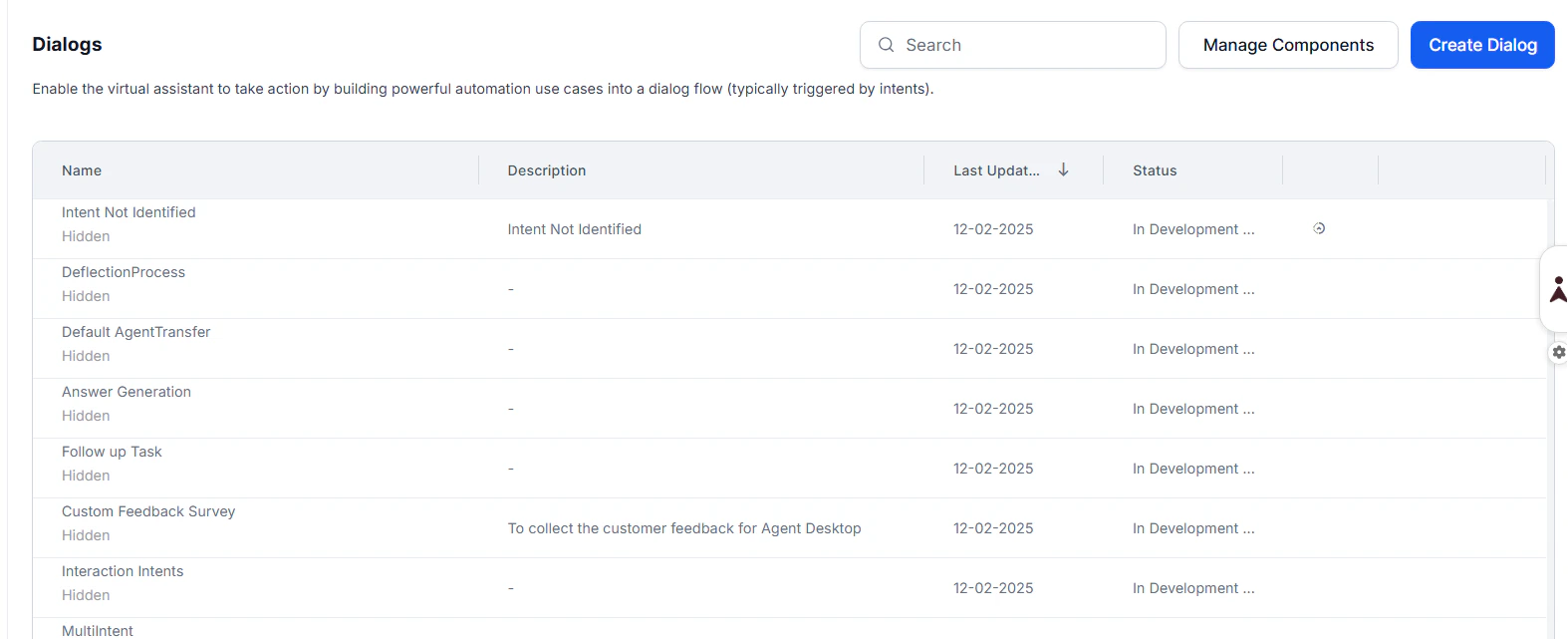
Testing an App
When you first open the Playground, select whether to proceed with Voice or Chat. This page describes the chat experience. The Debug Logs and Chat windows open side-by-side in the Playground display area.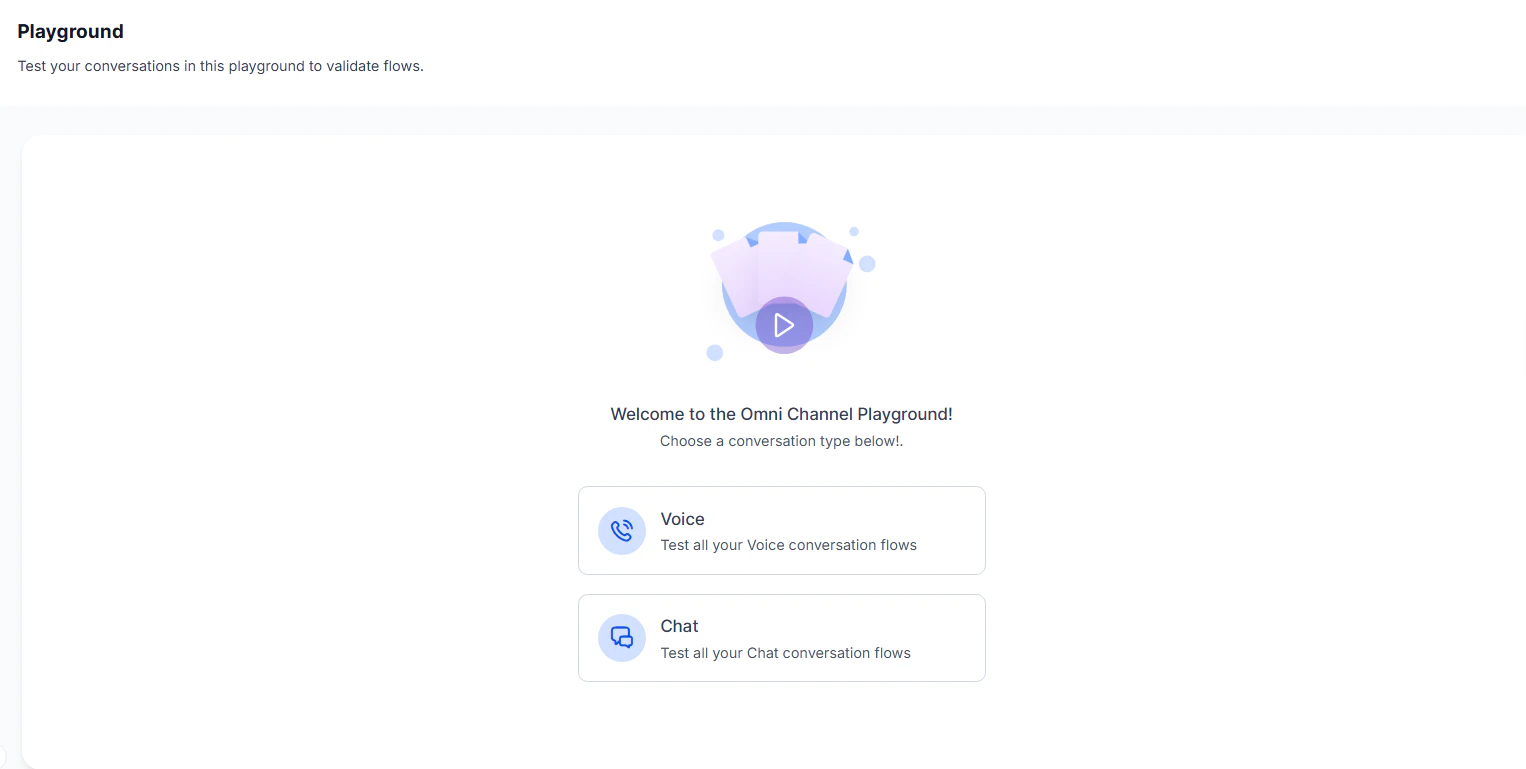
Conversation Status
When a conversation is active and the developer is working in the Playground, conversation status can only be changed from within the Playground module.
The system always matches the Test status with the Playground status, but allows updates only when the developer is outside the Playground.
Debug Window
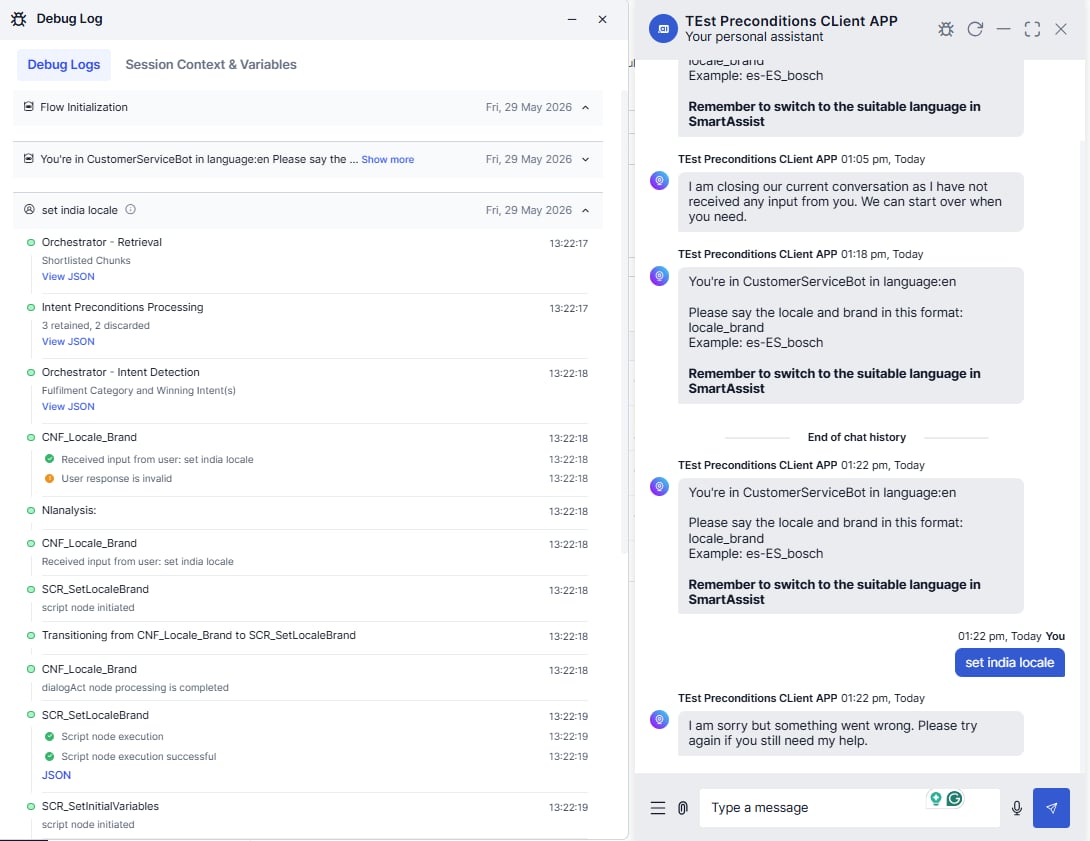
Debug Log
Debug Log provides the sequential progression of a dialog task along with captured context and session variables. It’s a chat-like interface, grouped by user inputs and app responses for easier conversation flow tracing. It offers improved navigation and contextual information at a glance, enhancing log readability and streamlining the debugging process.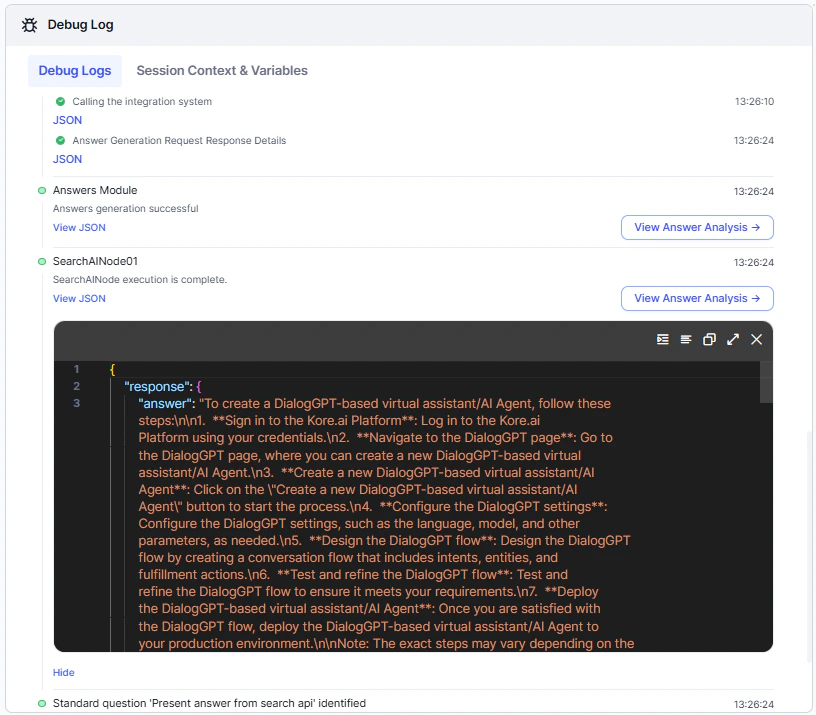
Session Context and Variables
The Session Context & Variables tab dynamically displays the populatedContext object and session variables updated at each processed component in Dialog Builder.
For more information about the parameters, see Using Session and Context Variables in Tasks and Context Object.