Overview
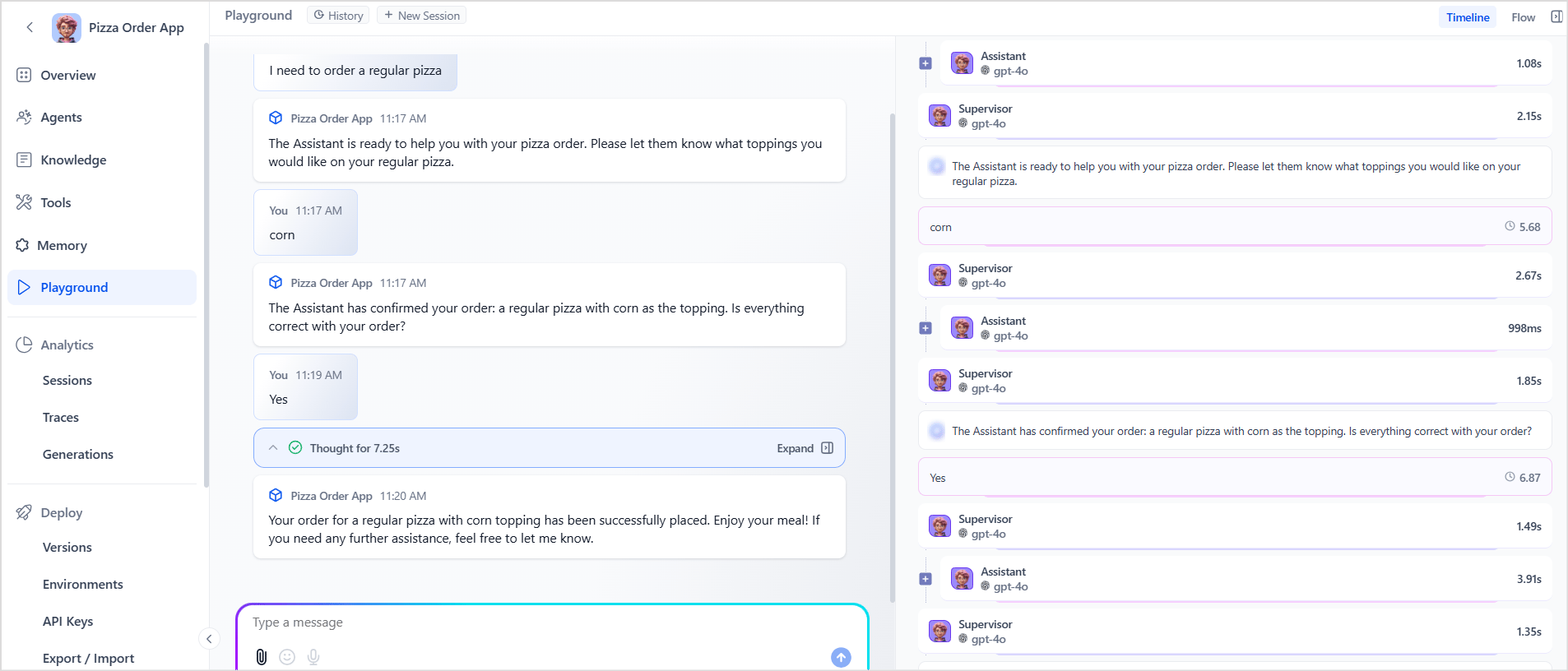
The Playground is an interactive chat environment where you simulate conversations with your Agentic app. It captures a detailed execution timeline for each query and stores conversation history for debugging and review.Starting a Session
A new session starts automatically each time you open the Playground. To start a fresh session manually:- Click New Session at the top of the Playground interface.
- The chat window clears and a blank session begins.
Starting a new session does not delete previous conversations. Access them using the History option.
Interface Components
Voice Input
Click the microphone icon in the query input field to activate voice input. Spoken input is converted to text and populated in the field automatically.- Voice output is not supported — responses are text only.
- Voice input uses browser-based ASR, supported by default in Chrome, Firefox, Safari, and Edge.
Timeline Details
Each step in the Timeline represents a distinct agent or tool (for example, Supervisor, Insights_Agent) and shows the time taken to complete its task. Clicking a step reveals: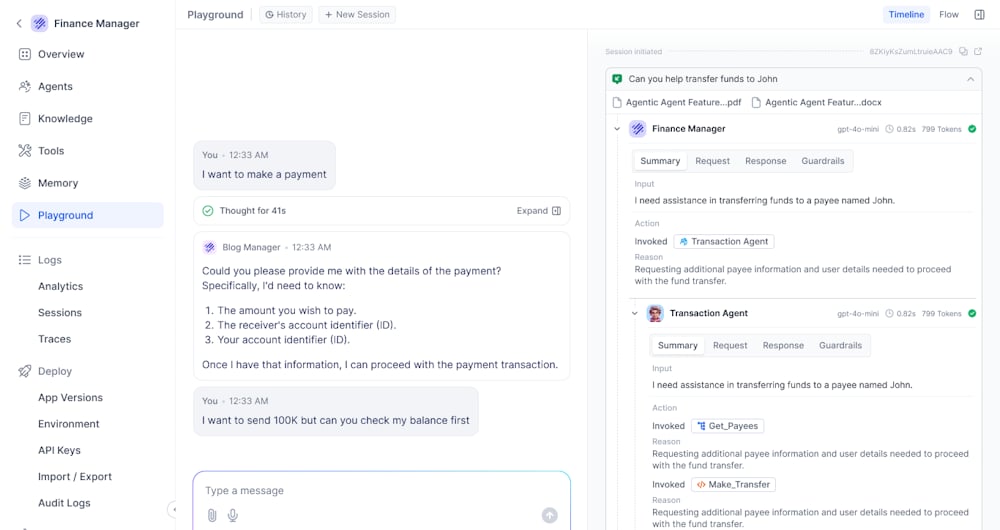
Flow Diagram
The Flow Diagram provides a visual layout of the overall execution flow, making it easier to understand the sequence of operations and interactions between components.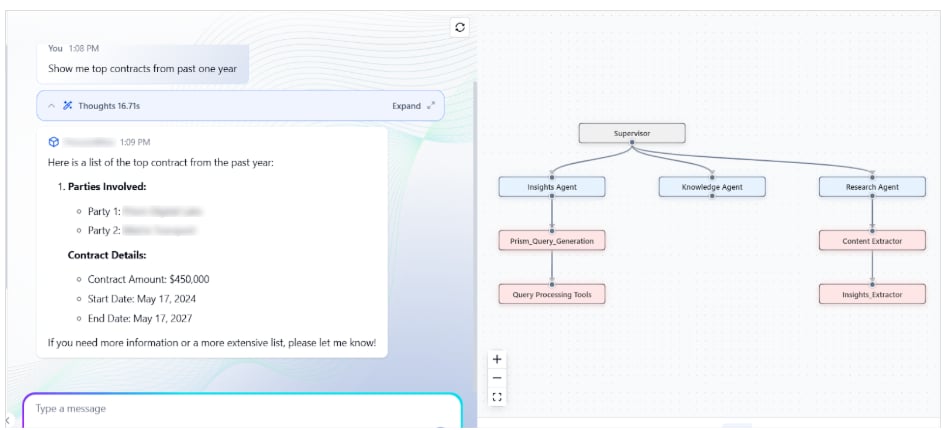
Attachments
Upload files to provide contextual information to the agent during a conversation. Platform uses attachments in two ways:- Content Extraction - For specific file types, extracts and uses content as context.
- Metadata Storage - For all supported file types, stores file information for reference.
- Attachments require Document Upload to be enabled under Playground Settings on the Configurations page.
- File count and size limits are set under Attachment Configurations in General Settings. Learn more.
-
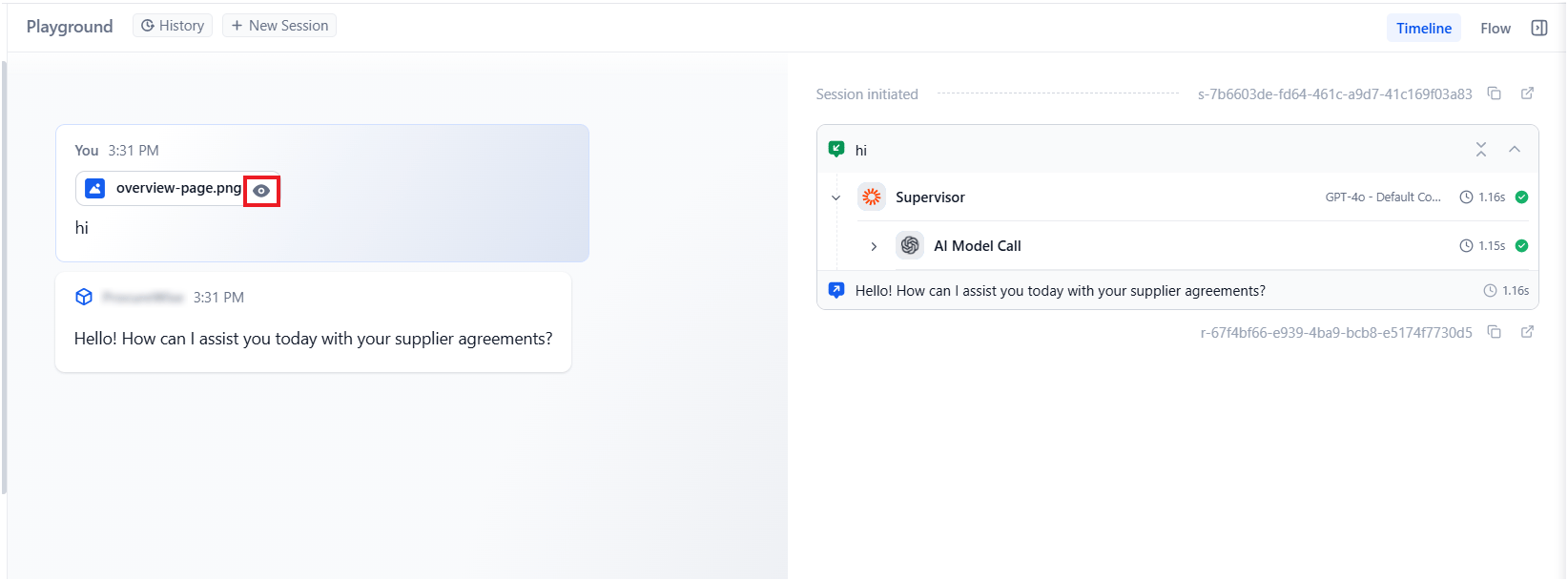
Uploaded files display a preview icon next to the file name for quick identification.
Document Context Management
Uploaded documents are organized into two sections: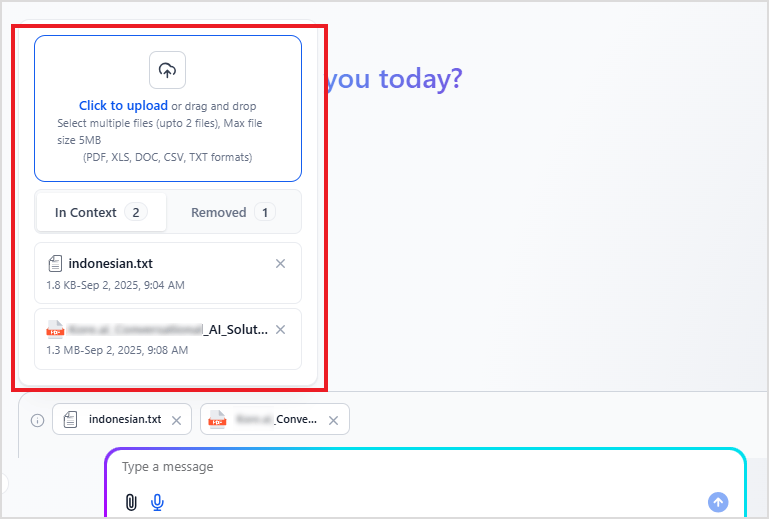
- Remove from context: Delete the document from In Context — it moves to Removed automatically.
- Restore a document: Click the + icon in the Removed section.
- Delete permanently: Click the delete icon on the file in the Removed section.
Conversation History
The Playground automatically saves all conversation history. Use the History option to revisit, debug, or continue past sessions.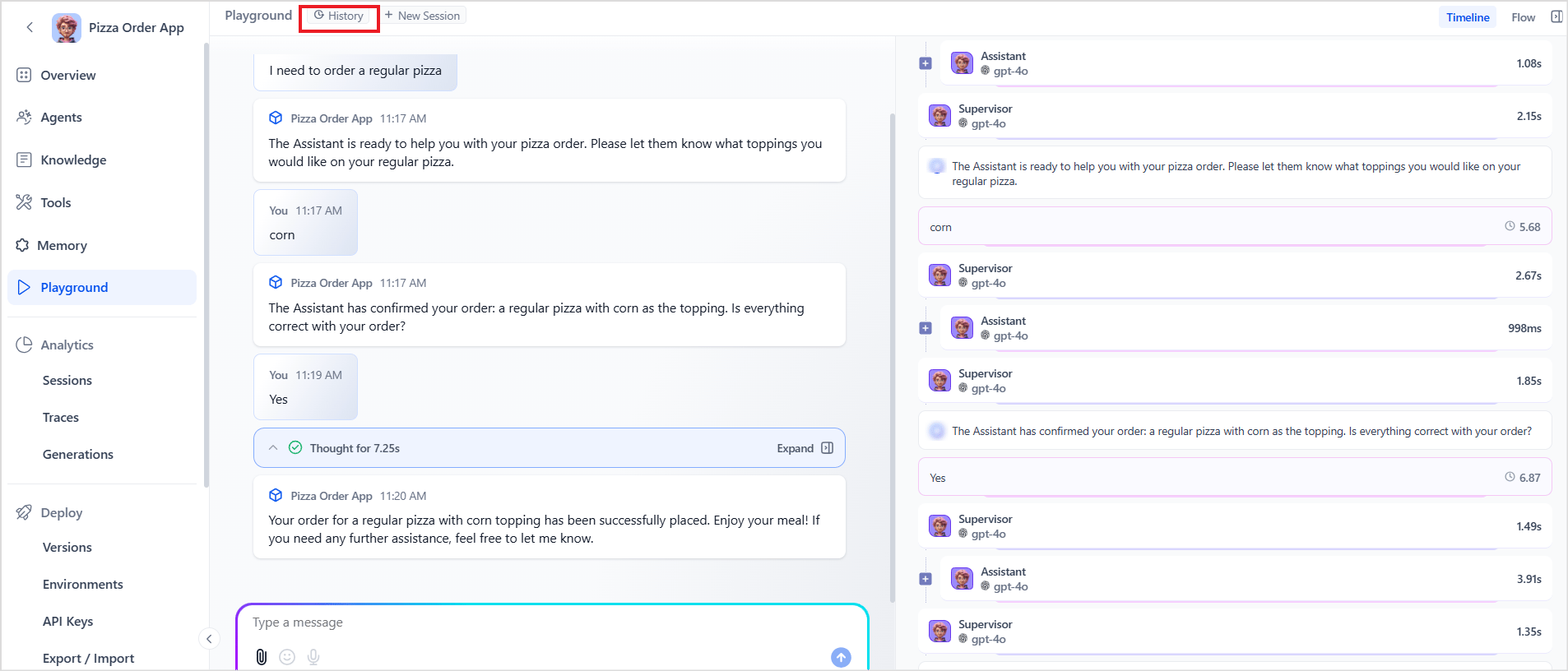
Resuming a Session
- Click History at the top of the Playground.
- Browse past conversations — each entry shows the first user message and response. Use time filters to narrow the list.
- Select a conversation to open it in the Playground.
- Review or continue the conversation from where it left off.
History Constraints
Agent Tool Authorization
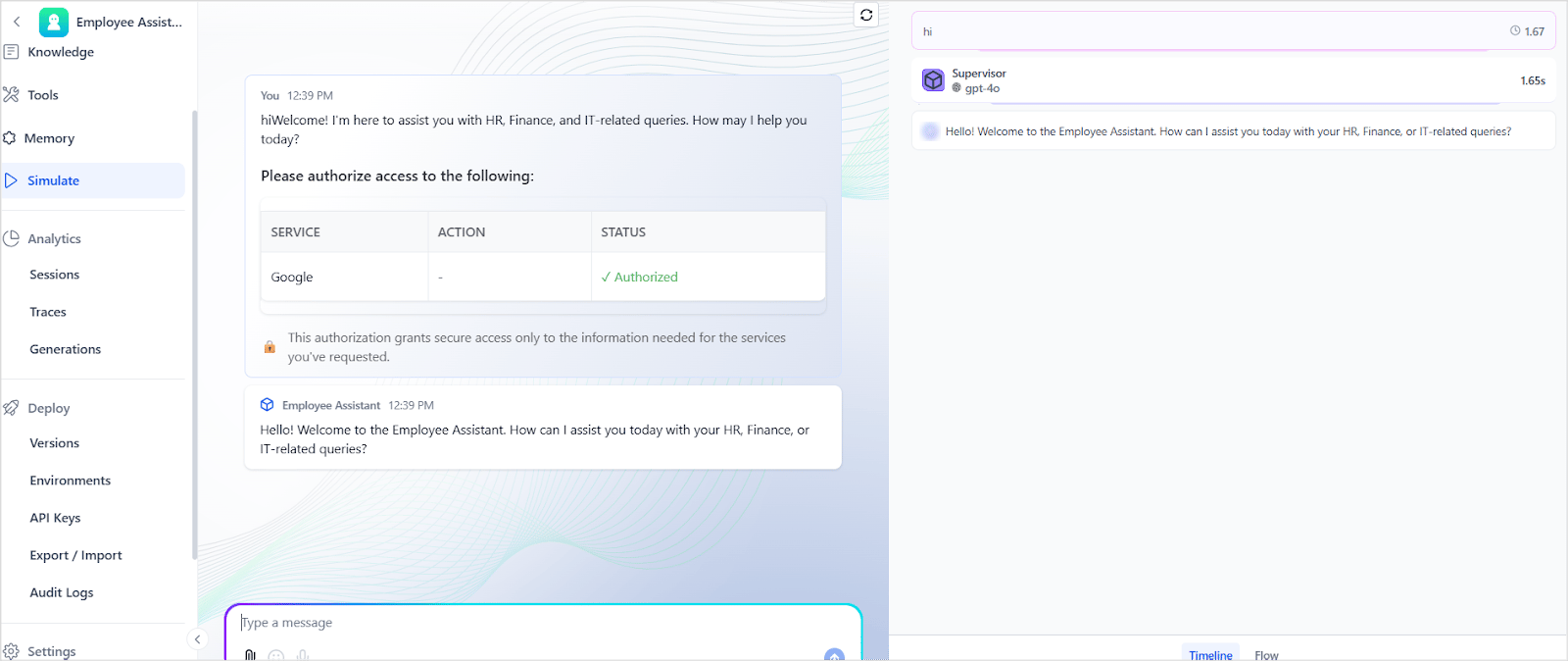
If an agent’s tools use Auth Profiles that require user authorization, you are prompted at the start of the session.The agent cannot execute actions until authorization is complete. If multiple authorizations are required, all are listed in a table at the start of the session. Unauthorized tools fail and return errors.