

Connector Specifications
Connector Configuration
Search AI interacts with LumApps through its APIs using OAuth. You need to create an OAuth application in LumApps and generate client credentials before configuring the connector.Create an OAuth Application in LumApps
- In the LumApps back office, go to Extensions > Installed extensions.
- Select OAuth Application Manager > Details.
- Go to the Settings tab.
- Click Add an OAuth application.
- Enter a name in the Application name field.
- In the Scopes field, select All.read.
- Leave the Authorized User ID field blank.
- Click Save.
- Copy the Application ID and Application secret.
Configure the Connector in Search AI
On the Authorization tab of the connector, provide the following details:
Click Connect to authenticate and establish the connection.
Content Ingestion
Search AI ingests Pages, News, and Custom Content Objects from LumApps, as well as posts from LumApps communities. Each page, post, news item, or custom content item is ingested as a separate document. Key fields in ingested content:resource_type— identifies whether the record is a content object or a community postdoc_source_type— specifies the type of content object (page, news, or custom)content— textual content from the ingested recordtitle,url, creation date, and update date are captured in their respective fields
Attachments
Attachments to content objects or community posts are ingested as separate records in Search AI. For the parent record, anattachment field lists all associated attachments with their name and URL.
For each attachment record:
doc_source_typeis set toattachmentresource_typeis inherited from the parent content object- The record includes parent metadata:
parent_name,parent_url, andparent_id
.doc, .docx, .ppt, .pptx, .pdf, .txt, .html
Content Filtering
Use content filtering to control which content is ingested from LumApps.-
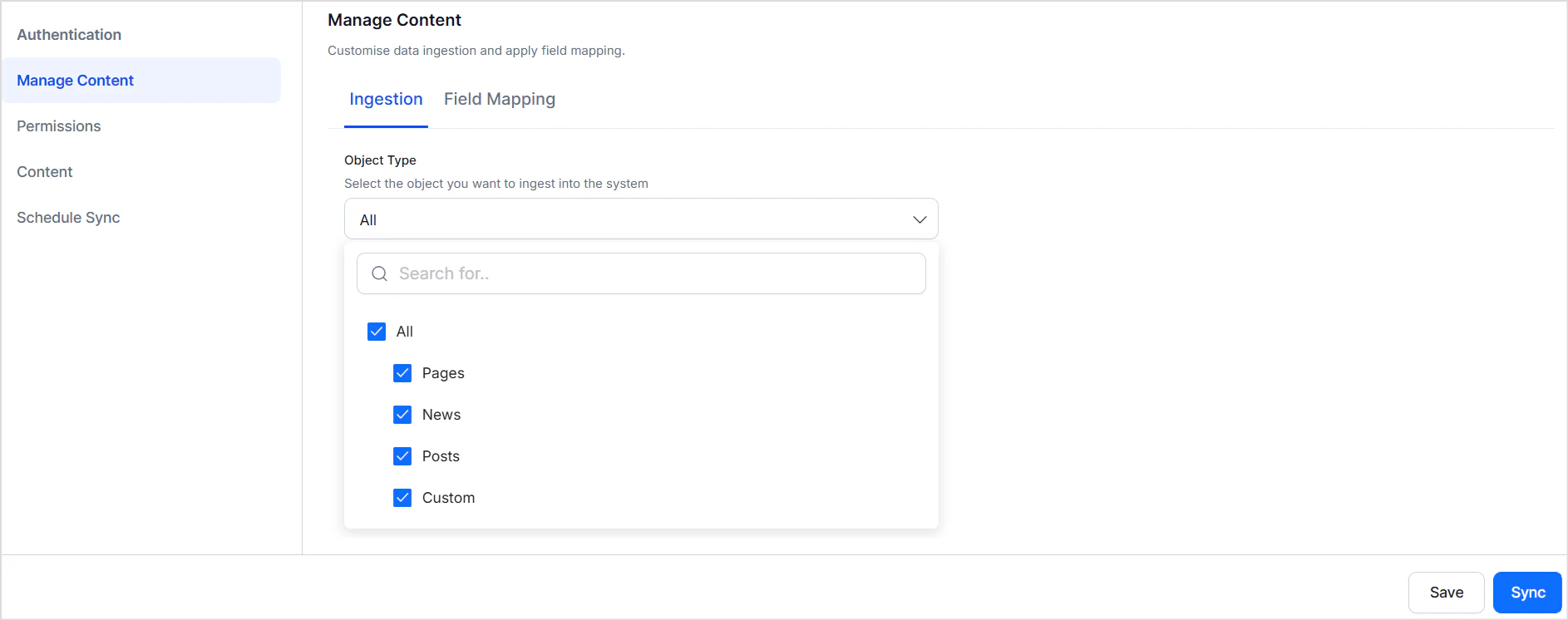
Go to the Manage Content page and use the Object Type selector to specify the type of content to ingest (Page, News, Custom Object, or Community Post).
-
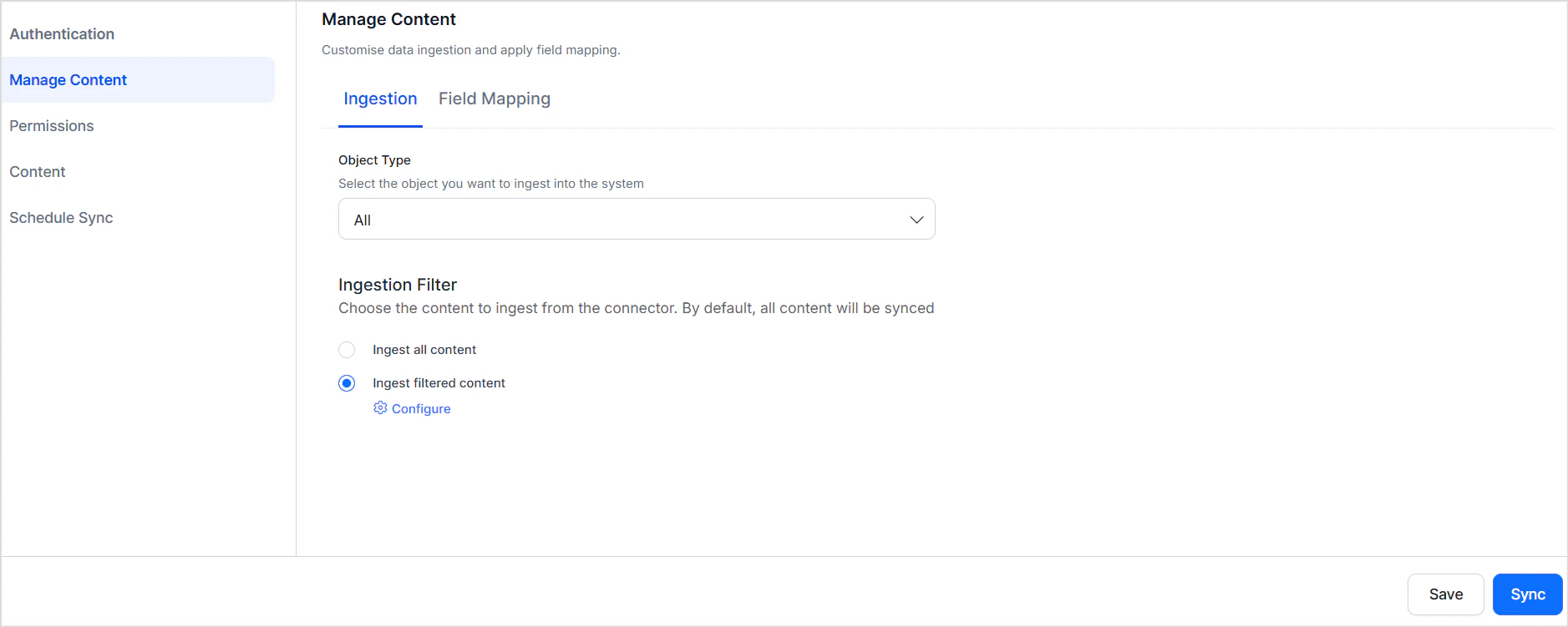
Select Ingest Filtered Content and click Configure to apply field-based rules.
-
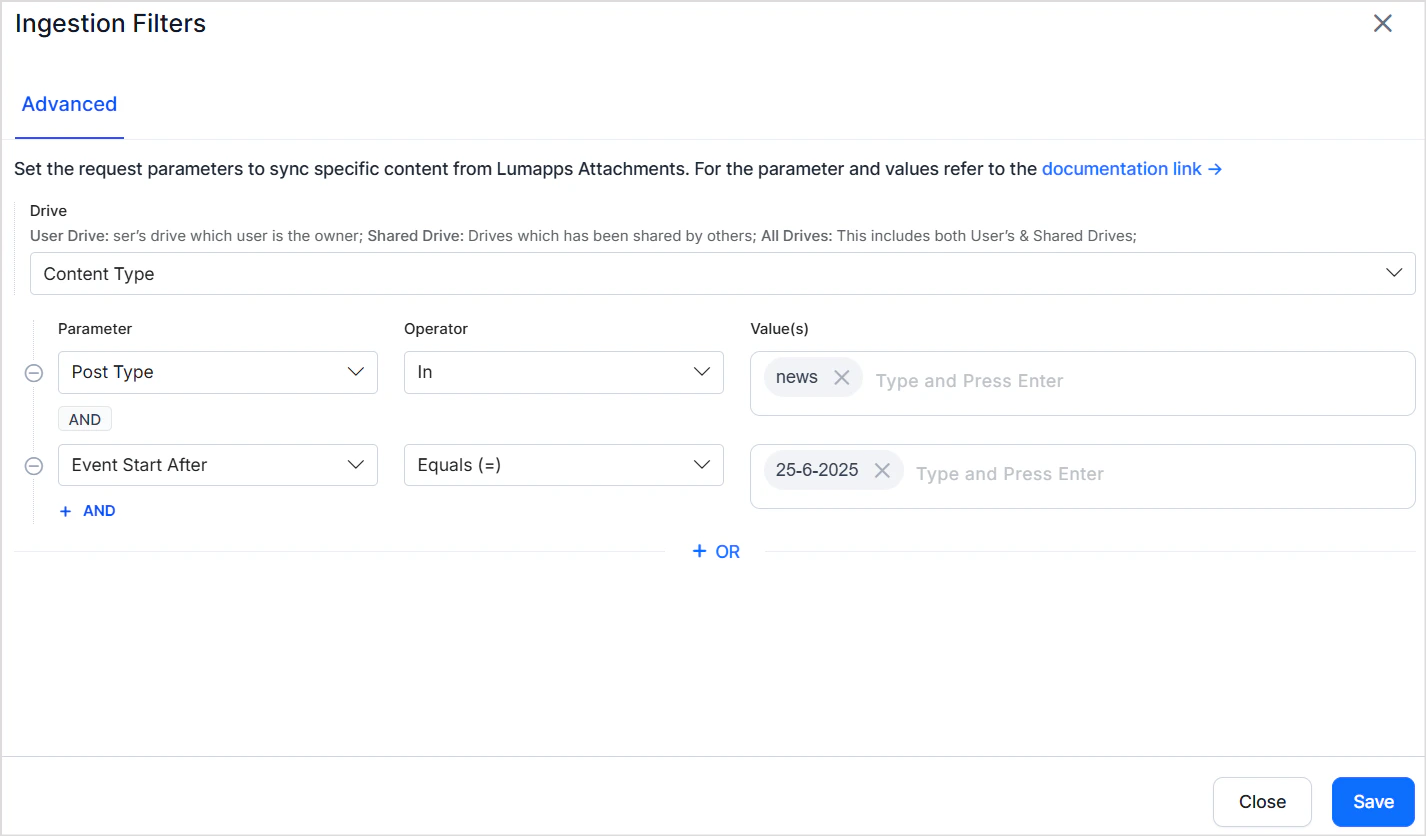
Define field-based rules to refine ingestion further. For example, ingest only news items from the past week.
Access Control
Content Objects (Pages, News, Custom Content)
-
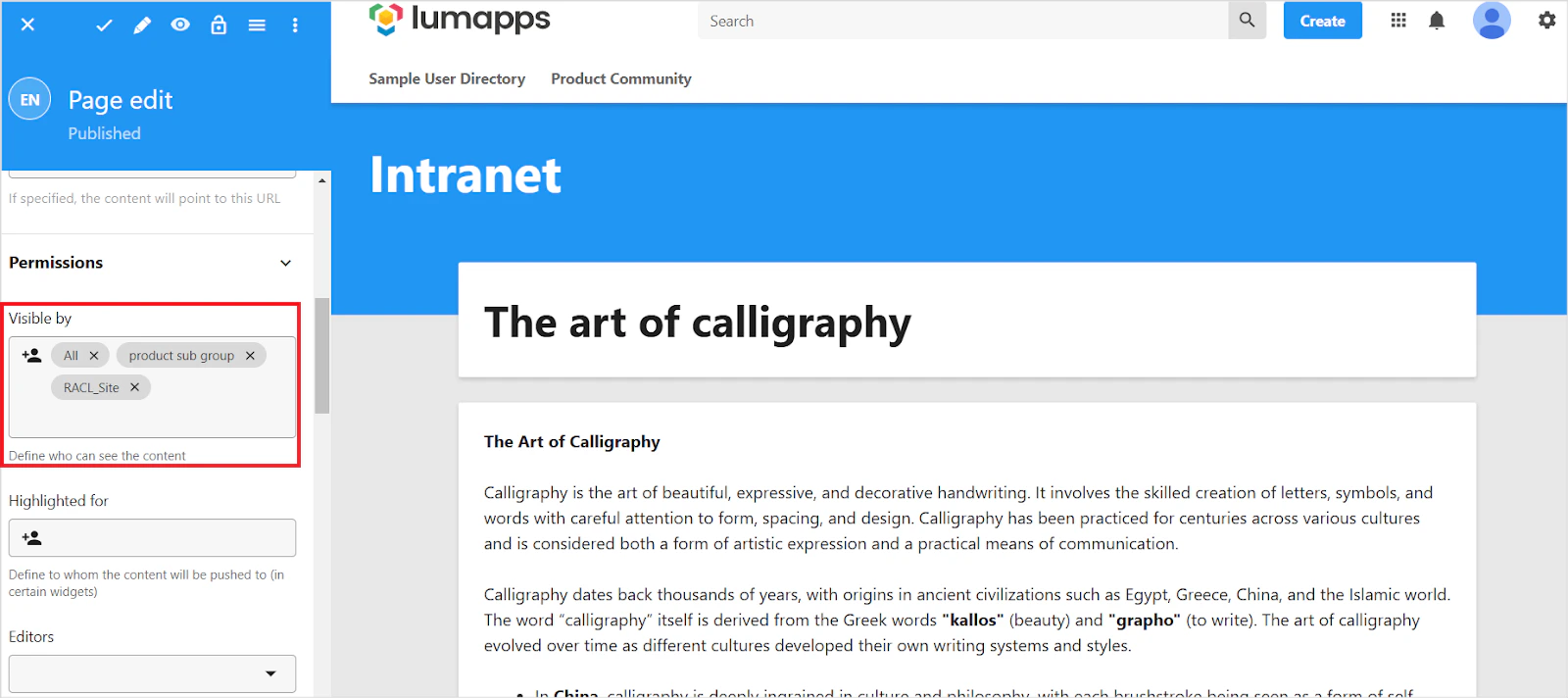
LumApps controls content visibility through the Visible By field in the UI.
-
The
sys_raclfield stores the Group ID of the user group that has access to the content. Search AI automatically resolves permission entities, associating users with the correct Group ID.
Community Posts
- The
sys_raclfield stores the Community ID, ensuring posts are visible only to authorized community members. - Search AI automatically resolves permission entities by identifying eligible members and associating them with the correct Community ID.