

Access Audit Allocations
Navigate to Quality AI > AutoQA > Allocations > New Audit Allocation.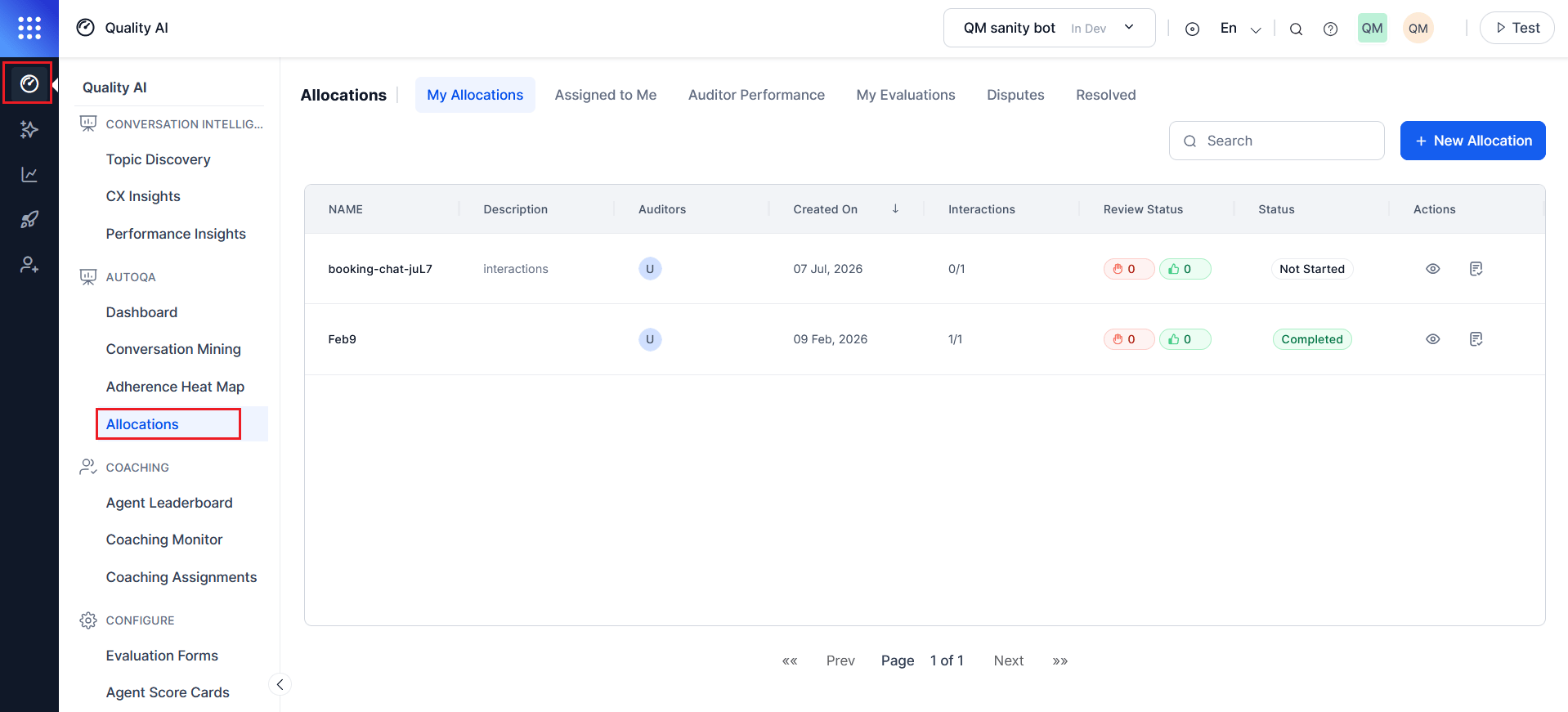
Step 1: Settings
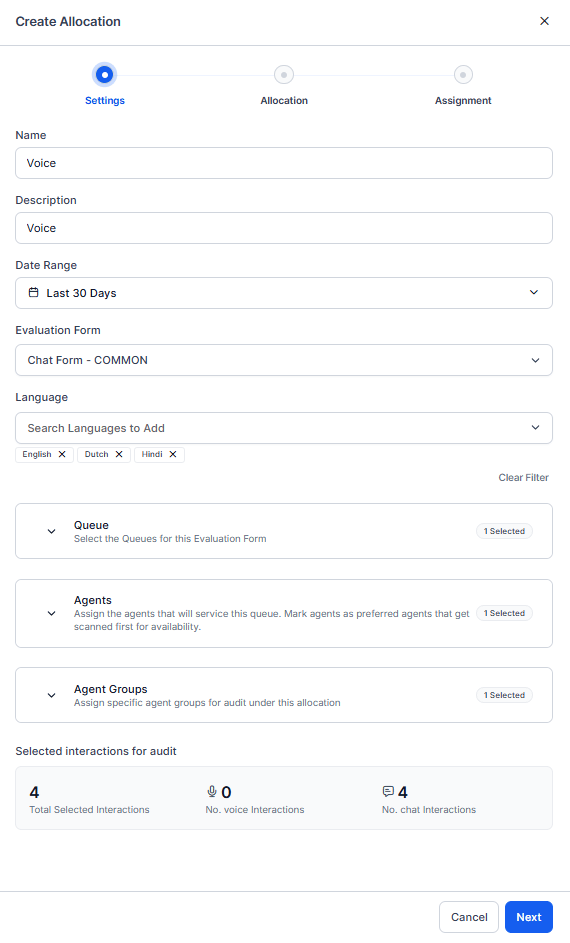
Configure the allocation details and define the interactions to evaluate.Configure Basic Information
The selected evaluation form determines the available queues and interaction directions, including Inbound, Outbound, or Both. This supports both customer-initiated and agent-initiated interactions, such as callbacks and campaigns.
Filter by Queue, Agents or Agent Groups
Limit the allocation to specific queues, agents or agent groups.The displayed counts are estimates based on the current selection criteria and may change if the allocation settings or interaction data are updated before the allocation is created.
Step 2: Allocation Type
Choose how interactions are selected from the filtered dataset.Random Allocation
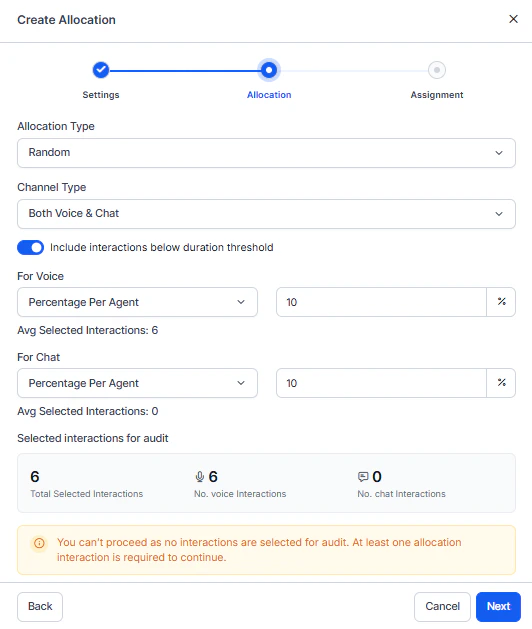
Uses statistical sampling to ensure impartial selection of interactions, providing representative coverage across agents with control over sample size.- Select the Random option.
- Enable the Channel Type: Voice, Chat, and Both.
-
(Optional) Enable Include interactions below duration threshold to include interactions that fall below the configured minimum duration threshold.
- Enabled (default)**: Below-threshold interactions are excluded from random sampling.
- Disabled: The system includes below-threshold interactions in the allocation and displays a Below Threshold indicator during evaluation.
-
Configure separate allocation logic for Voice and Chat interactions.
- Enter the required percentage or interaction count for each enabled channel. The system automatically displays allocation metrics such as average selected interactions for Voice, average interactions per agent for Chat, and the total selected interactions for both Voice and Chat.
-
Review the audit summary, which includes the total number of selected interactions and the breakdown of Voice and Chat interactions.
This setting is configurable independently for Voice and Chat channels, enabling flexible allocation behavior across different interaction types.
Custom Allocation
Applies specific filters to select interactions based on scenarios, sentiment ranges, or performance metrics. Ideal for focused evaluations or validating AutoQA accuracy.- Select the Custom option.
-
Choose one of the following filter sources.
- Saved Filter: Select a filter previously saved in Conversation Mining. Best for recurring audit focuses or standard evaluation scenarios.
-
Quick Filter: Configure a filter directly in the allocation workflow. Best for one-time allocations without saving filters. Perfect for one-time allocations without cluttering your saved filter library.
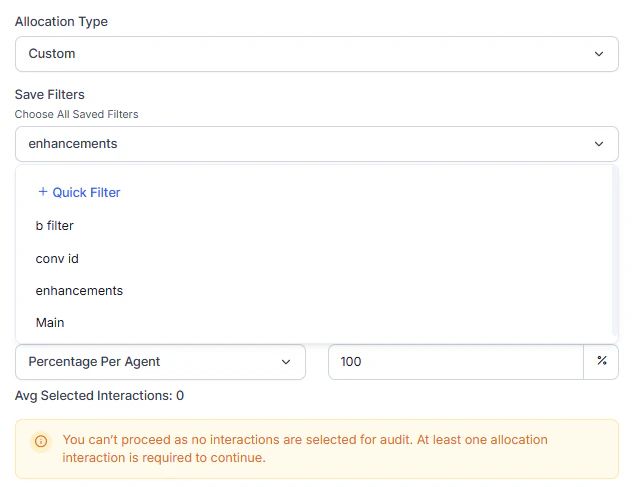
Select at least one interaction for audit allocation to proceed.
The interaction count updates dynamically as you adjust filters.
For more information on filter interactions, see Filter Interactions.
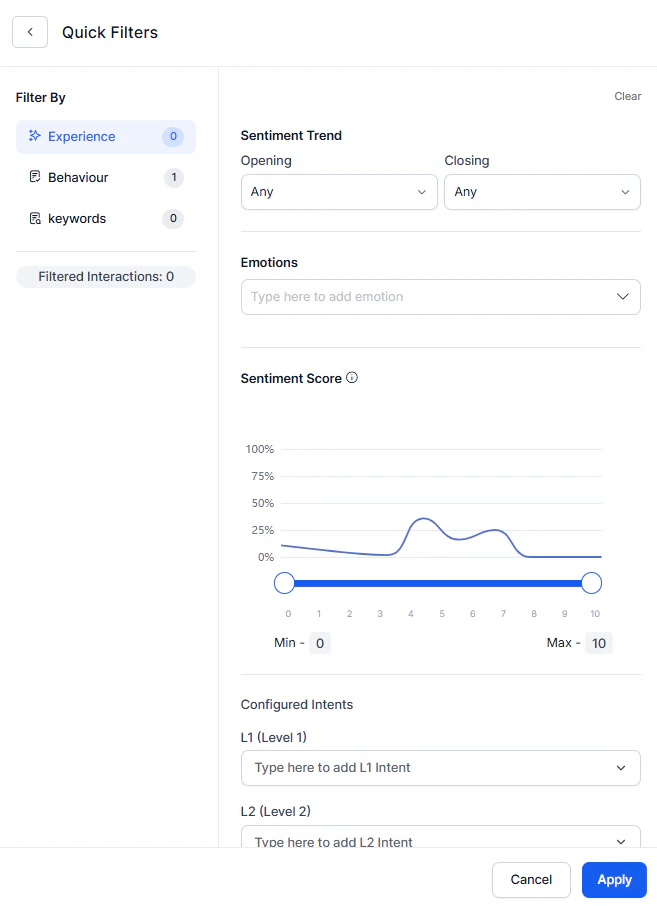
- All Interactions: Includes all interactions returned by the applied filters.
- Custom: Enables you to apply additional sampling controls to the filtered interaction set.
The system automatically displays the average number of selected interactions based on your configuration.
Example: Filter interactions with sentiment scores lower than 3, then allocate 5% per agent from those filtered interactions to focus on low-satisfaction conversations.
Select Next to proceed to the Assignment step.
Step 3: Assignment
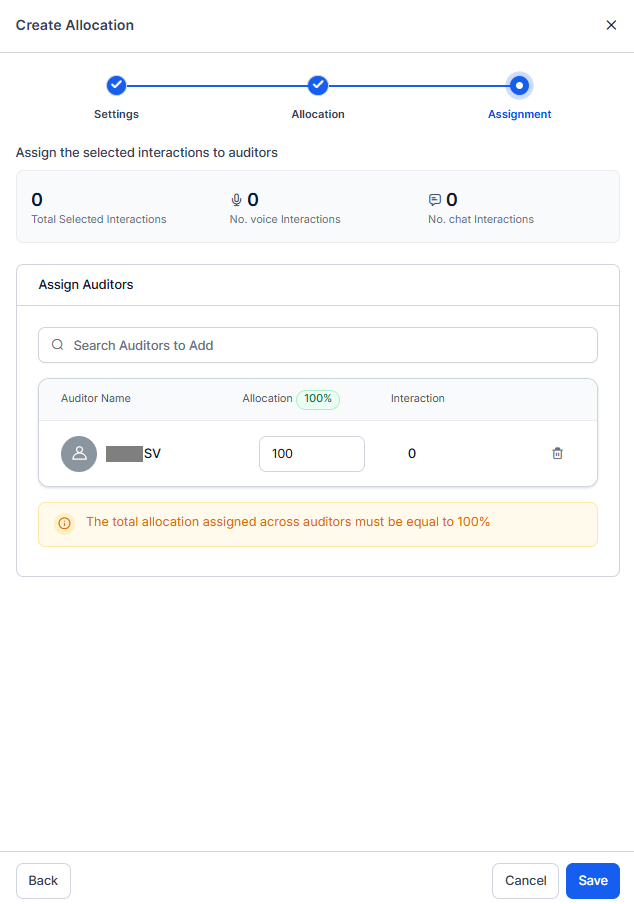
Distribute selected interactions across the auditor team, ensuring balanced workload and activating the allocation for evaluation.- Use the Search Auditors dropdown to select team members who evaluate interactions.
- Choose multiple auditors to distribute the workload. Consider these factors when selecting auditors.
- Enter the Allocation Percentage for each auditor. The system calculates the exact interaction count per auditor automatically.
-
Review the Interactions column, which automatically calculates the exact interaction count for each auditor based on your percentage input.
Example (100 total interactions, 3 auditors):
- Auditor A: 40% = 40 interactions
- Auditor B: 30% = 30 interactions
- Auditor C: 30% = 30 interactions
- Verify that the total equals 100%.
-
Review your complete allocation configuration:
- Settings: Form, languages, agents, agent groups.
- Allocation: Method (Random or Custom), filters, total interactions.
- Assignment: Auditors and their percentages.
- Select Save to activate the allocation.
After Creating an Allocation
- The allocation displays in your My Allocations tab.
- Auditors see their assigned interactions in Assigned to Me.
- Track completion progress in real-time.
- AI Agent evaluations are processed as system-scoped evaluation sets.
- Edit the allocation at any time to reassign pending interactions.
- You can reassign the pending interactions at any time without affecting completed evaluations.
If you enable Agent Accept & Dispute and configure disputes for the selected evaluation form, the Review Status column tracks agent acknowledgments and dispute activity for all audited interactions in the allocation.
Step 4: Dispute Allocation (Human Agent Only)
Available only when Agent Accept & Dispute is enabled.Dispute Resolution Assignment
The Dispute Resolution Assignment setting to enable or disable disputes feature for evaluations under this allocation.Dispute Routing Rule
When you enable Dispute Resolution Assignment, select how the system routes disputes for re-evaluation.Auditor List (Different Auditor Only)
When you select Different Auditor, define the pool of auditors available for dispute routing. Add Auditors- Select Search Auditors to Add.
- Search for and select one or more auditors.
- Select Add.
Allow Multi-Round Re-Disputes
The Allow Multi-Round Re-Disputes option controls whether agents can raise additional disputes after QA re-evaluation.Maximum Re-Disputes Allowed
When you enable multi-round disputes, select the maximum number of dispute rounds.
When the system reaches the limit, it changes the evaluation status to Closed and prevents any further disputes.
Dispute configuration is not applicable for AI Agent allocations.