> ## Documentation Index
> Fetch the complete documentation index at: https://koreai-ai-for-work-dev.mintlify.site/llms.txt
> Use this file to discover all available pages before exploring further.
# Feedback Survey
You can design feedback surveys for products, services, and overall experiences using out-of-the-box templates for web and mobile channels. Configure an AI Agent to trigger surveys at a specific point in a conversation or at the end (via the **end-of-conversation** event).
Supported survey types: **NPS**, **CSAT**, and **Like/Dislike**.
## Key Capabilities
* **Channel-agnostic**: Works across use cases and channels. Displays text by default; add channel-specific prompts for voice.
* **Voice support**: Text messages auto-convert to voice using ASR and TTS engines.
* **Customizable flows**: Modify out-of-the-box messages, add channel-specific prompts, and capture feedback on voice.
* **Flexible configuration**: Use built-in flows with a **Feedback Service**, collect from external sources, or use a hybrid approach.
* **Follow-up questions**: Configure a follow-up for negative feedback to capture additional details.
* **Acknowledgement messages**: Thank customers after survey completion.
* **Analytics integration**: Responses appear in the Conversations History Dashboard and can be filtered by Feedback Type, Response, and Score. [Learn more](/ai-for-service/analytics/overview/conversations-history).
### Feedback Data Collection Methods
Feedback responses are captured and sent to the platform in three ways:
| Method | Description |
| -------------- | -------------------------------------------------------------------------------------------------------------------------------------------------------------------- |
| **Dialog** | Create a dialog to capture responses and generate analytics on the Feedback Analysis Dashboard. [Learn more](/ai-for-service/analytics/overview/feedback-dashboard). |
| **Public API** | Push feedback data using the Public API. [Learn more](/ai-for-service/apis/automation/save-feedback-survey-scores). |
| **Botkit** | Push feedback data via the Botkit SDK. [Learn more](/ai-for-service/sdk/using-the-botkit-sdk#feedback-surveys). |
## Navigation
Go to **Automation AI > Virtual Assistant > Feedback Survey**.
## Survey Types
### NPS (Net Promoter Score)
Measures customer loyalty with a single question rated on a **0-10 scale**.
| Category | Score | Description |
| -------------- | ----- | ------------------------------------------------------------------------- |
| **Promoters** | 9-10 | Loyal, satisfied customers highly likely to return. |
| **Passives** | 6-8 | Satisfied customers who may or may not return. |
| **Detractors** | 0-5 | Unsatisfied customers unlikely to return; may share negative experiences. |
### CSAT (Customer Satisfaction)
Measures satisfaction on a **1-5 scale** for a question like **"How satisfied were you with the conversation?"**
| Score | Category |
| ----- | ---------------- |
| 1 | Very Satisfied |
| 2 | Satisfied |
| 3 | Neutral |
| 4 | Unsatisfied |
| 5 | Very Unsatisfied |
### Like/Dislike
The customer responds with a **Like** (score: 1) or **Dislike** (score: 0) icon.
## Create a Feedback Survey
1. Go to **Automation AI > Virtual Assistant > Feedback Survey**.
2. Click the appropriate button:
* **First survey**: Click **Add Feedback Survey**.
* **Subsequent surveys**: Click **New Survey**.
3. In the **Add Feedback Survey** window, complete the three steps below.
### Step 1: Survey Details
1. Enter a **Survey Name**.
2. Select the **Survey Type**: **NPS**, **CSAT**, or **Like/Dislike**.
3. Click **Next**.
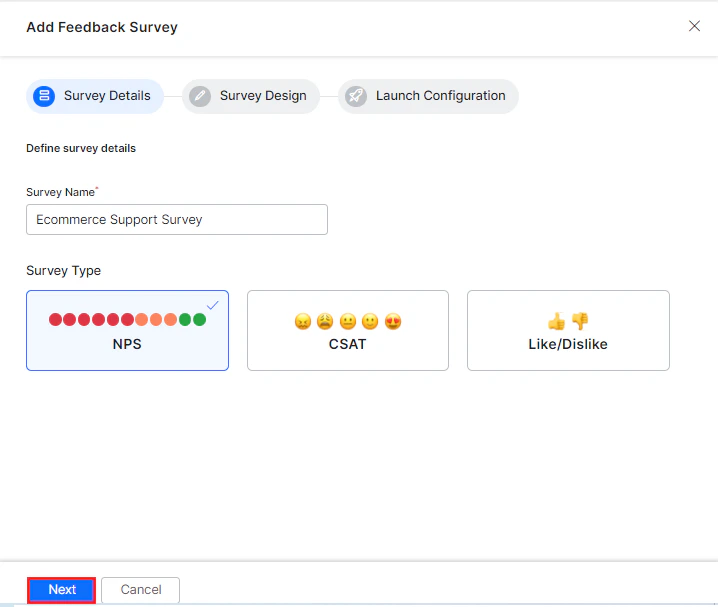 ### Step 2: Survey Design
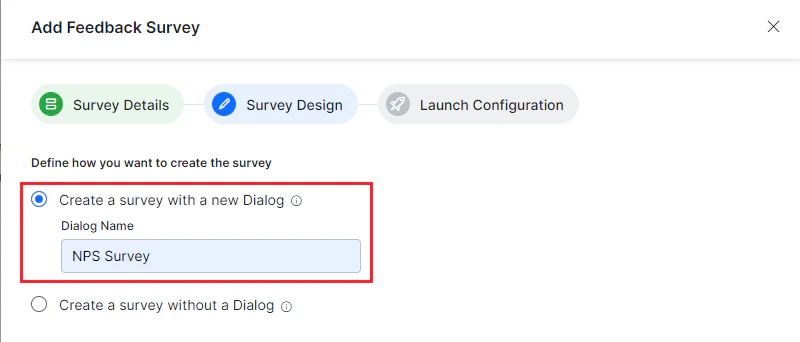
Choose how to create the survey:
#### Option A: Create Survey with a New Dialog
Creates a customizable dialog task with the flow to collect feedback and capture analytics.
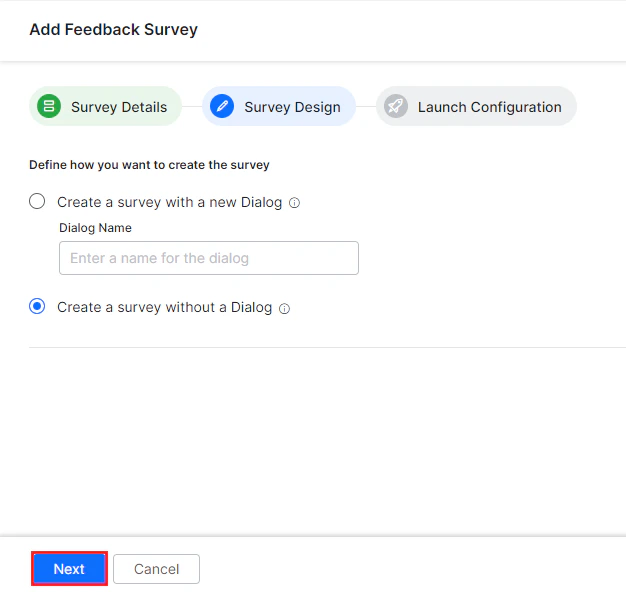
1. Enter the **Dialog Name**.
### Step 2: Survey Design
Choose how to create the survey:
#### Option A: Create Survey with a New Dialog
Creates a customizable dialog task with the flow to collect feedback and capture analytics.
1. Enter the **Dialog Name**.
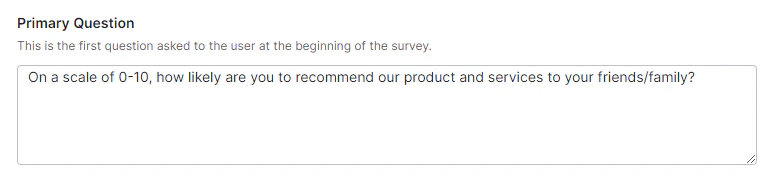
 2. Set or modify the **Primary Question** for the selected survey type.
 3. Review the response options for your survey type:
**NPS**
3. Review the response options for your survey type:
**NPS**
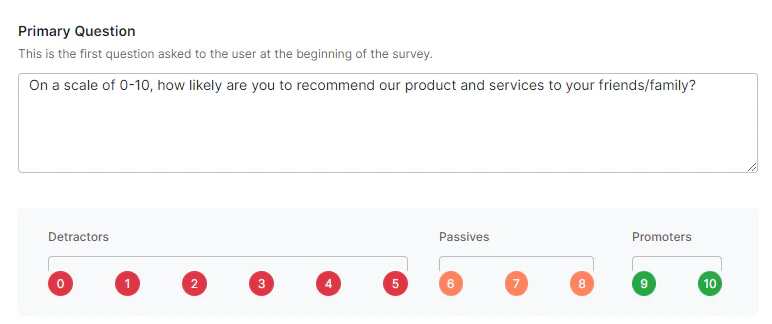 **CSAT**
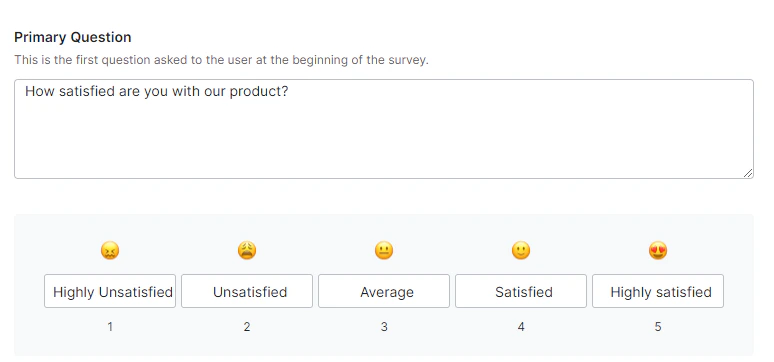 **Like/Dislike**
 Default response names for **CSAT** and **Like/Dislike** are editable. Scores are fixed and can't be changed for any survey type.
#### Option B: Create Survey without Dialog
Select **Create Survey without Dialog** and click **Next** to build a custom flow independently.
Default response names for **CSAT** and **Like/Dislike** are editable. Scores are fixed and can't be changed for any survey type.
#### Option B: Create Survey without Dialog
Select **Create Survey without Dialog** and click **Next** to build a custom flow independently.
 #### Follow-up Question (Optional)
Configure a follow-up question to capture additional details from customers who give negative feedback.
1. Enable the **Follow-up Question** toggle.
#### Follow-up Question (Optional)
Configure a follow-up question to capture additional details from customers who give negative feedback.
1. Enable the **Follow-up Question** toggle.
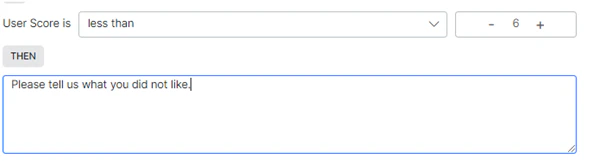
 2. Set the **IF condition** by selecting a conditional option for **User Score**.
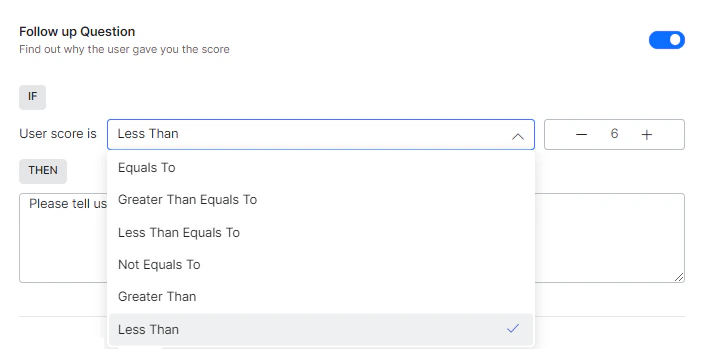 3. Set the score threshold using the **feedback score counter**.
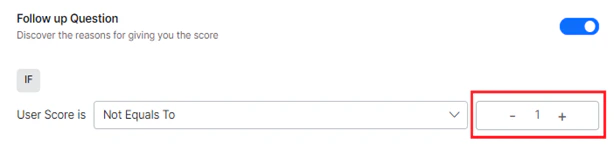 4. Edit or keep the default question for the **THEN** clause.
 #### Acknowledgement Message
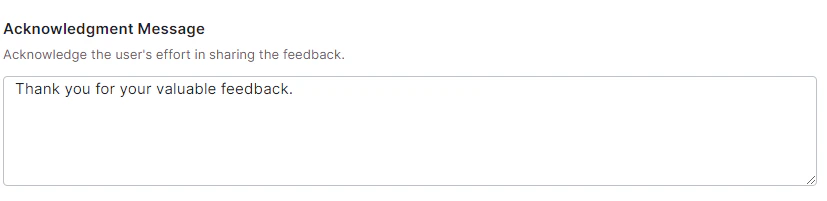
Edit or keep the default message shown to customers after they complete the survey.
#### Acknowledgement Message
Edit or keep the default message shown to customers after they complete the survey.
 Click **Next** to proceed to launch configuration.
### Step 3: Launch Configuration
Choose when to trigger the survey:
| Option | Behavior |
| ------------------------------------------ | ------------------------------------------------------------------------------------------------------------------------------------------------------------------ |
| **Launch after End of Task** | Triggers automatically at the end of every conversation. Overrides the **End of Task** event under **Automation AI > Events > Conversation Events > End of Task**. |
| **I will decide how to launch the Survey** | Manually launch via the associated dialog task at **Build > Conversational Skills**. |
Click **Next** to proceed to launch configuration.
### Step 3: Launch Configuration
Choose when to trigger the survey:
| Option | Behavior |
| ------------------------------------------ | ------------------------------------------------------------------------------------------------------------------------------------------------------------------ |
| **Launch after End of Task** | Triggers automatically at the end of every conversation. Overrides the **End of Task** event under **Automation AI > Events > Conversation Events > End of Task**. |
| **I will decide how to launch the Survey** | Manually launch via the associated dialog task at **Build > Conversational Skills**. |
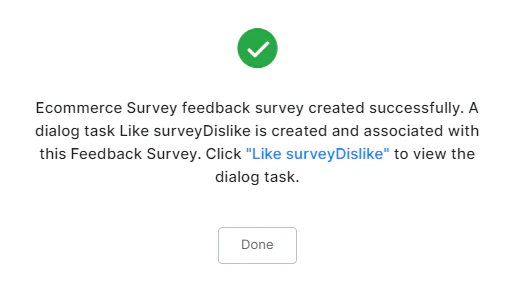
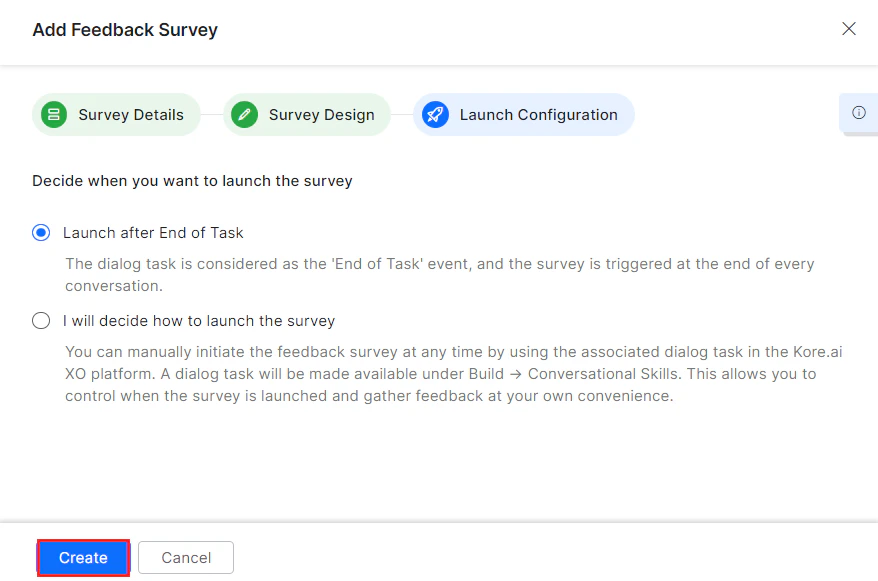 Click **Create**. A confirmation message appears with your survey details.
 ## Survey Dialog Flow
After creation, the survey dialog task is available at **Build > Conversational Skills > Dialog Tasks**.
The task flow uses **Entity**, **Message**, and **Service** nodes. You can customize it by modifying the dialog flow definition fields.
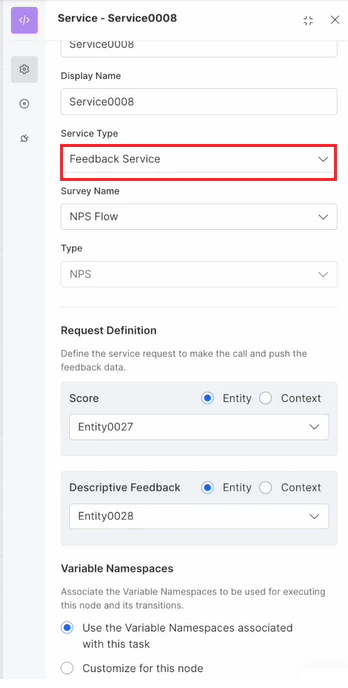
* **Feedback Service** is a new **Service Type** under **General Settings**. Use it to submit feedback captured from custom flows.
## Survey Dialog Flow
After creation, the survey dialog task is available at **Build > Conversational Skills > Dialog Tasks**.
The task flow uses **Entity**, **Message**, and **Service** nodes. You can customize it by modifying the dialog flow definition fields.
* **Feedback Service** is a new **Service Type** under **General Settings**. Use it to submit feedback captured from custom flows.
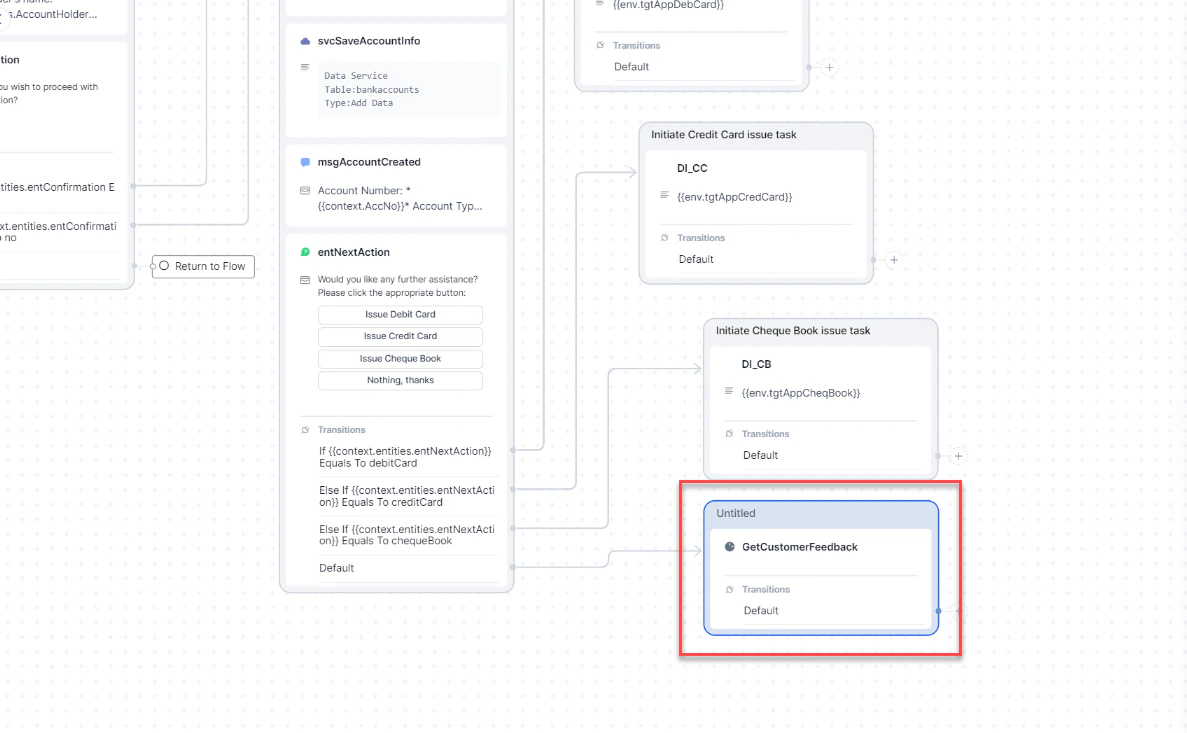
 * Invoke the feedback survey as a sub-dialog from any point in a conversation.
 ***
***