> ## Documentation Index
> Fetch the complete documentation index at: https://koreai-ai-for-work-dev.mintlify.site/llms.txt
> Use this file to discover all available pages before exploring further.
# Go To Flow Node
Use this node to navigate from a parent flow to a target flow that handles a specific part of the customer interaction.
## Configure the Node
### General Settings
In **General Settings**, configure the following:
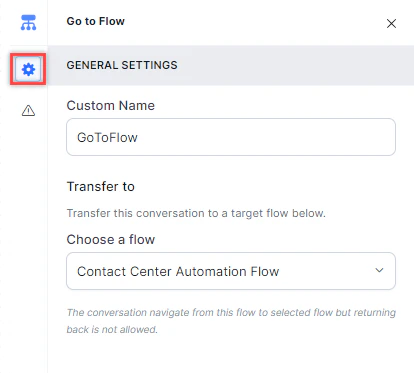 1. **Custom Name**: Enter a name to identify the node.
2. **Transfer To**: Under **Choose a Flow**, select the target flow from the dropdown.
### Error Handling
Use this section to handle system errors during customer interactions.
1. **Custom Name**: Enter a name to identify the node.
2. **Transfer To**: Under **Choose a Flow**, select the target flow from the dropdown.
### Error Handling
Use this section to handle system errors during customer interactions.
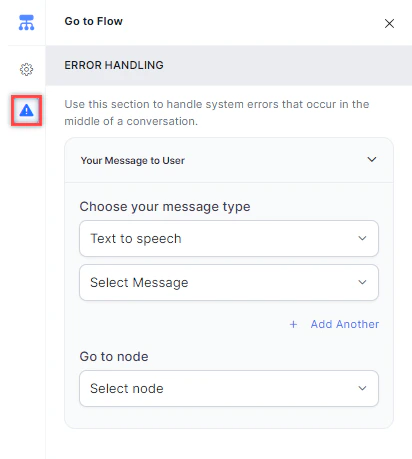 * **Your Message to User**: Select a message type under **Choose your message type**:
* **Text to Speech**: Type or select a message to convert to speech. Click **+ Create New** to add a new prompt, or **+ Add Another** to define multiple messages (one is randomly selected at runtime).
* **Your Message to User**: Select a message type under **Choose your message type**:
* **Text to Speech**: Type or select a message to convert to speech. Click **+ Create New** to add a new prompt, or **+ Add Another** to define multiple messages (one is randomly selected at runtime).
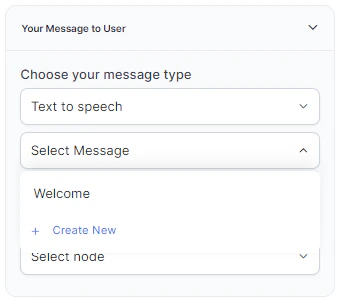 * **Audio File**: Type a message or click **+ Upload New** to upload an .mp3 or .wav file.
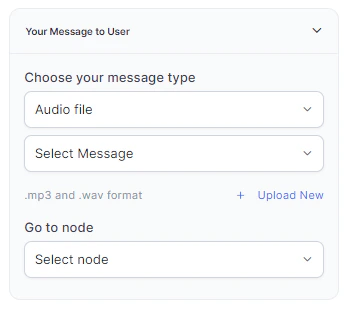 * **Link**: Click **+ Create New** to add message text and an audio file URL (.mp3 or .wav). Click **+ Add Another** for additional URLs.
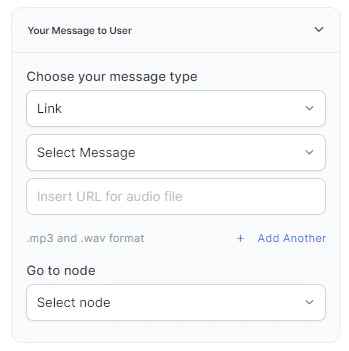 * **Go to node**: Select the node to direct the error handling flow. You can create a new node or select an existing one.
!!! note
Waiting experience overrides defined in GoTo flows don't override waiting experience utils configured in main flows.
* **Go to node**: Select the node to direct the error handling flow. You can create a new node or select an existing one.
!!! note
Waiting experience overrides defined in GoTo flows don't override waiting experience utils configured in main flows.