

Import & Export
Import Types
Back up the target agent before a Full Import. Overwritten configurations can’t be recovered.
Bot imports aren’t supported — only App imports. To upgrade an XO10 Bot, follow the migration path to XO11.
config.json file. It contains variables that need values for the target agent.
Import to an Existing Agent
- Open the target agent and go to Deploy > Import & Export.
- Select the Import tab.
- Choose an upload method:
- JSON Files: Upload
appDefinition.jsonandconfig.jsonseparately. Optionally upload a custom script file (max 500 KB).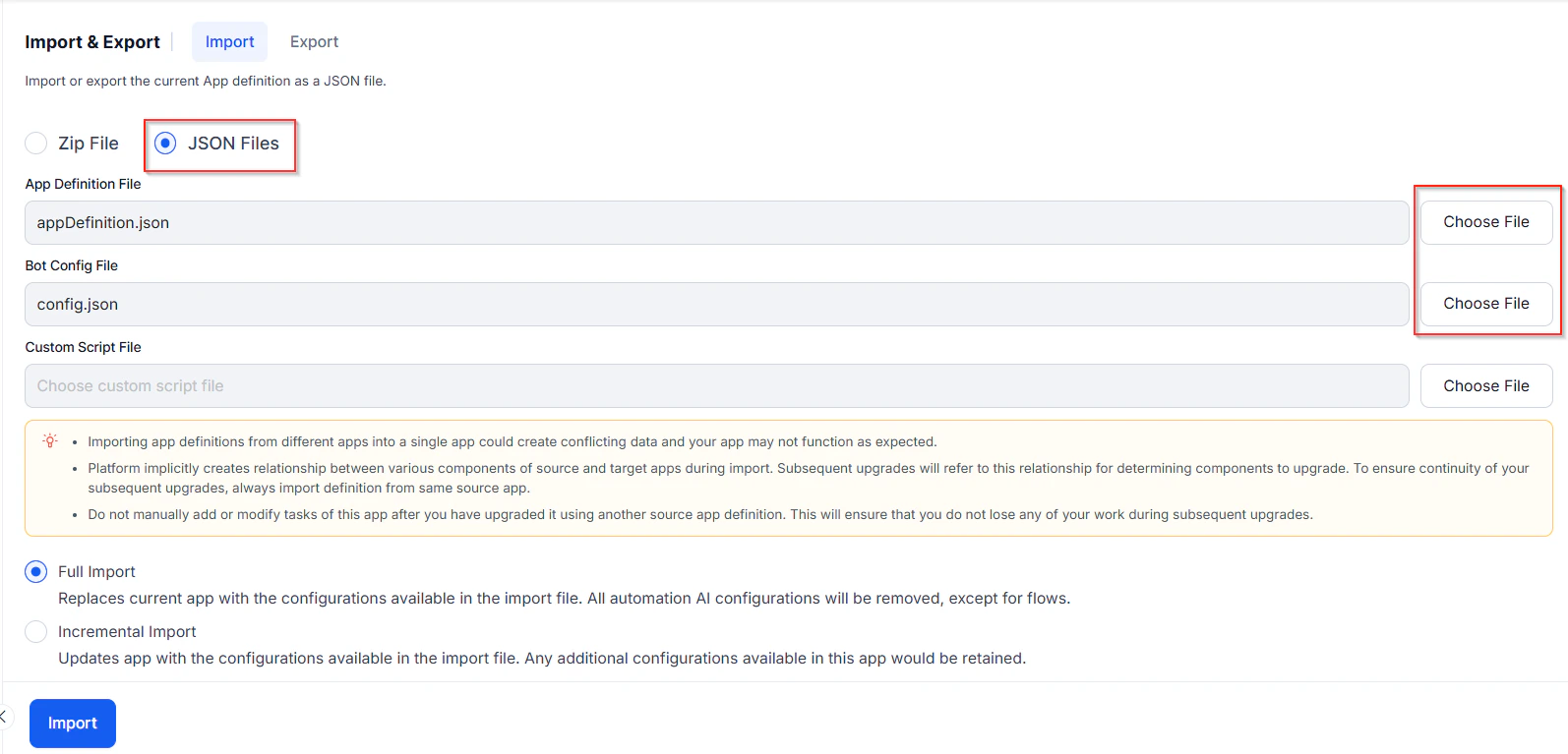
- ZIP File: Upload the
.zipexported from the source agent directly.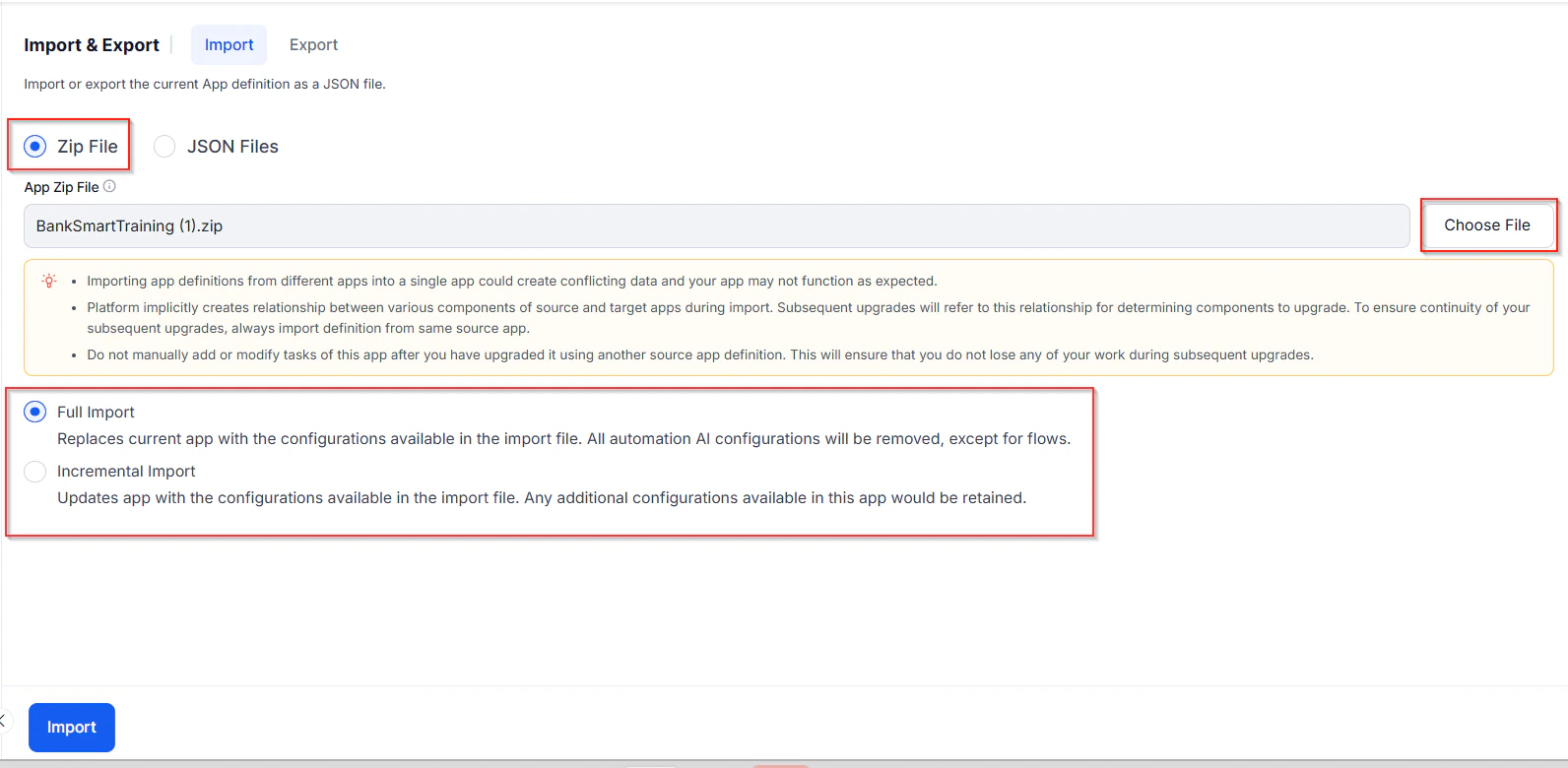
- JSON Files: Upload
- Select Full Import or Incremental Import.
- Full Import behavior for Generative AI and LLM:
- Deletes existing models and prompts in the target; overwrites with those from the import file.
- Retains model configurations present in both source and target.
- Replaces all feature mappings, custom instructions, guardrails, and DialogGPT.
- Preserves existing integrations; imports XO-GPT as-is.
- Enables imported features with warnings.
- Handles Azure OpenAI by Kore.ai integration based on token status.
- Requires a manual update of the LLM key when importing a DialogGPT-enabled export that uses LLMs (other than XO-GPT) for the application to function as expected.
- For Incremental Import, select the components to import:
.png?fit=max&auto=format&n=RttY__x4okvRD_cH&q=85&s=3f0fa30be890b819475ae64a125435e1)
- Flows: Select specific flows to import.
- Automation Tasks: Dialog tasks, Digital Forms, Small Talk, or FAQs (with or without comments).
When importing Automation Tasks, also select NLP Data — utterances linked to dialog tasks aren’t imported otherwise.
- NLP Data: Synonyms, Concepts, Traits, Rules, Utterances, Patterns, and Standard Responses.
- Append (default): Imports utterances and retains any additional utterances in the agent.
- Replace: Imports utterances and removes any additional utterances in the agent.
.png?fit=max&auto=format&n=RttY__x4okvRD_cH&q=85&s=6d33c191bae9d8809089e7b9b0e2f05f)
- Settings: App Settings, Variables, Voice Call Properties, and Generative AI and LLM (integrations, prompts, feature mappings, guardrails, DialogGPT).
- Custom Dashboards: Imports custom dashboards from the Analyze section.
- Agent AI Dashboards: Agent coaching rules, checklists, and configurations.
- On the backup prompt, click Backup to download the current agent configuration.
.png?fit=max&auto=format&n=RttY__x4okvRD_cH&q=85&s=daf9ba9471ad8ffde41cc3cf1ce58c82)
- Click Proceed, then Done after the import completes.
Import fails if the agent has been restored but not published after the restore.
Create a New Agent via Import
- On the landing page, click New App > Import App.
-new.png?fit=max&auto=format&n=RttY__x4okvRD_cH&q=85&s=3d3b6b75c770ee748f48c7d84918bcfe)
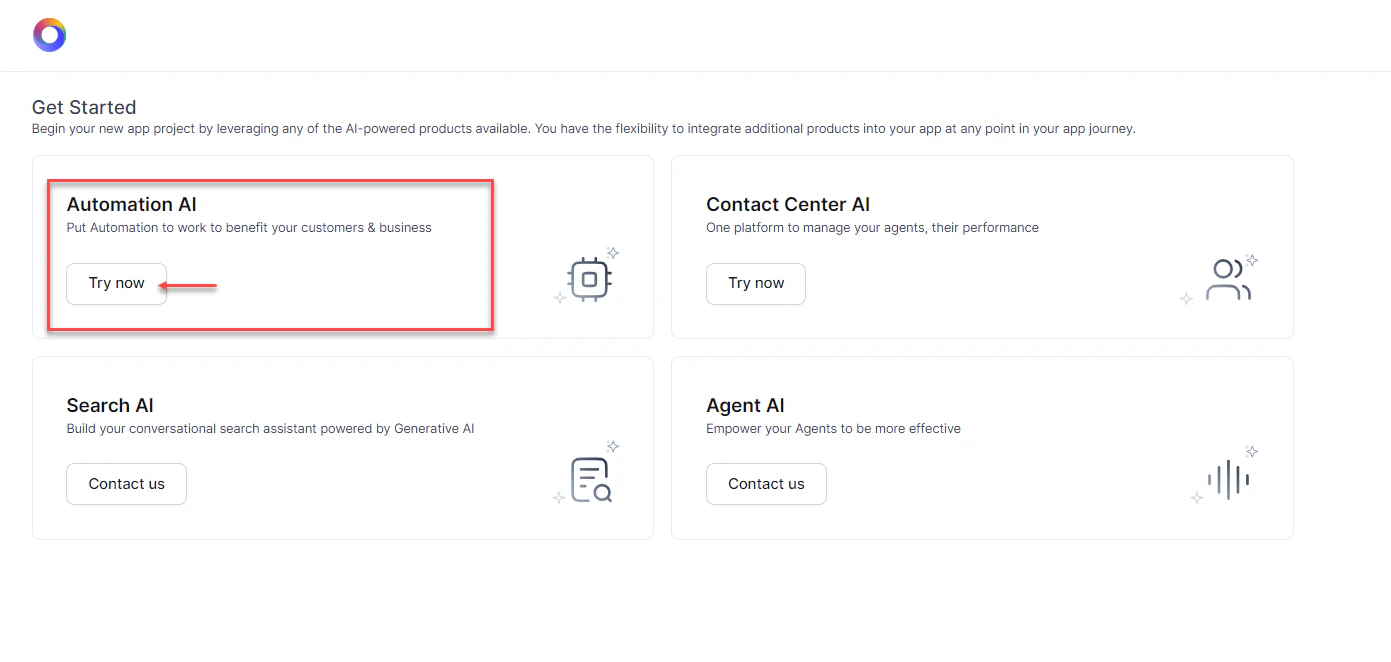
- On the Get Started screen, click Try now on the Automation AI tile.
- Enter an App Name and optionally set an icon.
- Choose an upload method:
- JSON Files: Upload
appDefinition.jsonandconfig.json. Optionally upload a custom script file (max 500 KB). - ZIP File: Upload the exported
.zipdirectly.
- JSON Files: Upload
- Click Create App.
.png?fit=max&auto=format&n=RttY__x4okvRD_cH&q=85&s=0ff5def302087748be5cdc7755953a87)
Incremental Import: Component Reference
Export
Exporting downloads a.zip archive with the following files:
Each agent and its components receive unique Reference IDs on export. These IDs let the platform match and update tasks in the target agent during import.
Export Modes
Published Mode — exports only the published version of each task.In Dialog tasks, only nodes in the Published status are exported.
Steps to Export
- Open the agent and go to Deploy > Import & Export.
- Select Export.
- Select Published or Latest Version mode.
- Deselect any components to exclude (all selected by default).
.png?fit=max&auto=format&n=RttY__x4okvRD_cH&q=85&s=ce39fbbb212a7da43af54d336ca09c3e) If bot events reference Dialog tasks not included in the export, those events are disabled in the exported copy. Include all tasks referenced by bot events to avoid this.
If bot events reference Dialog tasks not included in the export, those events are disabled in the exported copy. Include all tasks referenced by bot events to avoid this. - For Automation Tasks, select specific tasks to export (default: all).
When exporting Automation Tasks, also select NLP Data to include their utterances.
- Optionally enable Include dependent tasks to export linked dialogs and sub-intents. Import fails if dependent tasks are missing.
When enabled, the Import/Export validation layer performs a pre-flight dependency check before app import or export operations. The validation identifies missing or unresolved references across dialogs, forms, flows, widgets, GenAI prompts, tools, and other dependent components, and displays any findings as informational messages, warnings, or errors with detailed dependency information.
.png?fit=max&auto=format&n=RttY__x4okvRD_cH&q=85&s=2f69eca072b449d1a1f7f5ae56b1ee43)
- Click Export. When complete, click Download.