

Introduction to Call Control Parameters
Call control parameters are general-purpose parameters that can modify a call’s behavior, including ASR/STT & TTS configurations.Automatic Speech Recognition (ASR) and Speech-to-Text (STT) are two terms that refer to the same technology. Both involve converting spoken language into written text by analyzing and interpreting audio input. The terms are used interchangeably, describing the same function—transforming speech into readable, actionable text.
- Session-Level Parameters: Add the prefix
session.to apply parameters throughout the session (for example,session.ttsprovider). - Node-Level Parameters: Add the prefix node. to apply parameters only at a specific node (for example,
node.ttsprovider). - Default Behavior: The platform considers parameters without a prefix as session-level by default.
- Node-level parameters take precedence over session-level parameters. If no node-level parameters are defined, session-level properties apply.
Node Level Call Control
The call control section is Available In Entity Node/Message Node/Confirmation Node > IVR Properties > Advanced Controls. Learn more.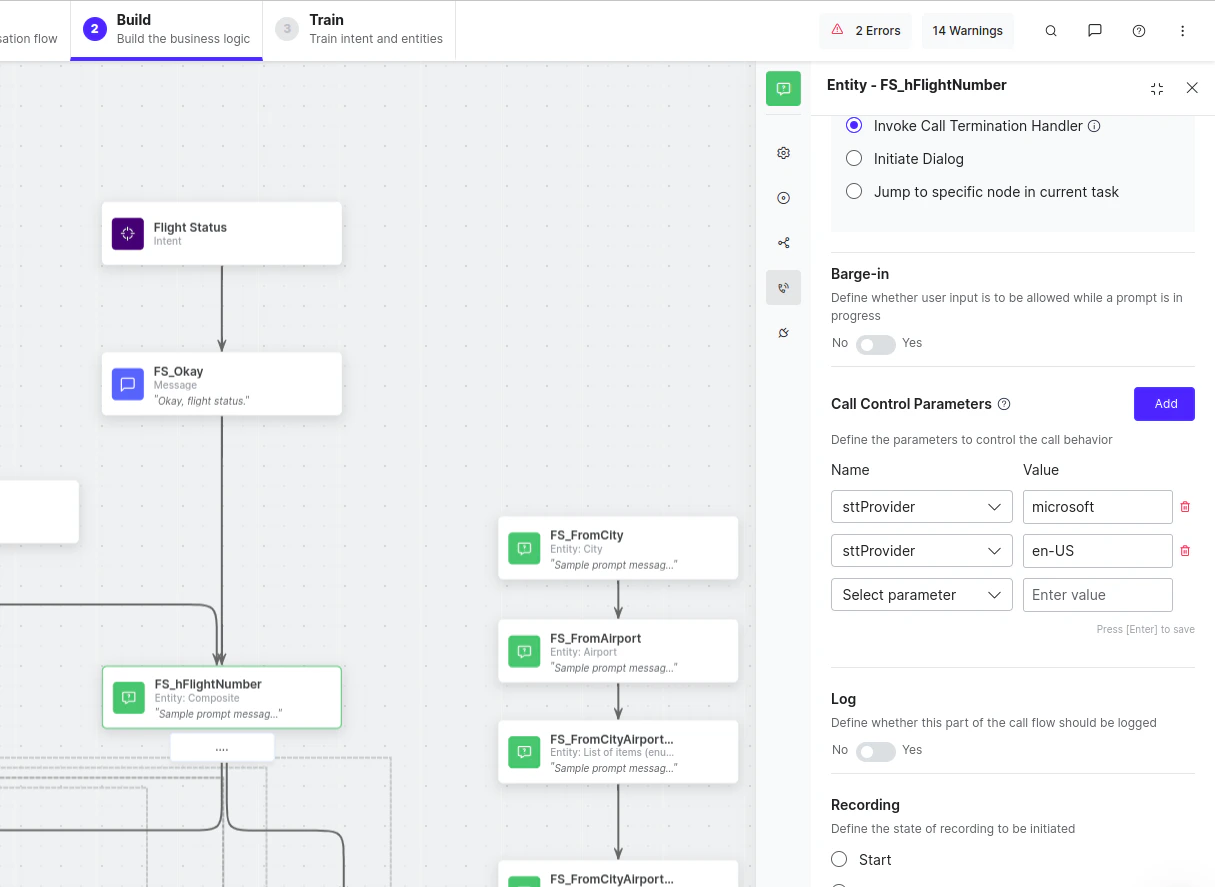
Channel Level Call Control
Update/Modify Parameters
When updating language settings or modifying Automatic Speech Recognition (ASR) and Text-to-Speech (TTS) parameters in Call Control Parameters, users can specify the updated field along with a minimal set of required parameters. For example, if a user has configured the Speech-to-Text (STT) provider and language in the call control parameters and wants to add existing values. Users only need to provide the additional sttLanguage parameter without redefining the previously set values. This behavior applies to Session-Level Call Control Parameters. Example Existing Parameters:sttProvider and previously set sttLanguage, ensuring that only the new parameter adds without requiring users to re-enter unchanged values.
Supported Speech Engines (ASR/TTS)
Voice Gateway supports several third-party service providers for ASR/TTS. Learn moreSupported Call Control Parameters
Provider Related Parameters
Speech-to-text (STT) and text-to-speech (TTS) services interface with the user using a selected language (for example, English US, English UK, or German). TTS services also use a selected voice (for example, female or male) to respond.-
Use STT for recognizer:
sttProvider→google,microsoft. -
Use TTS for synthesizer:
ttsProvider→google,microsoft,aws.
Apply the following parameters only when STT is set as Recognizer. * Otherwise, the system uses default bot-level or Voice Gateway settings. * These properties are applied at the session level.
Example for node.alternativeLanguages
Use Cases and Benefits
Reduce Voice Bot Response Latency Parameter:enableTTSChunking
Enables chunking of long bot responses so the system starts audio playback before processing the full text. This improves time-to-first-audio and creates a smoother conversational flow.
Improve Turn Detection in Voice Conversations
Parameters: eotThreshold, eagerEotThreshold, eotTimeoutMs
Controls how the system detects when a user finishes speaking. Fine-tune these values to reduce interruptions, avoid delays, and prevent overlapping speech.
Enable Faster AI Response Generation
Parameter: eagerEotThreshold
Lets the system to begin generating a response before the user fully stops speaking, improving responsiveness and real-time interaction.
Improve Speech Recognition for Domain Terms
Parameter: entityPrompt
Provides hints for domain-specific terms (such as order IDs or product names) to improve speech recognition accuracy.
Enable Multi-Language Voice Bots
Parameter: sttProvider, deepgramModel
Use Deepgram Flux to support callers who may switch languages mid-call — for example, an English-speaking agent and a Hindi-speaking customer on the same call, or a bilingual user alternating between Spanish and English. The flux-general-multi model handles recognition for all supported languages within a single uninterrupted ASR session.
Enable Automatic Mid-Call Language Switching
Parameter: sttProvider, deepgramModel
Use Deepgram’s flux-general-multi model to automatically detect and switch between supported languages during a call without restarting the ASR stream. Supports 10 languages including English, Hindi, Spanish, French, German, Russian, Portuguese, Japanese, Italian, and Dutch.
Privacy and Compliance Control
Parameter: mipOptOut
Prevents the system from using customer audio data for model training.
Debugging and Quality Monitoring
Parameter: azureAudioLogging
Enables logging to help analyze recognition errors, audio quality, and language detection issues during testing and troubleshooting.
Cloned Voices
Configure a Custom Cloned Voice (ElevenLabs Integration) Voice Gateway supports custom voices cloned in ElevenLabs. To activate a cloned voice for your agent, share your ElevenLabs API credentials with the Support team. Once integration is complete, you can enable the voice through call control parameters-no redeployment required.
Setup Steps:
- Raise a support ticket with your credentials: Submit a support ticket with your API key, the team completes the integration on your account and shares the new label name.
- Activate using call control parameters: On completion of the integration, enable the cloned voice in your Voice AI Agent by passing the appropriate call control parameters in your flow configuration. No code changes or redeployment needed.
Treat the ElevenLabs API key as a password. Share it only through secure support tickets and don’t include it in screenshots, logs, or public channels.
Labels and Fallback Provider Related Parameters
Label-Assign/Create a label only if you need to create multiple speech services from the same vendor. Then, use the label in your application to specify which service to use. How to Configure Label- Add a speech service inside the Speech tab.
- Select a provider and add a label with a unique name.
- Use the same label in the call control parameter.
- At the same node where you use fallback call control parameters, you must also pass the primary Recognizer and Synthesizer.
The node at which you use fallback call control parameters must also define the primary recognizer and synthesizer. * Best practice: use the same ASR engine in fallback with a different label or region. * If the current provider fails, Voice Gateway switches to the fallback provider. * Fallback properties are applied at the session level.
Continuous ASR Related Parameters
Continuous ASR (Automatic Speech Recognition) lets the speech-to-text engine to handle user inputs like phone numbers or customer IDs that may include pauses between utterances. This improves recognition accuracy for digit or character strings.This feature is only available for Microsoft.
- AzureSegmentationSilenceTimeout is more accurate than Continuous ASR. Learn more.
continuousASRTimeoutInMS and AzureSegmentationSilenceTimeout apply at the session level. They remain active for the entire call and can be updated at individual nodes as needed.
Barge-In Related Parameters
Barge-In lets the Voice Gateway to detect and respond when a user interrupts the bot by speaking or entering DTMF digits while the bot responds. This enables quicker interactions by preventing users from waiting for the bot to finish speaking.Barge-In applies at the node level.
Timeout Related Parameters
These parameters control how long the Voice Gateway waits for user input (speech or DTMF).All timeout-related parameters apply at the node level.
Common ASR Parameters
Microsoft ASR
Google ASR
AWS ASR
NVIDIA ASR
Deepgram ASR
Deepgram Flux ASR
The Deepgram Flux model is a real-time speech-to-text model optimized for low-latency conversational voice AI. It improves response time in voice interactions by detecting when a speaker finishes speaking and enabling the system to respond faster. Key Benefits- Smart turn detection-Identifies when the speaker finishes speaking.
- Supports automatic mid-call language detection.
- Ultra-low latency-~260ms end-of-turn detection.
- Faster responses-Enable quicker AI agent replies.
- Clean transcripts-Turn-based conversation structure.
- Natural interruptions-Supports barge-in scenarios.
- High accuracy-Built on Deepgram Nova-3 transcription engine.
- Select Deepgram ASR from the ASR provider list.
- Configure Call Control Parameters
sttProvider: deepgramflux
sttLanguage: en
deepgramEotThreshold: 0.8
deepgramEotTimeoutMs: 3000
deepgramModel: flux-general-multi
Parameter Details
Recommended Configuration
For most conversational AI use cases:
This provides a good balance between speed and reliability.
Limitations
- Flux doesn’t support smart formatting for numbers.
eager_eot_thresholdisn’t yet supported on the platform.
Azure ASR
Common TTS Parameters
TTS Options in Voice Gateway
Voice Gateway now supports attsOptions parameter that lets bot developers to customize Text-to-Speech (TTS) messages by passing dynamic objects tailored to the specific TTS provider. Depending on the provider, use these options to fine-tune aspects like voice settings, speed, and other properties.
Each TTS provider has its own set of customizable parameters. For more detailed information on the parameters they support, refer to their official websites.
Structure of ttsOptions
The ttsOptions object contains provider-specific settings in a key-value format. Following are examples of different TTS providers:
ElevenLabs
optimize_streaming_latency: Adjusts the latency during streaming.voice_settings: Includes various voice customization options likestability,similarity_boost, anduse_speaker_boost. Learn more.speed: Controls the speed of the generated speech. The default value is 1, and the allowable values are>=0.7and<=1.2. Values less than 1 slow down the speech, while values > 1 speed it up. Learn more.
ttsOptions to select a specific ElevenLabs model. To use the ElevenLabs v3 (eleven_v3) model-which is required for features such as audio tags-pass the model_id parameter inside ttsOptions.
Parameter
Example: Setting the model in a Script Node
model_id alongside other ElevenLabs-specific parameters in a single ttsOptions object:
- Parameter Name:
ttsOptions - Value:
{"model_id": "eleven_v3"}
Deepgram
Apart from generic parameters likettsLanguage and voiceName, which are common across most TTS engines, Deepgram offers a few additional parameters that enhance customization:
encoding(string): You can specify the desired encoding format for the output audio file, such asmp3orwav.model(enum): Defines the AI model used for synthesizing the text into speech. The default model isaura-asteria-en, optimized for natural-sounding English voice output.sample_rate(string): This enables you to set the sample rate of the audio output, offering control over the quality and clarity of the sound produced.Container: The Container feature lets users to specify the desired file format wrapper for the output audio generated through text-to-speech synthesis.
AWS
Apart from generic parameters likettsLanguage and voiceName, which are common across most TTS engines, Aws offers a few additional parameters that enhance customization, like ttsEnhanceVoice, also known as an engine.
Amazon Polly has four voice engines that convert input text into lifelike speech. These include standard, neural, generative, and long-form.
ttsEnhancedVoice = “neural”
Open AI (Whisper)
Apart from generic parameters likettsLanguage and voiceName, which are common across most TTS engines, Whisper offers a few additional parameters that enhance customization, like a model.
For real-time applications, the standard tts-1 model provides the lowest latency but at a lower quality than the tts-1-hd model. Because of the audio generation process, tts-1 may produce more static in certain situations than tts-1-hd. Sometimes, the audio may not have noticeable differences depending on your listening device and the person.
Common Use Cases for Call Control Parameters
Continuous ASR
Continuous ASR (Automatic Speech Recognition) is a feature that lets tuning Speech-to-Text (STT) recognition for the collection of phone numbers, customer identifiers, and other strings of digits or characters, which, when spoken, are often spoken with pauses between utterances. Two parameters to enable it are:Handling Bot Delay
Configure Voice Gateway to act when the bot takes time to respond to a message.Handle Bot Delay After User Input
The delay is only applied when Voice Gateway sends a response to the bot and is waiting for the bot’s reply. This includes delays at the Entity Node, Confirmation Node, or Message Node with an “On Intent” (User-Bot delay).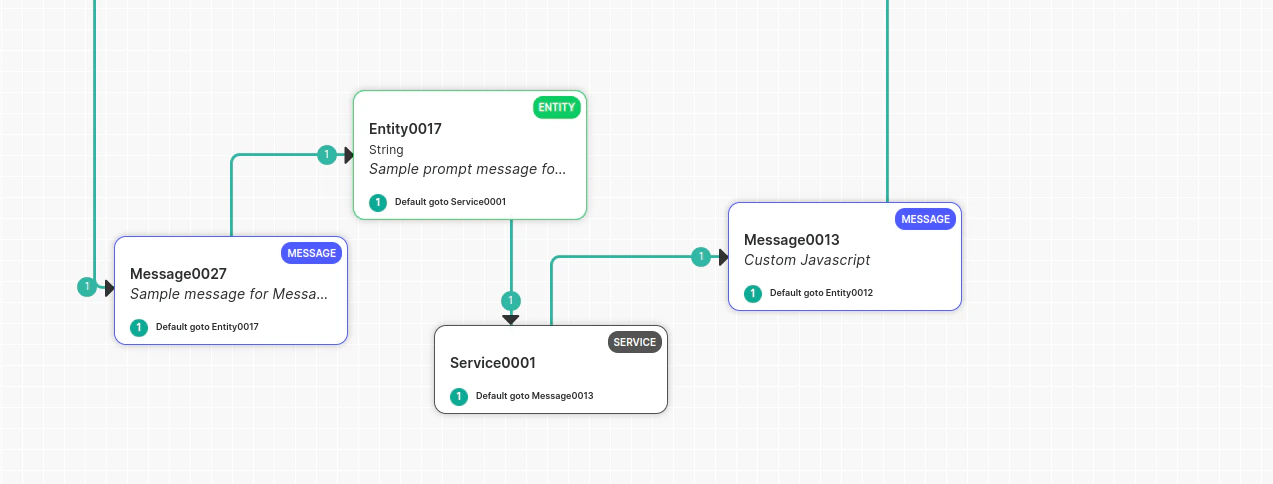
- Play a textual prompt to the user
- Play an audio file to the user
- Disconnect the call
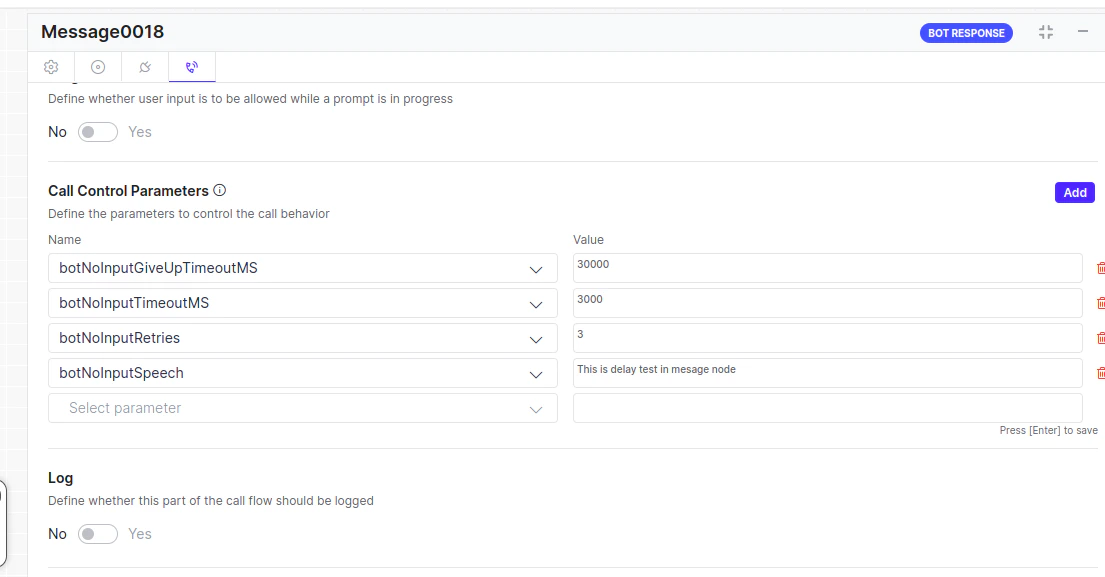
- To play a message to the user, configure a timeout on the botNoInputTimeoutMS parameter and define the action:
- To play a textual prompt, set the prompt on the
botNoInputSpeechparameter. - To play an audio file, set the file URL using the
botNoInputUrlparameter. - To replay the message if the timeout exceedes multiple times, configure the number of retries using the botNoInputRetries parameter.
- Configure a separate timeout for disconnecting the call using the
botNoInputGiveUpTimeoutMSparameter, set to 30 seconds by default.
Example:
botNoInputSpeech can contain multiple messages, including audio URLs. Example: botNoInputSpeech = [“this is first delay Msg”, https://thisdummy.wav, “ this is third textual Message”].Handle Delay Between Two Message Nodes
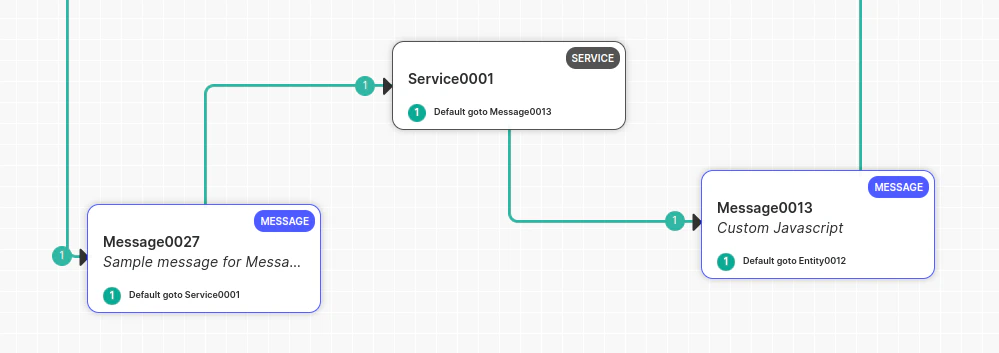
Voice Gateway can only handle delays when it sends a response to the bot and waits for the bot’s reply. If a delay occurs, Voice Gateway can handle it. If a delay occurs between a Message node or Script node where the user hasn’t spoken, Voice Gateway won’t be aware of the delay, and the bot developer must handle it manually. Place a Service Node between two Message nodes (delay observed between two Message nodes): Manage this manually, as the gateway has received a command to play a message and isn’t waiting for user input. The gateway won’t initiate a delay timer and waits for the next bot message. To handle this scenario:- Play music before the API call in the Message node.
- Configure the Service node.
- Deliver the message after the Service node.
If you receive a response from the API and don’t want to play the full music, immediately abort the music and play the Message node prompt using the channel override utility function:
print(voiceUtils.abortPrompt(“Dummy message“)) → (The message parameter is optional).
Barge-In Scenarios
The Barge-In feature controls Voice Gateway behavior in scenarios where the user starts speaking or dials DTMF digits while the bot is playing its response to the user. In other words, the user interrupts (“barges-in”) the bot.Language Detection
In this setup, developers don’t need to use DTMF or other methods to switch the bot’s language. Instead, the bot automatically detects the language based on the user’s utterance. For example, if a user speaks in English, the conversation continues in English. If the user switches to Spanish, the language switches to Spanish. Learn more. Configuration Steps:- In Bot Builder (on the child bot), navigate to Languages, add a new language (for example, Spanish), and enable it.
- Select English as the default language from the language dropdown menu. Learn more.
- Create a new dialog titled
Language Detection(or choose a suitable name). - Inside this dialog, add an entity node to capture user intent input.
- Set the entity precedence to ‘Intent over Entity’ in the advanced controls.
- Add the AlternativeLanguage call control parameter.
- Switching languages mid-conversation isn’t supported; doing so can cause the bot to lose context. Language detection should happen at the beginning of the conversation (for example, in the welcome task), with the switch based on the user’s first utterance.
- Opt for ‘Intent over Entity’ to prioritize intent detection in the user’s language.
- Create another dialog with a specific intent (for example, “book flight”) and add relevant entities (for example, selecting source and destination).
- In the entity configuration, include the following call parameters:
- Name: alternativeLanguages
- Value: [] (Leave it empty if no further language switching is needed).
- Add utterances in the desired language and train the bot.
- Change the language to Spanish in the bot language dropdown.
- Open the intent and update utterances and intent details in Spanish.
- Update entity details in Spanish as well.
- Publish the app.