

- Monitor suggestion adoption rates.
- Identify override patterns.
- Measure summary generation performance.
Access Overview
- Sign in to AI for Service.
- Go to Agent AI > Analytics.
- Select Agent AI > Overview.
- Filter data based on the following table:
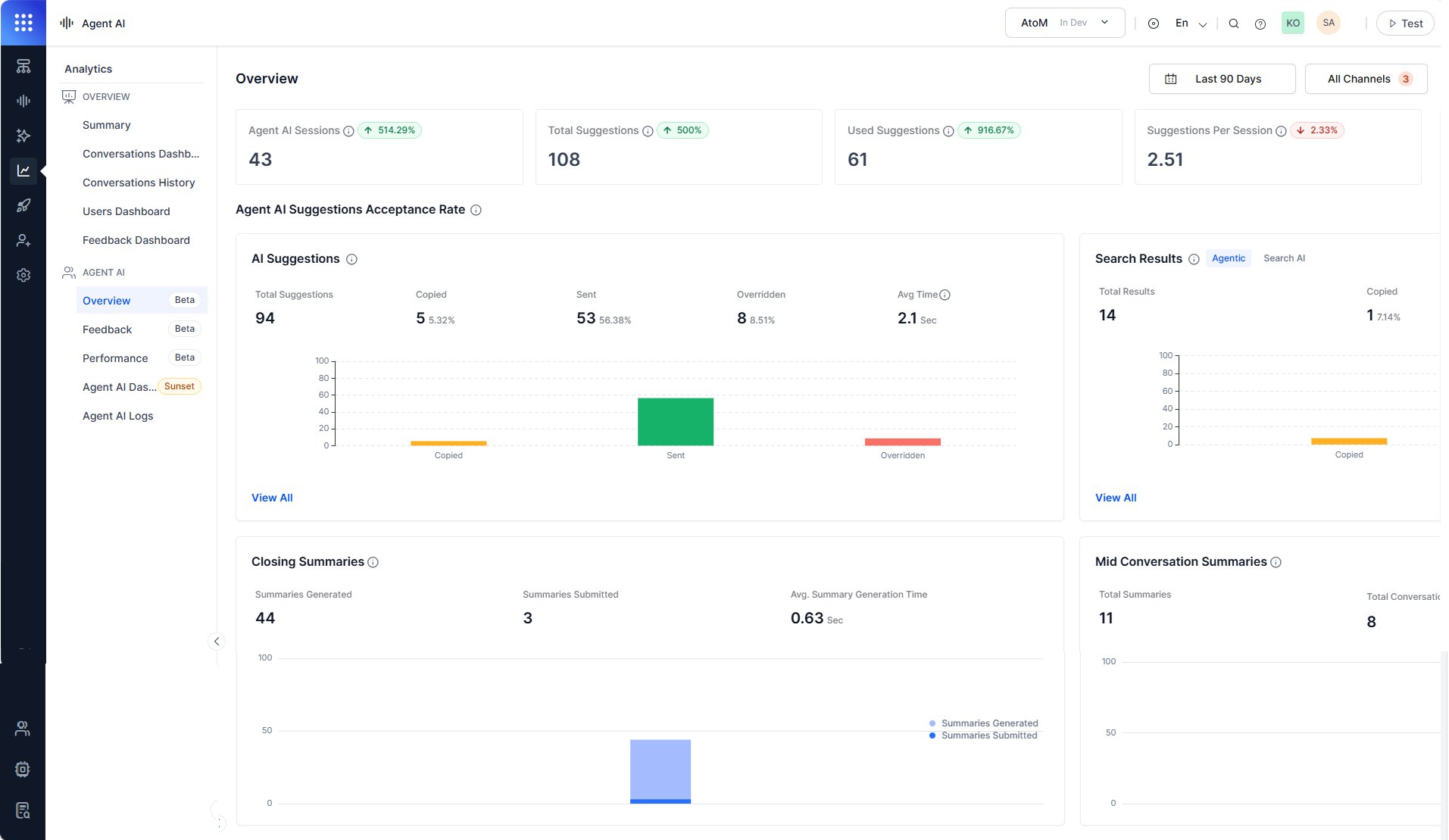
Session and suggestion metrics
The top of the Overview section shows four summary metrics for the selected date range. Each metric card includes a delta indicator (↑ or ↓) that compares the current period against the previous equivalent period.Agent AI suggestions acceptance rate
The Agent AI Suggestions Acceptance Rate section breaks down how agents interact with the Agentic Copilot content. It contains two sub-sections:- AI Suggestions: Displays the Agentic Copilot suggestion usage metric.
- Search Results: Displays the search result usage metric.
AI suggestions
The AI Suggestions panel displays how agents handle the AI-generated suggestions. A bar chart compares the Copied, Sent, and Overridden values.View All
Select View All to open the dialog lists per-conversation suggestion data in a table with the following columns: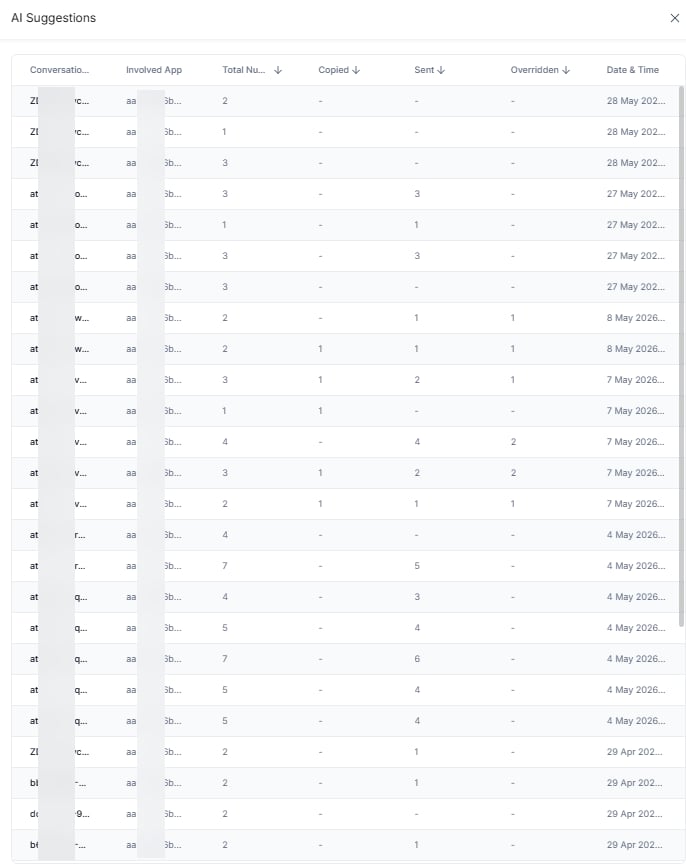
Search results
The Search Results panel displays how many search responses agents received, copied, and sent to customers from the Search tab. The panel contains two tabs: Agentic and Search AI. Both tabs display the following metrics:- Agentic tab: Displays search result metrics for Agentic Copilot interactions.
- Search AI tab: Displays search result metrics for Search AI interactions.
View All
Select View All to open a dialog that lists per-conversation search data in a table with the following columns: The Search AI tab doesn’t include the Involved App column.