-
Click Analytics on the left navigation pane. The Analytics panel opens with the list of reports.
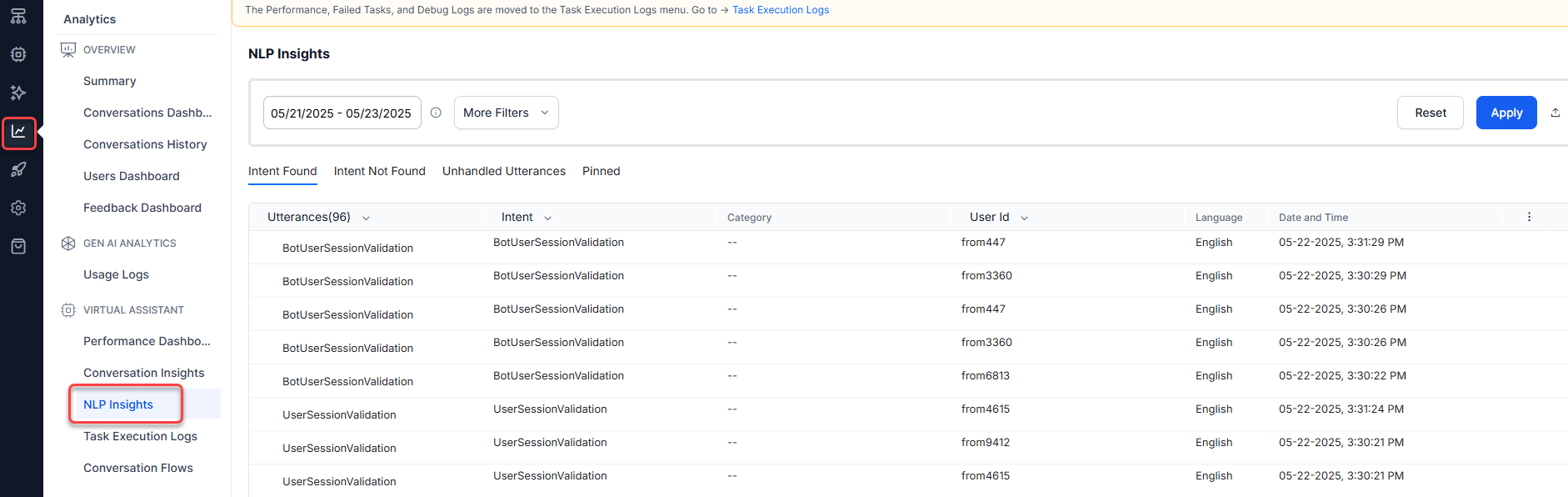
- Click NLP Insights under the Automation section of the Analytics panel.
- Select appropriate filters and click Apply.
- Intent Found: Number of identified intents.
- Intent Not Found: Number of unidentified intents.
- Unhandled Utterances: Number of unhandled utterances.
- Pinned: Pinned NLP Insight records for easy access and viewing.
In the latest platform version, the NLP Insights section retains only NLP-related analytics data for task identification. Task execution analytics are available in the Task Execution Logs section.
NLP Analytics Fields
Intent Found
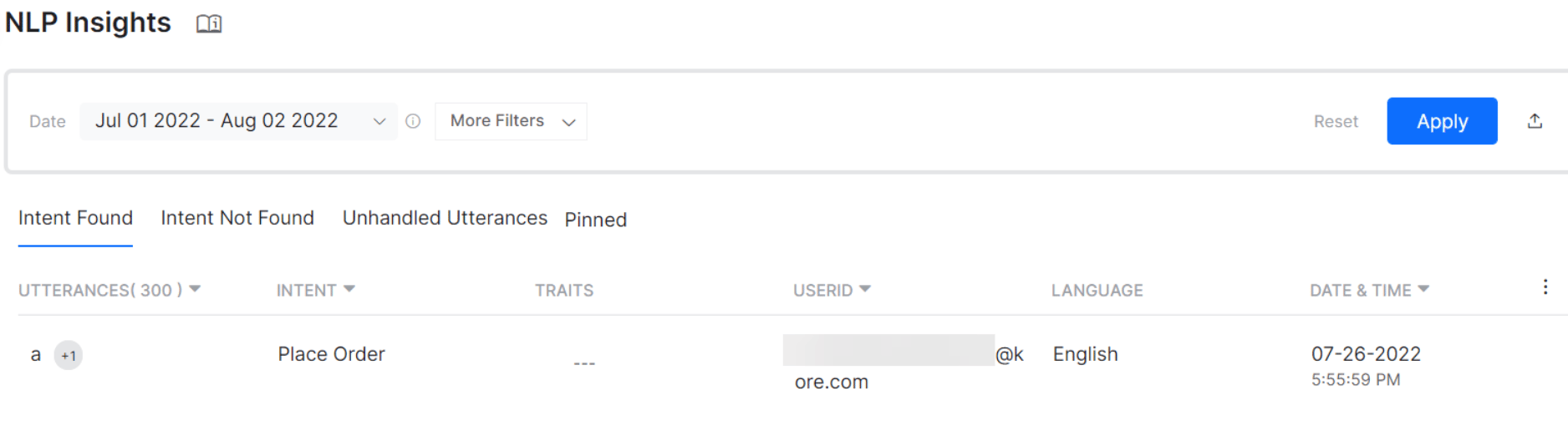
The Intent Found tab includes all user utterances successfully identified by the platform. An intent represents the goal the customer has in mind; the phrases used to express the intent are called user utterances.Check for false positives where an utterance is wrongly identified for an intent.
Intent Not Found
The Intent Not Found tab includes all user utterances that the platform couldn’t identify due to invalid training, insufficient training data, or the intent not existing in the AI Agent.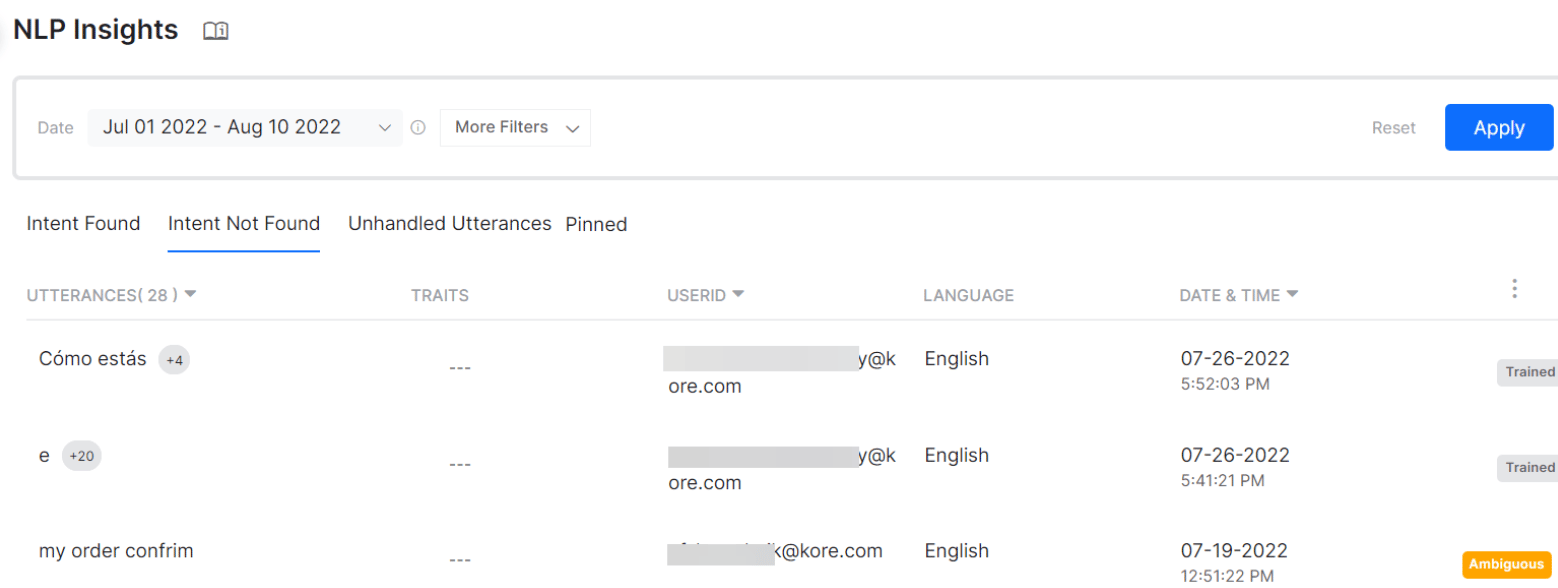
Unhandled Utterances
Unhandled Utterances help analyze unidentified inputs received from users during task execution at an entity node, message node, or confirmation node. These insights identify the need for additional training or new intents. The following fields are unique to this tab:- Prompt Type: Entity node, Message node, or Confirmation node.
- Node Name: Name of the node where the utterance wasn’t handled.
- Task Name: Name of the task where the utterance was unidentified.
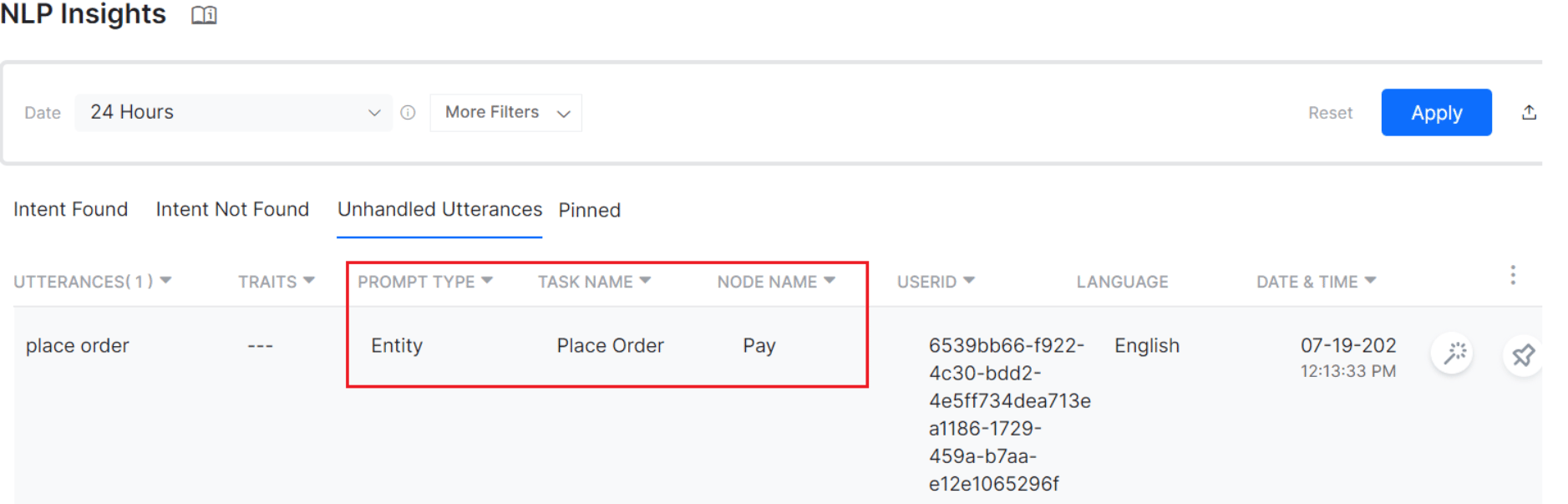
Unhandled utterances are available for all conversations with product version 9.3 or higher.
Pinned
The Pinned tab displays records pinned from the Intent Found, Intent Not Found, or Unhandled Utterances tabs.NLP Insights Analysis
Features
- Filter information by user utterances, intent, user ID, date period, channel, language, and custom tags. See Filter Criteria for more details.
- Complete meta-information is stored for later analysis, including the original utterance, channel, extracted entities, custom tags, detailed NLP analysis with engine scores, and ranking and resolver scores.
- View the chat transcript up to the point of the user utterance, including user profile and conversation session details.
- Train the utterance directly from the list. Trained utterances are marked accordingly.
- Pin important records for later tracking. Pinned records appear on the Pinned tab.
- Sort by Date and Time (Oldest to Newest, Newest to Oldest). Export insights data as a CSV file.
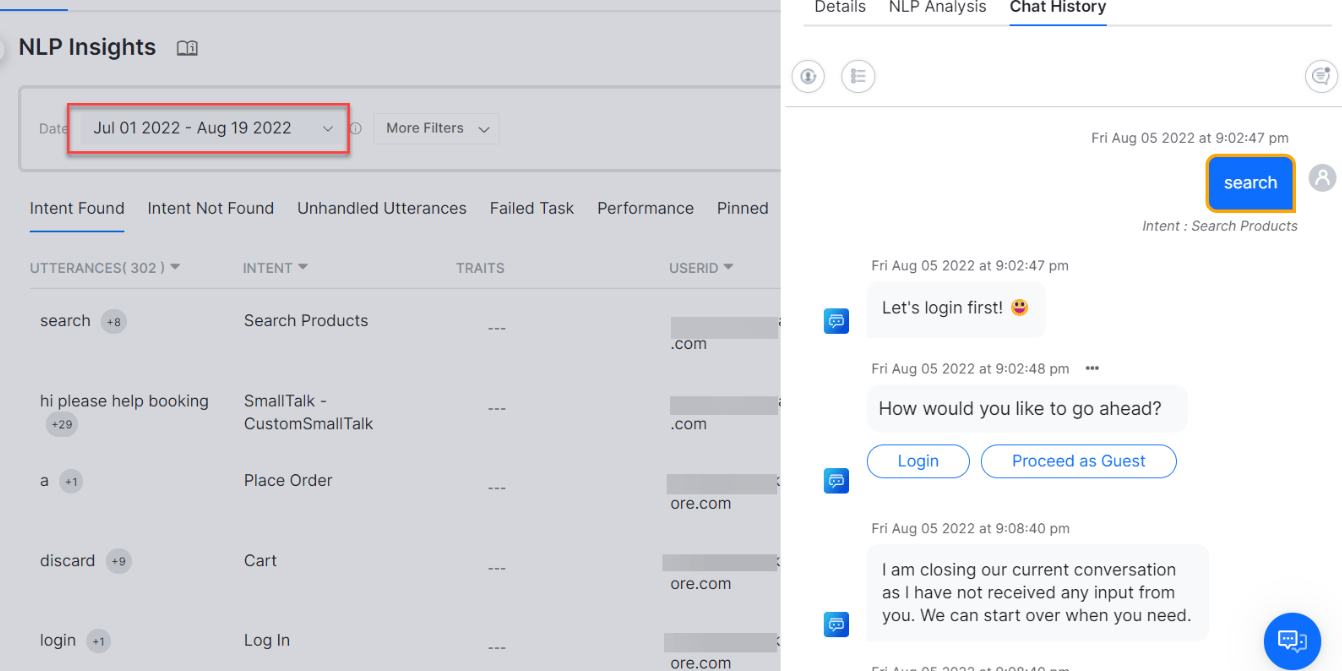
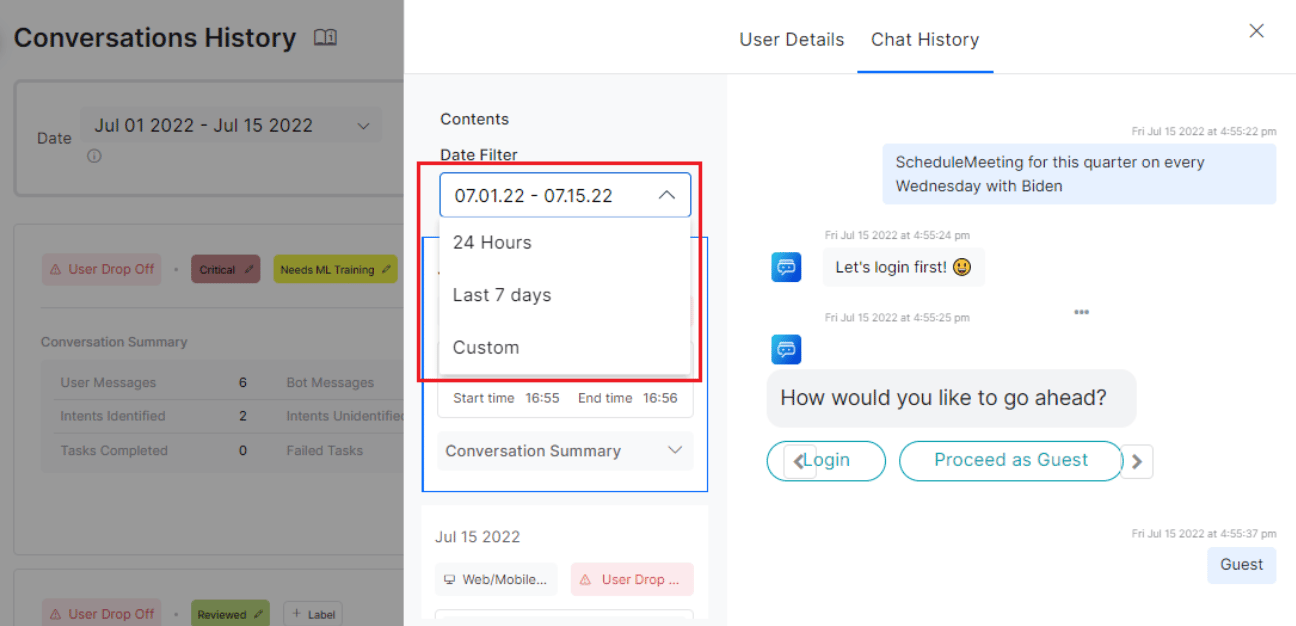
The NLP Insights page shows conversations from the last 24 hours by default. Use the Date drop-down to select 24 hours, the last 7 days, or a custom period.
Fields Matrix
The following matrix shows field availability across NLP Insights tabs:Filter Criteria
You can filter information on the Insights page using various filters. Save the entered filter criteria and set it as the default filter using Save as Default Filter. Filter criteria differ slightly between tabs. The relevant filters are applied when switching between tabs on the Insights page. See Dashboard Filter Criteria for more details.Detailed View
For any user utterance listed on the tabs, click the record to open more details. The record shows the following sub-tabs: Details, NLP Analysis, and Chat History.Details
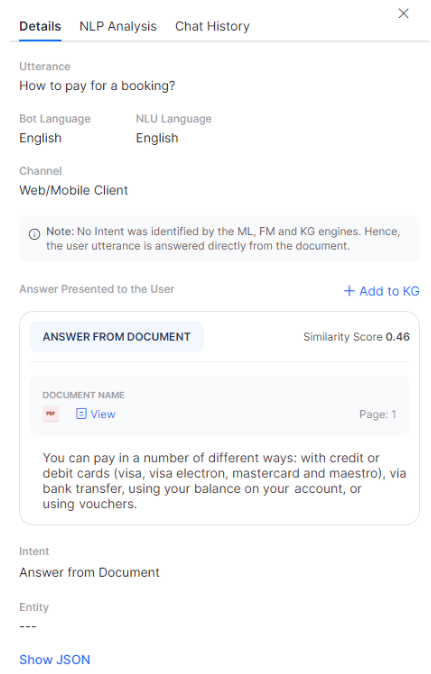
The Details tab shows the basic details of the session along with a JSON file that includes the NLP analysis for the conversation.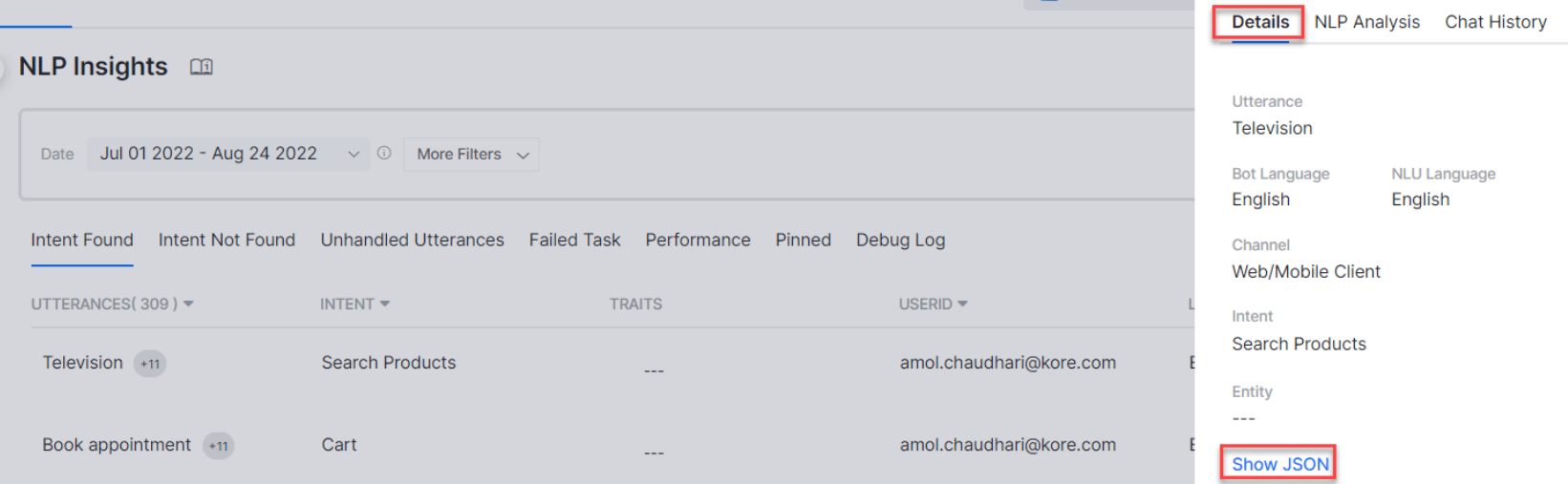
- Information on the intent not being identified by the ML, FM, and KG engines, indicating the user utterance was answered directly from the document.
- The answer presented to the user.
- The document from which the answer was provided.
- A Similarity Score for how similar the user query is to the document content.
- An option to add the query to the Knowledge Graph as an FAQ.
NLP Analysis
This tab provides a visual representation of the NLP Analysis, including intent scoring and selection.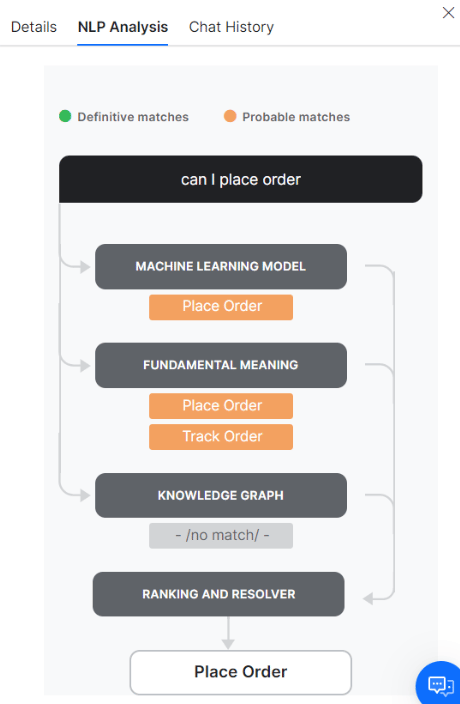
Chat History
The Chat History tab shows the exact message or conversation for which the record is logged, along with the entire chat history of the user session.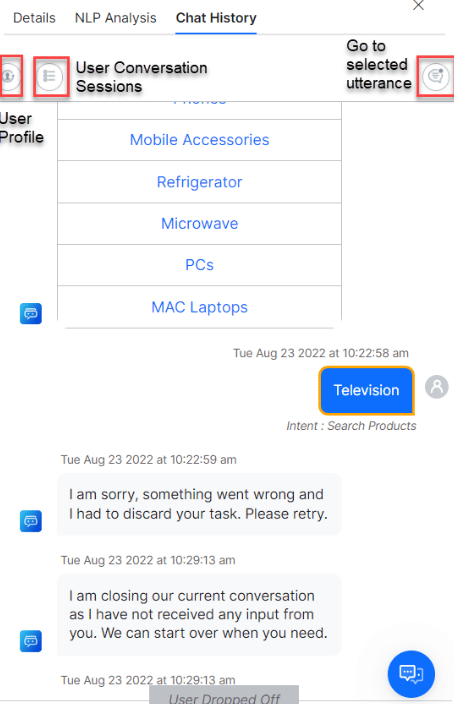
- User Profile: A 360-degree view of the user and their usage metrics.
- User Conversation Sessions: Lists all sessions of the user in the given period with the selected utterance section expanded.
- Go to Selected Utterance: Clicking this icon highlights the selected utterance in orange.
- X-Trace Id: A unique ID assigned to each incoming message, included in all platform logs.
- K-Trace Id: Kore’s monitoring trace ID, useful for debugging purposes.
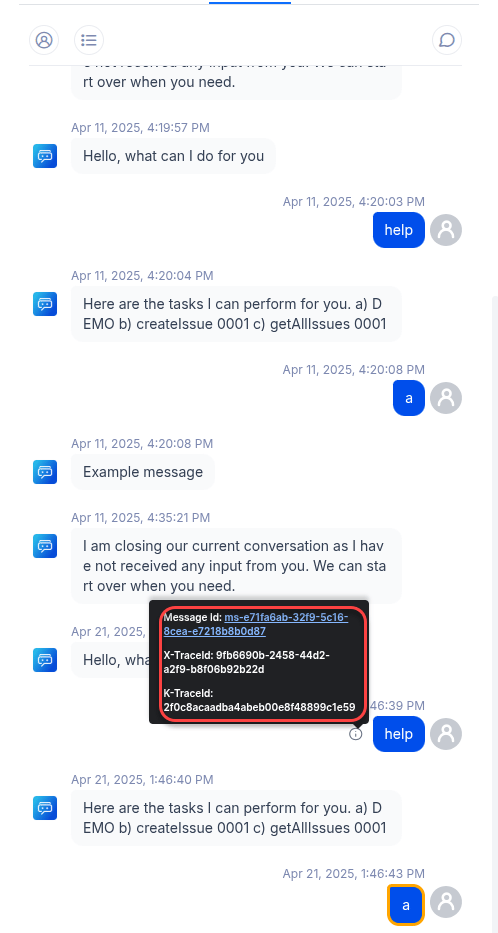
The X-Trace Id and K-Trace Id are retained in the logs for 30 days. Once expired, a tooltip displays: “Trace records for this message aren’t available”.
Advanced Performance Details
Clicking a service, script, or WebHook name opens the advanced details dialog, which lists each instance of its run along with separate tabs for successful and failed runs. Analyzing the average response time of different runs gives insight into aberrations in service or script execution. Click any row to open the JSON response associated with the service or script run.
DialogGPT NLP Insights Analysis
DialogGPT Analytics provides structured insights into how the system processes user inputs, detects intents, qualifies responses, and orchestrates conversations. It allows you to monitor intent classification, chunk qualification, response generation, and chat history, improving tracking, debugging, and compliance. Analytics also includes the DialogGPT-ConversationOrchestrator model output Fulfillment Type as a category, enabling developers to filter user inputs by triggered intents and review NLP details for deeper analysis.Query Rephrasing
The system enhances user input through query rephrasing while preserving intent and improving recognition and response accuracy. It normalizes complex or ambiguous queries, correctly interprets synonymous variations, and enhances model comprehension by reducing inconsistencies.Chunk Qualification
After rephrasing the user input, the system evaluates multiple response sources to identify the most relevant response chunks. It filters responses from Dialogs, Search, and FAQs, ensuring accurate and contextually appropriate results. This section displays key details including the model used, processed user input, processing time, number of qualified chunks, similarity thresholds, and proximity thresholds.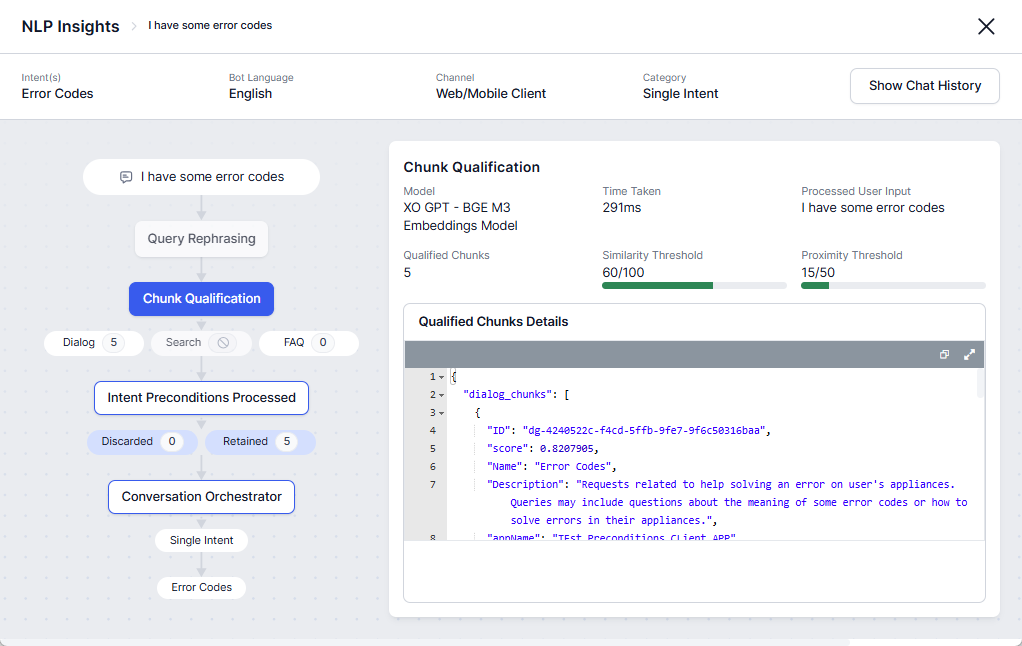
Intent Preconditions Processed
The system evaluates configured intent and sub-intent preconditions after Chunk Qualification and before the Conversation Orchestrator stage. Only dialogs that satisfy the configured preconditions are forwarded for final intent detection. This section displays filtering details, including retained and discarded intents.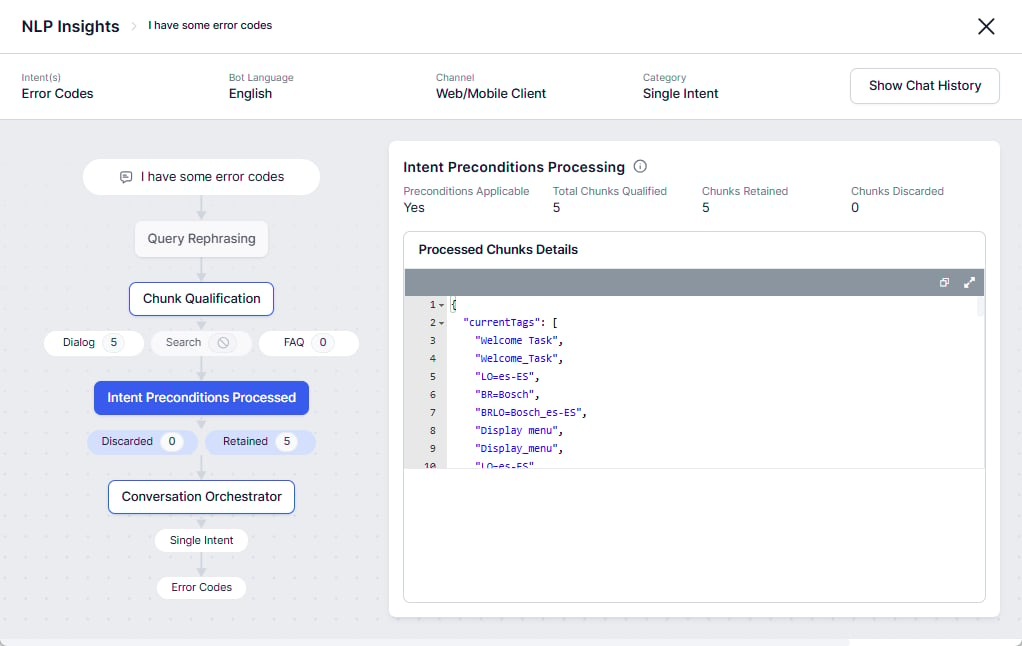
Conversation Orchestrator
After filtering relevant response chunks, the Conversation Orchestrator determines the optimal fulfillment path for generating responses. It supports both Single-Intent and Multiple-Intent categorization. This section displays key details including the model and prompt used, processing time, and matched intents. Access the complete request and response logs for deeper analysis and troubleshooting.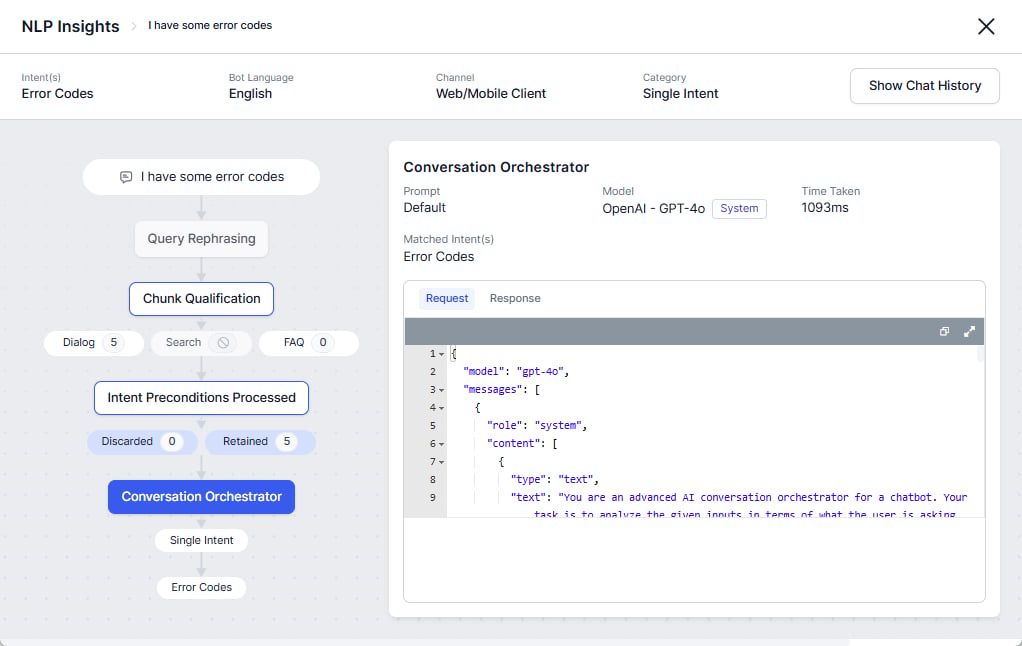
Chat History
The Chat History tab shows the exact message or conversation for which the record is logged, the entire chat history of the user session, and the intent and intent category.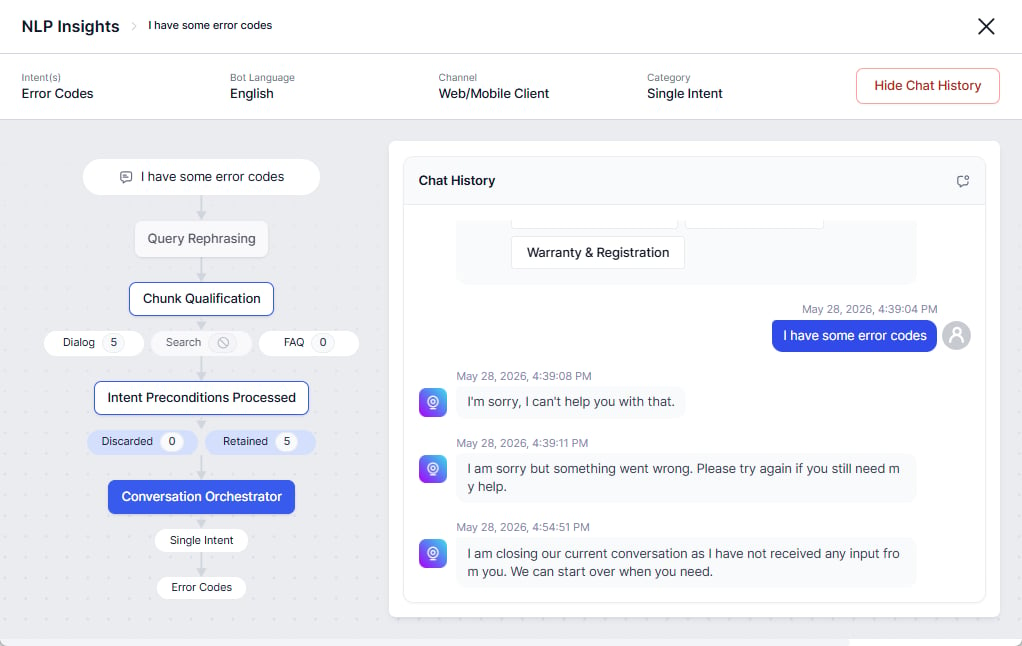
Train the AI Agent
You can train specific intents and utterances from the Intent Found, Intent Not Found, and Unhandled Utterances tabs. Hover over a row and click the Train icon to open the Test & Train page.Data Export
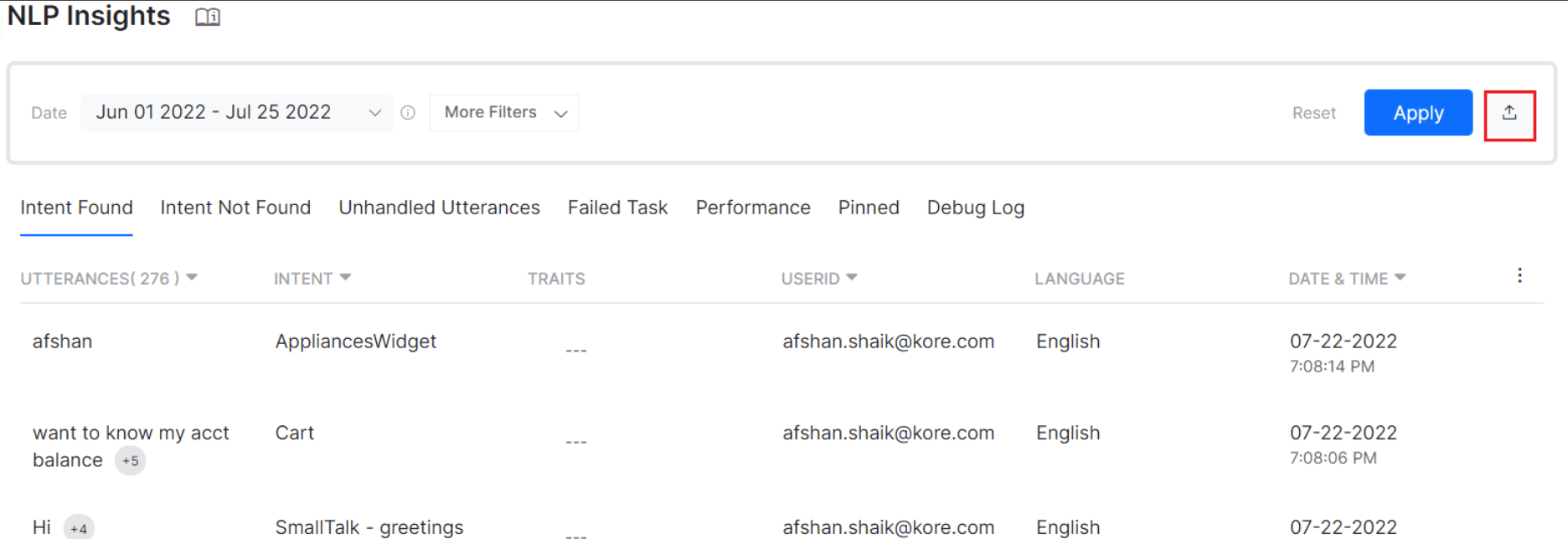
Export the data on the NLP Insights page to a CSV file by clicking the Export icon on the top right corner of the page.