> ## Documentation Index
> Fetch the complete documentation index at: https://koreai-ai-for-work-dev.mintlify.site/llms.txt
> Use this file to discover all available pages before exploring further.
# Widget Settings
Widget Settings lets you configure the appearance and behavior of the Agent AI widget. Settings are organized into two sections:
* **Agent AI Channel Specific Settings** — channel-specific preferences for Chat, Voice, and Email.
* **Agent AI General Settings** — widget-wide behavior and display options.
***
## Agent AI Channel-Specific Settings
Configure widget features per channel. The following options are available:
| Setting | Description |
| ------------------------------------------------------------- | -------------------------------------------------------------------------------------------------------------------------------------------------------------------------------------------- |
| **Proactive Mode** | Automates intent identification, entity extraction, and transcript generation. When enabled, also supports **Automatic Dialog Task Entity Extraction**. Enabled by default for all channels. |
| **Agent Coaching** | Enables real-time coaching based on agent utterances and speech analysis. Turned off by default; available for Chat and Voice channels. |
| **Agent Playbook** | Provides structured guidance for agents. When turned off, the Playbook tab is hidden; when enabled, welcome messages become part of the Playbook step. Remains turned off by default. |
| **Agentic Copilot** | Enables autonomous, end-to-end conversation handling. Agents can cancel, override, or edit messages. Configure language, app selection, auto-send, and timer. |
| **Agentic Response Streaming** | Streams Agentic Copilot responses incrementally, reducing perceived latency during live conversations. |
| **Auto-Scroll Widget Content** | Automatically scrolls to the latest content in the Assist, My AI Agent (Bot), and Transcript tabs. Agents can override this setting in the widget's Settings tab. |
| **Control Transcript Visibility between Agents** (Voice only) | Restricts transcript visibility to the current agent. Exceptions apply for warm transfers and conference calls. |
| **Send Button** | Controls the **Send** button for Agent AI responses. Available for Chat and Email; enabled by default for Chat. |
| **Copy Button** | Controls the **Copy** button for Agent AI responses. Available for Chat and Email; enabled by default for both. |
| **Widget Search Bar Configuration** | Configures search sources. When enabled, select from Platform, Search AI, and Agentic App. When turned off, results from all sources load simultaneously. |
| **Conversation Transfer** | Defines behavior when a conversation is transferred between agents. Applies to third-party configurations with appropriate transfer events. |
**Proactive Mode when turned off**:
* The **Assist** tab **Run** button is turned off; only **Run with agent's input** is available.
* Dynamic playbook identification and adherence are inactive; tick-off and step progression still work.
* Primary playbook automatic adherence or tick-off doesn't occur.
* If the Playbook widget is also turned off, the default landing page is **My AI Agent (Bot)**.
**Conversation Transfer options:**
| Transfer Type | Description |
| ----------------- | ------------------------------------------------------------------------------------------------------------------------------------------------------------------------------------------------------------------------- |
| **Cold Transfer** | Handover between two agents. Applies to Voice, Chat, and Email. A new summary is generated for the receiving agent. |
| **Warm Transfer** | Conference call between two agents. Applies to Voice and Chat. Agent-2 can modify Summary Feedback, but Run, Override, Send, Copy, Terminate, Restart, and List View buttons remain turned off until Agent-1 disconnects. |
Both transfer types support:
* **Scroll up to the First Message** — opens chat history at the top.
* **Continue from the Last Message** — opens chat history at the bottom.
* **Configure Dialog Task** — runs a selected dialog task automatically when the conversation is transferred.
***
### Steps to Set Channel-Specific Preferences
1. Sign in to Platform.
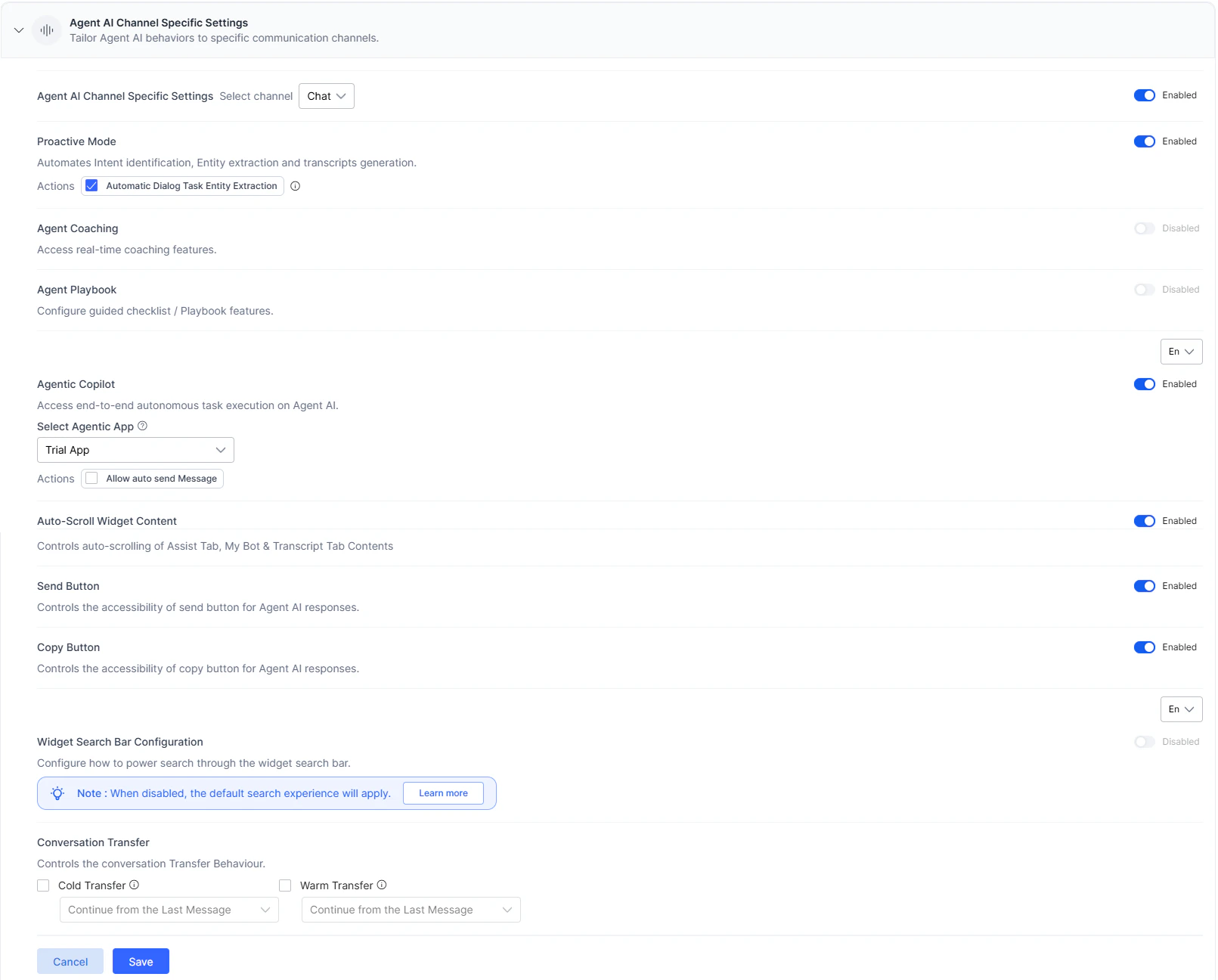
2. Go to **Agent AI** > **Configuration** > **Widget Settings** > **Agent AI Settings** > **Agent AI Channel Specific Settings**.
3. Expand **Agent AI Channel Specific Settings**.
4. Select a channel from the **Select channel** list.
5. Turn on the **Agent AI Channel Specific Settings** toggle if it's off.
6. Turn **Proactive Mode** on or off.
* Select or clear **Automatic Dialog Task Entity Extraction**.
7. Turn the toggles on or off for **Agent Coaching**, **Agent Playbook**, **Agentic Response Streaming**, **Auto-scroll widget content**, **Send Button**, and **Copy button**.
* For Agent Playbook, select the number of messages to pass to a step for adherence and trigger evaluation. The following note displays if you select five messages:\
Increasing the number of messages might cause higher latency.
8. For **Agentic Copilot**:
* Select a language.
* Turn on or off Agentic Copilot.
* Select an assignment option:
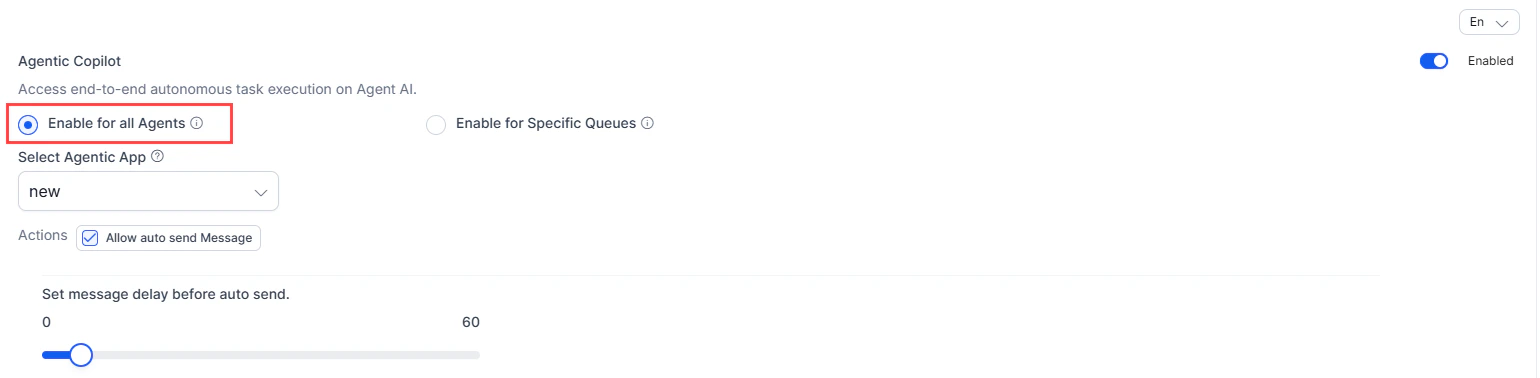
* **Enable for all Agents** — the selected app applies to all queues.
1. Select an app from **Select Agentic App**.
2. Select **Allow auto send Message** to enable auto-send.
3. Use the slider to set the delay (up to 60 seconds).
 * **Enable for Specific Queues** — assigns apps to specific queues via Agent AI Mapping.
1. Select **Open AI Feature Mapping** to navigate to Agent AI Mapping.
2. Select **learn more** for queue configuration details.
* **Enable for Specific Queues** — assigns apps to specific queues via Agent AI Mapping.
1. Select **Open AI Feature Mapping** to navigate to Agent AI Mapping.
2. Select **learn more** for queue configuration details.
 9. Turn on or off **Control Transcript Visibility between Agents** (Voice channel only) and select:
* **Use public APIs to control transcription**
* **Use agent's entry and exit events**
9. Turn on or off **Control Transcript Visibility between Agents** (Voice channel only) and select:
* **Use public APIs to control transcription**
* **Use agent's entry and exit events**
 10. Turn on **Widget Search Bar Configuration**.
1. Select one or more options — **Platform**, **Search AI**, **Agentic App**.
2. If you select **Agentic App**, choose an app from the dropdown list.
**Search AI** and **Agentic App** fields are unavailable until configured. A warning message prompts you to configure them first.
11. Select an option under **Conversation Transfer**.
12. Select **Save**.
10. Turn on **Widget Search Bar Configuration**.
1. Select one or more options — **Platform**, **Search AI**, **Agentic App**.
2. If you select **Agentic App**, choose an app from the dropdown list.
**Search AI** and **Agentic App** fields are unavailable until configured. A warning message prompts you to configure them first.
11. Select an option under **Conversation Transfer**.
12. Select **Save**.
 ***
## Agent AI General Settings
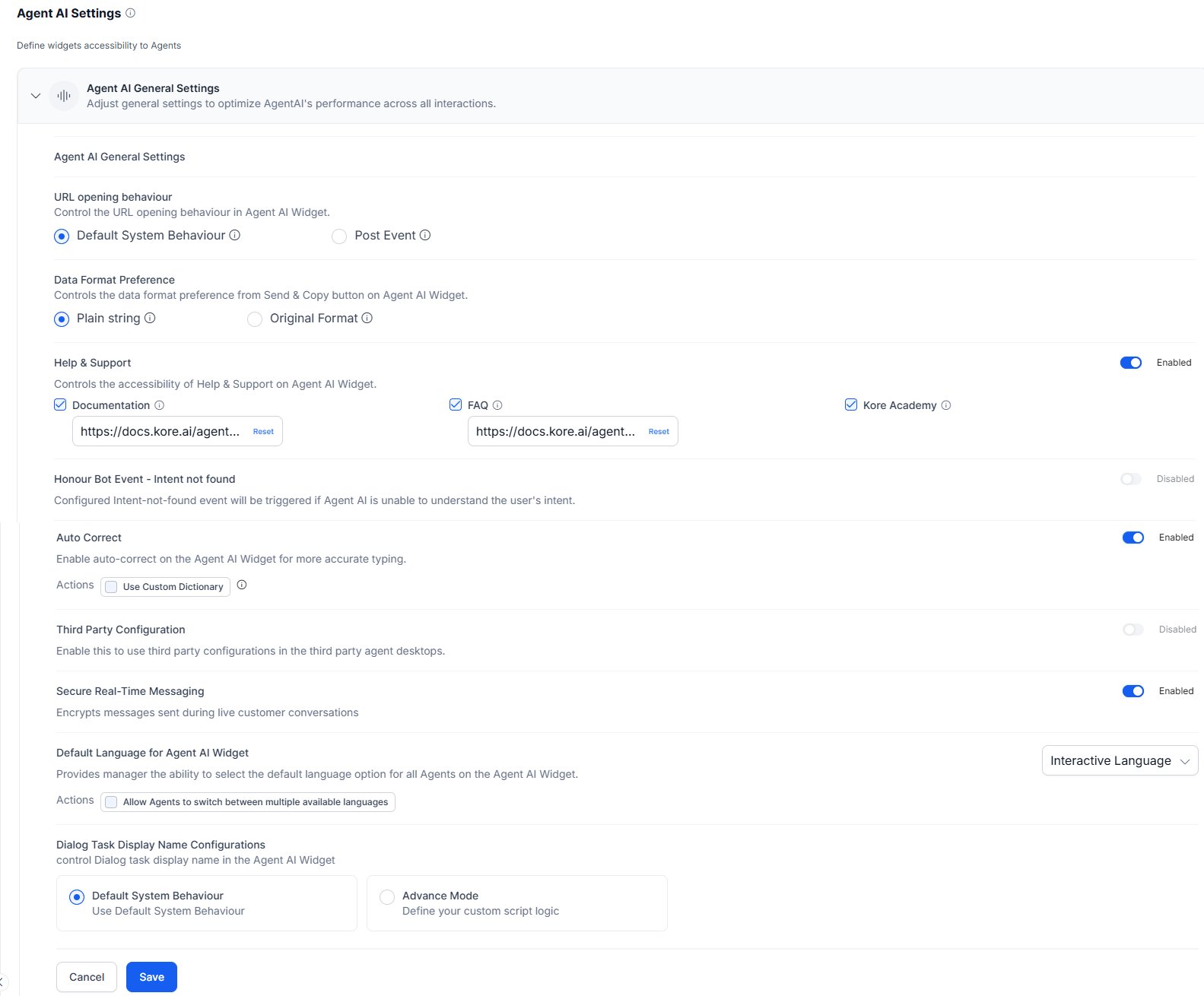
Configure global widget behavior including URL handling, data format, and language preferences.
| Setting | Description |
| ------------------------------------------- | --------------------------------------------------------------------------------------------------------------------------------------------------------------------------------------------------------------------------------------------------------------------------- |
| **URL Opening Behavior** | **Default System Behavior** — links open in a new window. **Post Event** — triggers the `AgentAI.UrlClickedMessage` event so the desktop app controls the link's behavior. |
| **Data Format Preference** | **Plain String** — sends messages in plain text. **Original Format** — sends messages with HTML tags as received. Applies to Playbooks and Dialog Tasks. |
| **Help & Support** | Show or hide Help & Support in the widget. Configure which components appear (Documentation, FAQ, Kore Academy) and their URLs. |
| **Honor Bot Event - Intent not found** | When turned on, triggers the configured intent-not-found event if Agent AI can't identify the user's intent. |
| **Third Party Configuration** | When turned on, the Agent AI widget loads in third-party agent desktops based on the queue mappings configured in [Third Party Configuration](/ai-for-service/agentai/configuration/third-party-configuration). When turned off, the widget doesn't load in those desktops. |
| **Default Language for Agent AI Widget** | Sets the widget display language. Optionally allow agents to change the language at runtime. |
| **Dialog Task Display Name Configurations** | **Default System Behavior** — standard display. **Advanced Mode** — use custom script logic for trait-based dialog task display. |
**Post Event URL behavior:**
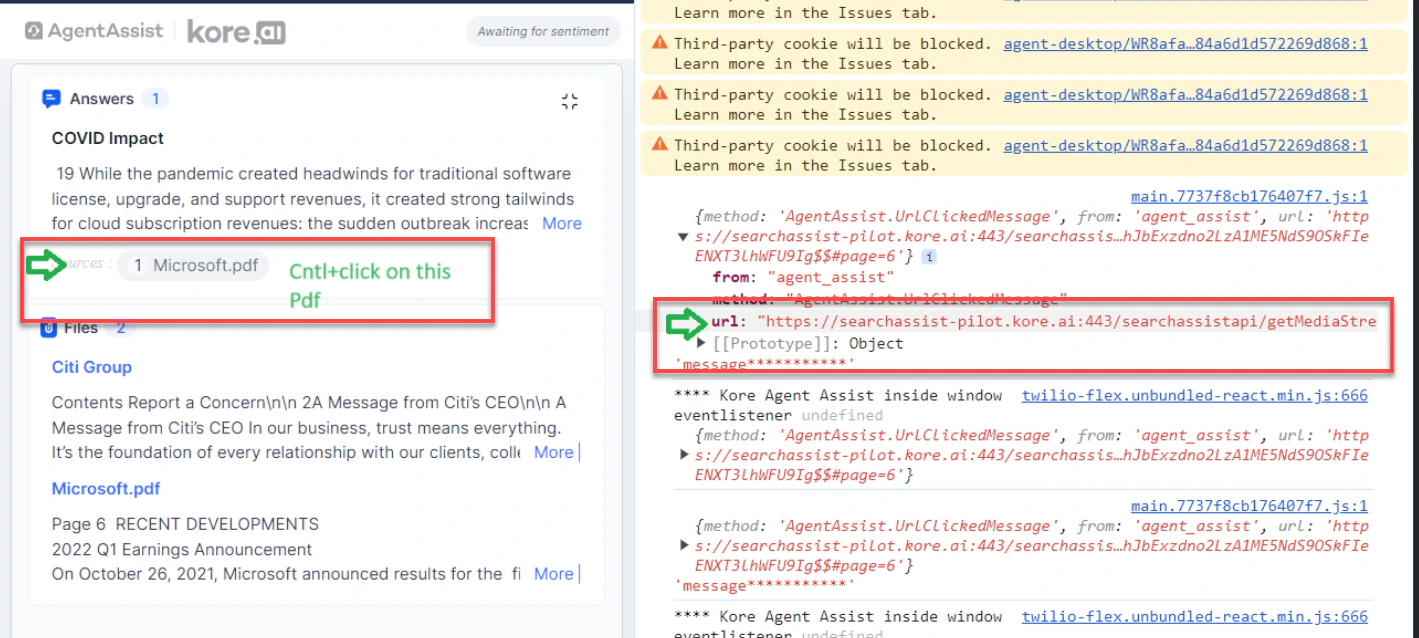
When a link is selected in the widget, the `AgentAI.UrlClickedMessage` event fires and a log appears on the right showing the URL. Desktop applications use this URL to control how the link opens.
***
## Agent AI General Settings
Configure global widget behavior including URL handling, data format, and language preferences.
| Setting | Description |
| ------------------------------------------- | --------------------------------------------------------------------------------------------------------------------------------------------------------------------------------------------------------------------------------------------------------------------------- |
| **URL Opening Behavior** | **Default System Behavior** — links open in a new window. **Post Event** — triggers the `AgentAI.UrlClickedMessage` event so the desktop app controls the link's behavior. |
| **Data Format Preference** | **Plain String** — sends messages in plain text. **Original Format** — sends messages with HTML tags as received. Applies to Playbooks and Dialog Tasks. |
| **Help & Support** | Show or hide Help & Support in the widget. Configure which components appear (Documentation, FAQ, Kore Academy) and their URLs. |
| **Honor Bot Event - Intent not found** | When turned on, triggers the configured intent-not-found event if Agent AI can't identify the user's intent. |
| **Third Party Configuration** | When turned on, the Agent AI widget loads in third-party agent desktops based on the queue mappings configured in [Third Party Configuration](/ai-for-service/agentai/configuration/third-party-configuration). When turned off, the widget doesn't load in those desktops. |
| **Default Language for Agent AI Widget** | Sets the widget display language. Optionally allow agents to change the language at runtime. |
| **Dialog Task Display Name Configurations** | **Default System Behavior** — standard display. **Advanced Mode** — use custom script logic for trait-based dialog task display. |
**Post Event URL behavior:**
When a link is selected in the widget, the `AgentAI.UrlClickedMessage` event fires and a log appears on the right showing the URL. Desktop applications use this URL to control how the link opens.
 ***
### Steps to Set Agent AI General Settings
1. Go to **Agent AI** > **Configuration** > **Widget Settings** > **Agent AI Settings** > **Agent AI General Settings**.
2. Expand **Agent AI General Settings**.
3. Select **Default System Behavior** or **Post Event** under **URL opening behavior**.
4. Select **Plain String** or **Original Format** under **Data Format Preference**.
5. Turn on or off the **Help & Support** toggle.
Turning on this toggle makes **Conversation Metadata** available to copy by default.
1. Select the components to display — **Documentation**, **FAQ**, **Kore Academy**.
2. Customize the URLs for **Documentation** and **FAQ** as needed.
6. Turn on or off the **Honor Bot Event - Intent not found** and **Third Party Configuration** toggles.
7. Select a language from the **Default Language for Agent AI Widget** list. Select **Interactive Language** to use the app's language.
1. Select or clear **Allow agents to switch between multiple available languages**.
8. Select **Default System Behavior** or **Advanced Mode** under **Dialog Task Display Name Configurations**.
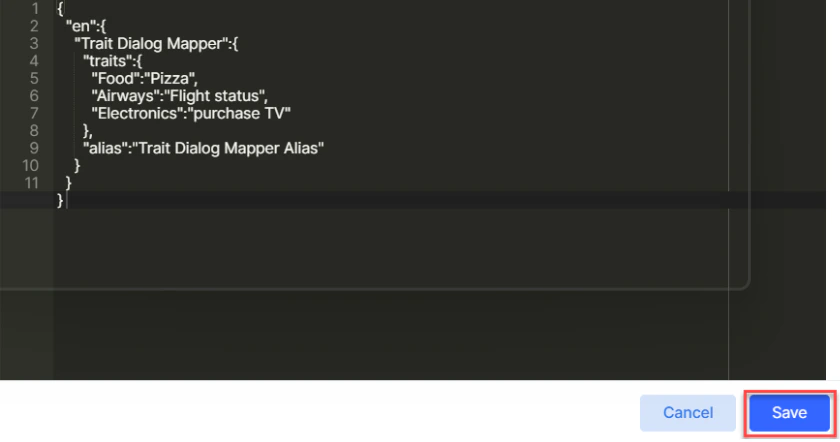
* For **Advanced Mode**, enter a custom script in the pop-up and select **Save**.
***
### Steps to Set Agent AI General Settings
1. Go to **Agent AI** > **Configuration** > **Widget Settings** > **Agent AI Settings** > **Agent AI General Settings**.
2. Expand **Agent AI General Settings**.
3. Select **Default System Behavior** or **Post Event** under **URL opening behavior**.
4. Select **Plain String** or **Original Format** under **Data Format Preference**.
5. Turn on or off the **Help & Support** toggle.
Turning on this toggle makes **Conversation Metadata** available to copy by default.
1. Select the components to display — **Documentation**, **FAQ**, **Kore Academy**.
2. Customize the URLs for **Documentation** and **FAQ** as needed.
6. Turn on or off the **Honor Bot Event - Intent not found** and **Third Party Configuration** toggles.
7. Select a language from the **Default Language for Agent AI Widget** list. Select **Interactive Language** to use the app's language.
1. Select or clear **Allow agents to switch between multiple available languages**.
8. Select **Default System Behavior** or **Advanced Mode** under **Dialog Task Display Name Configurations**.
* For **Advanced Mode**, enter a custom script in the pop-up and select **Save**.
 9. Select **Save**.
 ***
### Auto-Correct for the Search Tab
The Auto Correct feature highlights misspelled words in the Search tab and suggests corrections. Admins configure it in Widget Settings; agents can override the setting in the widget's **Settings** tab.
**Admin steps:**
1. Sign in to **Agent AI**.
2. Go to **Widget Settings** > **Agent AI General Settings**.
3. Turn the **Auto Correct** toggle on or off.
4. Select or clear **Use Custom Dictionary**.
5. Upload a customized word list.
You can download the current word list if one has already been uploaded.
6. Select **Save**.
**Agent steps:**
1. Sign in to the **Agent AI** widget.
2. Go to the **Settings** tab.
3. Enable or disable the **Auto Correct** toggle.
***
***
### Auto-Correct for the Search Tab
The Auto Correct feature highlights misspelled words in the Search tab and suggests corrections. Admins configure it in Widget Settings; agents can override the setting in the widget's **Settings** tab.
**Admin steps:**
1. Sign in to **Agent AI**.
2. Go to **Widget Settings** > **Agent AI General Settings**.
3. Turn the **Auto Correct** toggle on or off.
4. Select or clear **Use Custom Dictionary**.
5. Upload a customized word list.
You can download the current word list if one has already been uploaded.
6. Select **Save**.
**Agent steps:**
1. Sign in to the **Agent AI** widget.
2. Go to the **Settings** tab.
3. Enable or disable the **Auto Correct** toggle.
***