> ## Documentation Index
> Fetch the complete documentation index at: https://koreai-ai-for-work-dev.mintlify.site/llms.txt
> Use this file to discover all available pages before exploring further.
# Agent AI Playbook
Playbooks give contact center agents structured, step-by-step guidance for handling customer interactions. Supervisors create and manage playbooks to help agents maintain consistent quality, even during high call volumes or complex situations.
***
## Playbook Main Page
Displays all playbooks in the system. Use this page to create, edit, and delete playbooks.
| Tab | Description |
| ---------------- | ---------------------------------------------------------------------------------------------------------------------------------------------------------------------------------------------------------------------------------------------------- |
| Name and Channel | Displays the playbook name and the channel it applies to — Chat, Voice, or Chat and Voice. |
| Type | Shows whether the playbook is Primary or Conditional. A Primary playbook runs throughout the conversation. A Conditional (Dynamic) playbook runs only when a specific condition triggers it, such as a dialog execution step or a matched utterance. |
| Description | Shows the description entered when creating the playbook. |
| Triggers For | Shows the agents the playbook applies to. |
| Execution | Shows the execution mode of the playbook. Displays GenAI or Deterministic based on the execution mode. |
| Last Updated | Shows the date and time of the most recent change to the playbook. |
| Status | Shows whether the playbook is active or inactive. Turn the toggle on to activate the playbook for live conversations or off to deactivate it. For bulk-created playbooks, the status appears as **Review** |
| Actions | Shows the edit and delete buttons. |
***
## Playbook Types
| Type | Description |
| ----------- | ----------------------------------------------------------------------------------------------------------------------------------------------------------------------------- |
| **Primary** | Standard playbooks triggered for all assigned agents. Include Open and Close stages with multiple configurable steps. Always visible on the Agent AI widget. |
| **Dynamic** | Situation-specific playbooks that trigger based on a customer utterance or dialog execution. A lightbulb icon on the widget alerts the agent when a Dynamic Playbook matches. |
***
## Create a Playbook
### Create a Primary Playbook
1. Sign in to **AI for Service**.
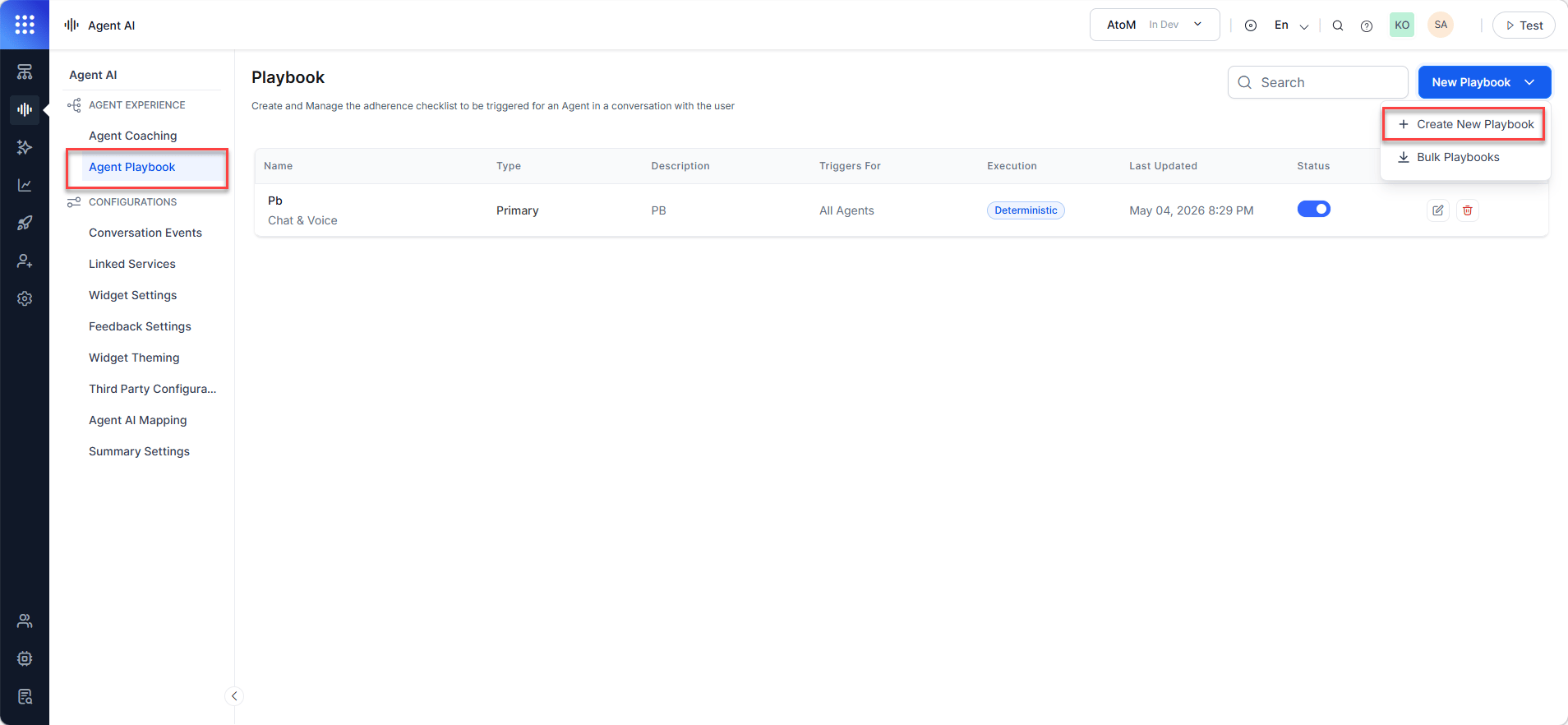
2. Select **Agent AI** > **Agent Experience** > **Agent Playbook**.
3. Select **+ New Playbook** > **Create New Playbook**.
 4. Fill in the **General Settings**:
| Field | Description |
| -------------------------------------------------- | ---------------------------------------------------------------------------------------------------------------------------------------------------------------------------------------- |
| **Playbook Name** | A name that reflects the playbook's purpose. |
| **Description** | A short description of what the playbook covers. |
| **Type** | Playbook type. Select **Primary** (default). |
| **Tags** | Labels for grouping and searching similar playbooks. Press **Enter** after each tag. |
| **Step Progression** | **Sequential** — agents must complete the steps in a sequential manner. **Random** — agents can complete steps in any order. |
| **Channels** | Voice or Chat. |
| **Configure how playbooks perform during runtime** | **Deterministic** — system uses NLP utterance-based models to trigger playbooks, steps, and adherence. **GenAI** — system uses GenAI models to trigger playbooks, steps, and adherences. |
5. Select **Save**. The system creates the playbook with two default stages (Open and Close), five sample steps, and the following note:
You may experience runtime latency depending on the selected GenAI model.
6. Select **Done**.
***
### Create a Dynamic Playbook
1. Follow steps 3-4 from [Create a Primary Playbook](#create-a-primary-playbook), but select **Dynamic** in the **Type** field.
2. Select the **Assignments** menu to define which agents see this playbook. The default selection is **Trigger for all interactions**.
3. Select the **Triggers** menu to define when the playbook appears on the widget.
4. Choose a trigger type:
**By Customer's Utterance**:
1. Enter an utterance.
For **Deterministic** type step trigger and adherence, the AI suggests options similar to your entry. Select the utterances to include, and select **Add**.
2. Select **Save**.
**By Dialog Execution**:
1. Select a Dialog Task from the **Automation** list.
2. Select when the playbook triggers (Wait for dialog Execution for...):
* **Initiated** — triggers when the Dialog Task starts.
* **Completed** — triggers when the Dialog Task finishes.
5. Select **Save**.
***
### Create Bulk Playbooks
Bulk playbook creation lets you upload a knowledge article (KA) and auto-generate multiple playbooks. This reduces manual entry and helps you scale standard operating procedures into real-time agent guidance.
**To create bulk playbooks**:
1. Sign in to **AI for Service**.
2. Select **Agent AI** > **Agent Experience** > **Agent Playbook**.
3. Select **+ New Playbook**, and then select **Bulk Playbooks**.
4. Expand **Instructions** and ensure your files meet the following requirements:
* Use PDF format only.
* Keep each file under 1 MB.
* Remove all images, media, and hyperlinks.
* Split large documents into smaller, topic-specific files.
5. Upload or drag-and-drop a knowledge article (PDF).
6. Select **Next**. The method defaults to **Gen AI Based**.
7. Select **Generate Playbooks**. If the system displays an error, complete the following settings:
a. From the main menu, go to **Generative AI** > **Gen AI Features**.\
b. Select **All Modules** > **Agent AI**.\
c. Go to **Automated Playbook Generation** and select a model with prompts. To use a model without prompts, create a custom prompt first. Follow [this doc](/ai-for-service/generative-ai-tools/custom-prompts#adding-custom-prompts) to create custom prompts.\
d. Select a prompt or select **Add New** to create a new one. Follow [this doc](/ai-for-service/generative-ai-tools/custom-prompts#adding-custom-prompts) for help.\
e. Turn on the **Status** toggle.
8. Select the edit icon next to a playbook.
Each bulk-created playbook shows a bulk-created badge and a **Review** status.
4. Fill in the **General Settings**:
| Field | Description |
| -------------------------------------------------- | ---------------------------------------------------------------------------------------------------------------------------------------------------------------------------------------- |
| **Playbook Name** | A name that reflects the playbook's purpose. |
| **Description** | A short description of what the playbook covers. |
| **Type** | Playbook type. Select **Primary** (default). |
| **Tags** | Labels for grouping and searching similar playbooks. Press **Enter** after each tag. |
| **Step Progression** | **Sequential** — agents must complete the steps in a sequential manner. **Random** — agents can complete steps in any order. |
| **Channels** | Voice or Chat. |
| **Configure how playbooks perform during runtime** | **Deterministic** — system uses NLP utterance-based models to trigger playbooks, steps, and adherence. **GenAI** — system uses GenAI models to trigger playbooks, steps, and adherences. |
5. Select **Save**. The system creates the playbook with two default stages (Open and Close), five sample steps, and the following note:
You may experience runtime latency depending on the selected GenAI model.
6. Select **Done**.
***
### Create a Dynamic Playbook
1. Follow steps 3-4 from [Create a Primary Playbook](#create-a-primary-playbook), but select **Dynamic** in the **Type** field.
2. Select the **Assignments** menu to define which agents see this playbook. The default selection is **Trigger for all interactions**.
3. Select the **Triggers** menu to define when the playbook appears on the widget.
4. Choose a trigger type:
**By Customer's Utterance**:
1. Enter an utterance.
For **Deterministic** type step trigger and adherence, the AI suggests options similar to your entry. Select the utterances to include, and select **Add**.
2. Select **Save**.
**By Dialog Execution**:
1. Select a Dialog Task from the **Automation** list.
2. Select when the playbook triggers (Wait for dialog Execution for...):
* **Initiated** — triggers when the Dialog Task starts.
* **Completed** — triggers when the Dialog Task finishes.
5. Select **Save**.
***
### Create Bulk Playbooks
Bulk playbook creation lets you upload a knowledge article (KA) and auto-generate multiple playbooks. This reduces manual entry and helps you scale standard operating procedures into real-time agent guidance.
**To create bulk playbooks**:
1. Sign in to **AI for Service**.
2. Select **Agent AI** > **Agent Experience** > **Agent Playbook**.
3. Select **+ New Playbook**, and then select **Bulk Playbooks**.
4. Expand **Instructions** and ensure your files meet the following requirements:
* Use PDF format only.
* Keep each file under 1 MB.
* Remove all images, media, and hyperlinks.
* Split large documents into smaller, topic-specific files.
5. Upload or drag-and-drop a knowledge article (PDF).
6. Select **Next**. The method defaults to **Gen AI Based**.
7. Select **Generate Playbooks**. If the system displays an error, complete the following settings:
a. From the main menu, go to **Generative AI** > **Gen AI Features**.\
b. Select **All Modules** > **Agent AI**.\
c. Go to **Automated Playbook Generation** and select a model with prompts. To use a model without prompts, create a custom prompt first. Follow [this doc](/ai-for-service/generative-ai-tools/custom-prompts#adding-custom-prompts) to create custom prompts.\
d. Select a prompt or select **Add New** to create a new one. Follow [this doc](/ai-for-service/generative-ai-tools/custom-prompts#adding-custom-prompts) for help.\
e. Turn on the **Status** toggle.
8. Select the edit icon next to a playbook.
Each bulk-created playbook shows a bulk-created badge and a **Review** status.
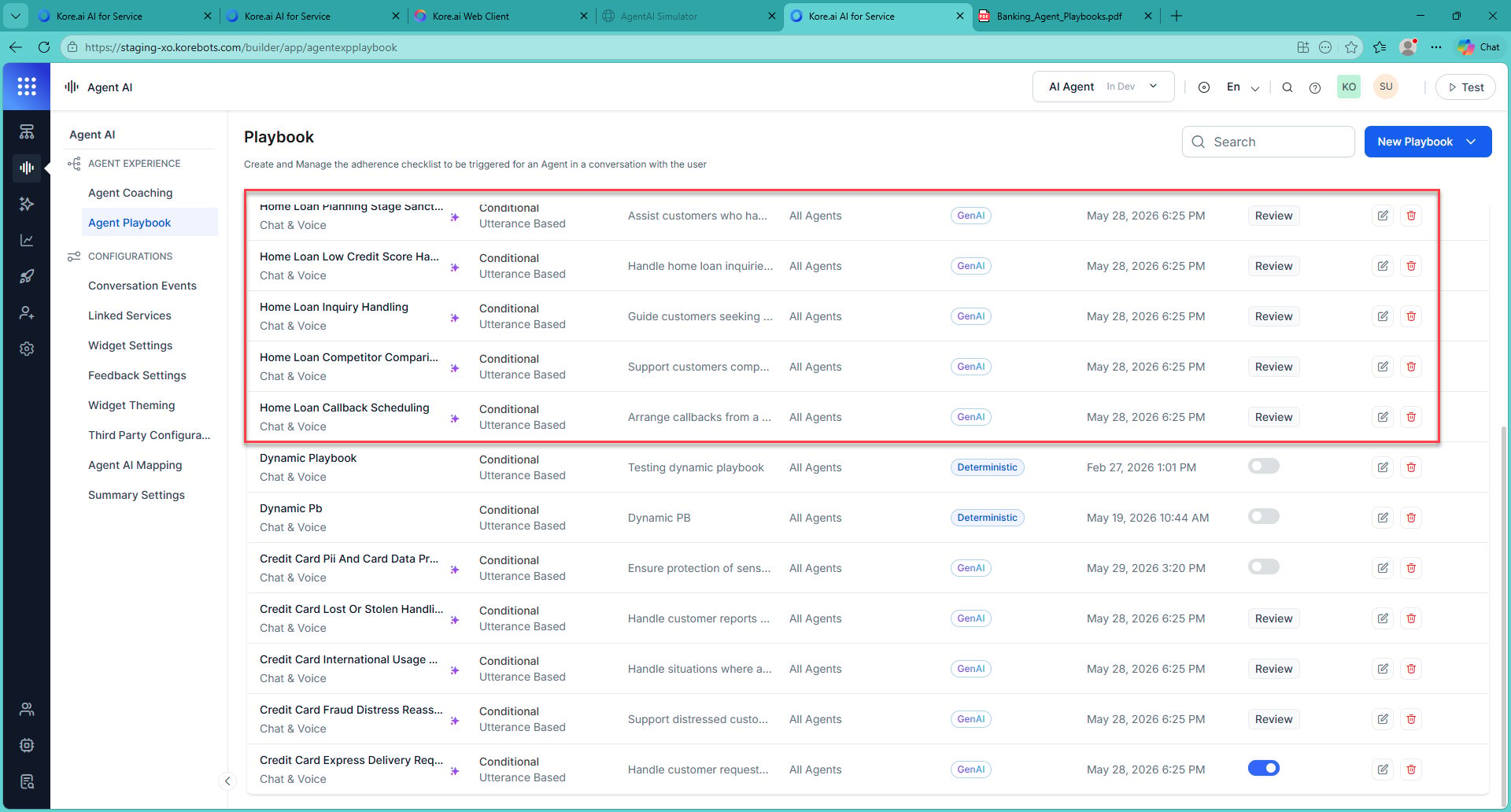 9. Select **Review & Update**.
10. Turn on the **Status** toggle.
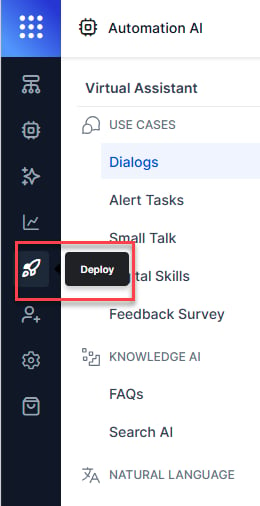
11. Select **Deploy** from the left navigation, and then select **Publish**.
9. Select **Review & Update**.
10. Turn on the **Status** toggle.
11. Select **Deploy** from the left navigation, and then select **Publish**.
 12. Enter a comment, and then select **Confirm**.
***
## Configure Playbook Steps
### Stages and Steps
The system organizes playbooks into **Stages** (primary groupings) and **Steps** (tasks within each stage). Primary playbooks have Open and Close stages by default. For Dynamic playbooks, you add stages manually.
### Create a Step in a Primary Playbook
1. Open the playbook and select **+ Add Step**.
2. Enter a **Step Title** and **Step Body**.
3. To allow sending the step content to the customer, select **Enable send/copy**.
4. Select **Add Buttons** and choose **Yes/No** confirmation buttons.
* **Yes** — marks the step as complete.
* **No** — marks the step as incomplete.
5. Optionally change button colors or delete buttons.
6. Select **Save**.
### Create a Step in a Dynamic Playbook
1. Open the Dynamic Playbook, and select **+ Add Stage**.
2. Enter a stage name, and select the check mark.
3. Select **+ Add Step**, then follow steps 2-6 from [Create a Step in a Primary Playbook](#create-a-step-in-a-primary-playbook).
***
## Step Adherence
Step adherence tracks whether an agent completed a step. By default, agents manually mark the steps as complete. You can configure automatic adherence based on utterances or dialog execution.
**To configure automatic adherence**:
1. Open the playbook, and select **+ Add Step**.
2. Select **Step Adherence**.
3. Select an adherence method:
**By Agent's Utterance**:
1. Enter an utterance.
For **Deterministic** type step trigger and adherence, the AI suggests options similar to your entry. Select the utterances to include, and select **Add**.
2. Select **Save**.
**By Dialog Execution**:
1. Select a Dialog Task from the **Automation** list.
2. Select when adherence is recorded:
* **Initiated** — step is marked complete when the task starts.
* **Completed** — step is marked complete when the task finishes.
4. Select **Apply**.
***
## Assign a Playbook
Control which agents see the playbook.
1. Open the playbook and select the **Assign** button in General Settings.
2. Choose an assignment option:
| Option | Behavior |
| -------------------------------- | ---------------------------------------------- |
| **Trigger for all Interactions** | Visible to all agents for all interactions. |
| **Trigger for Selected Agents** | Visible only to the selected agents or groups. |
3. Select **Save**.
***
## Edit a Playbook
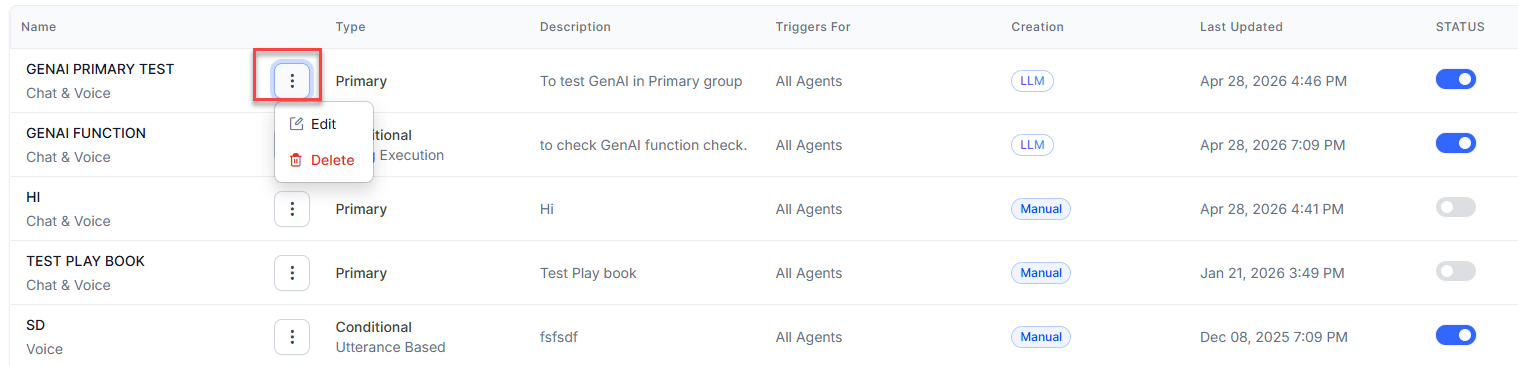
1. Select the vertical ellipsis(⋮) next to a playbook, and then select **Edit**.
12. Enter a comment, and then select **Confirm**.
***
## Configure Playbook Steps
### Stages and Steps
The system organizes playbooks into **Stages** (primary groupings) and **Steps** (tasks within each stage). Primary playbooks have Open and Close stages by default. For Dynamic playbooks, you add stages manually.
### Create a Step in a Primary Playbook
1. Open the playbook and select **+ Add Step**.
2. Enter a **Step Title** and **Step Body**.
3. To allow sending the step content to the customer, select **Enable send/copy**.
4. Select **Add Buttons** and choose **Yes/No** confirmation buttons.
* **Yes** — marks the step as complete.
* **No** — marks the step as incomplete.
5. Optionally change button colors or delete buttons.
6. Select **Save**.
### Create a Step in a Dynamic Playbook
1. Open the Dynamic Playbook, and select **+ Add Stage**.
2. Enter a stage name, and select the check mark.
3. Select **+ Add Step**, then follow steps 2-6 from [Create a Step in a Primary Playbook](#create-a-step-in-a-primary-playbook).
***
## Step Adherence
Step adherence tracks whether an agent completed a step. By default, agents manually mark the steps as complete. You can configure automatic adherence based on utterances or dialog execution.
**To configure automatic adherence**:
1. Open the playbook, and select **+ Add Step**.
2. Select **Step Adherence**.
3. Select an adherence method:
**By Agent's Utterance**:
1. Enter an utterance.
For **Deterministic** type step trigger and adherence, the AI suggests options similar to your entry. Select the utterances to include, and select **Add**.
2. Select **Save**.
**By Dialog Execution**:
1. Select a Dialog Task from the **Automation** list.
2. Select when adherence is recorded:
* **Initiated** — step is marked complete when the task starts.
* **Completed** — step is marked complete when the task finishes.
4. Select **Apply**.
***
## Assign a Playbook
Control which agents see the playbook.
1. Open the playbook and select the **Assign** button in General Settings.
2. Choose an assignment option:
| Option | Behavior |
| -------------------------------- | ---------------------------------------------- |
| **Trigger for all Interactions** | Visible to all agents for all interactions. |
| **Trigger for Selected Agents** | Visible only to the selected agents or groups. |
3. Select **Save**.
***
## Edit a Playbook
1. Select the vertical ellipsis(⋮) next to a playbook, and then select **Edit**.
 2. Select **Settings** and make your changes.
3. Select **Update**.
***
## Delete a Playbook
1. Select the vertical ellipsis(⋮) next to a playbook, and then select **Delete**.
2. Confirm by selecting **Yes**.
***
## Edit a Step
1. Select the vertical ellipsis(⋮) next to a playbook, and then select **Edit**.
2. Select the step you want to edit.
3. Make changes on the **Step Configuration** page.
4. Select **Update**.
***
## Delete a Step
1. Select the vertical ellipsis(⋮) next to a playbook, and then select **Edit**.
2. Hover over a step and select **Delete**.
2. Select **Settings** and make your changes.
3. Select **Update**.
***
## Delete a Playbook
1. Select the vertical ellipsis(⋮) next to a playbook, and then select **Delete**.
2. Confirm by selecting **Yes**.
***
## Edit a Step
1. Select the vertical ellipsis(⋮) next to a playbook, and then select **Edit**.
2. Select the step you want to edit.
3. Make changes on the **Step Configuration** page.
4. Select **Update**.
***
## Delete a Step
1. Select the vertical ellipsis(⋮) next to a playbook, and then select **Edit**.
2. Hover over a step and select **Delete**.
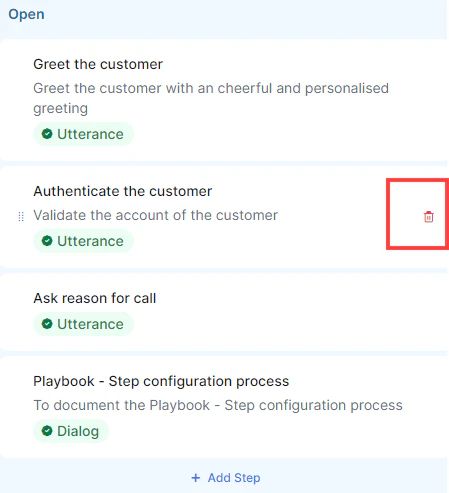 3. Confirm by selecting **Delete** in the **Delete Step** window.
***
3. Confirm by selecting **Delete** in the **Delete Step** window.
***