

Viewing System and User Events
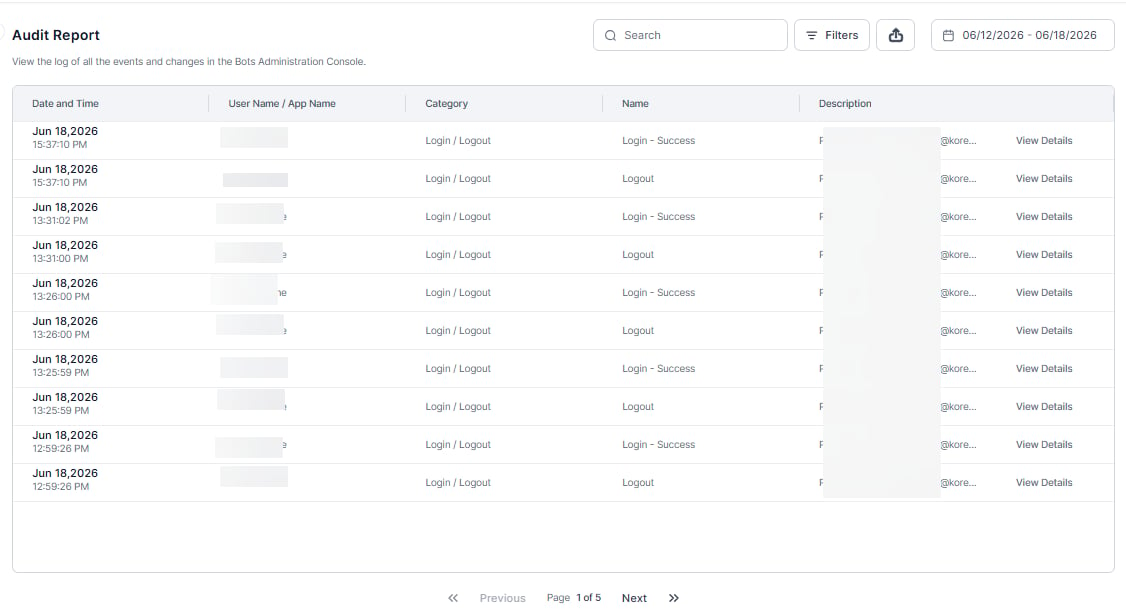
On the Audit Report page, you can view the system and user-generated events. For example, a system-generated event could be a periodic Microsoft® Active Directory® Sync. An example of a user-generated event could be the addition of a new user. Using the filters on the Audit Report page, you can select event categories, events, and time periods to drill down and filter events as needed. Audit reports also list error messages that can help you troubleshoot system issues or when you create a service request.Search and Filters
- Use the Search field to find records by entering at least three characters.
- Select “Filters” to refine your results by User/App, Event Category, and Event Name.
- Use the Date Picker to filter events by a selected date range.
- Select the Export icon to download the filtered audit report.
Record Details
By clicking on any entry, you get to view further details: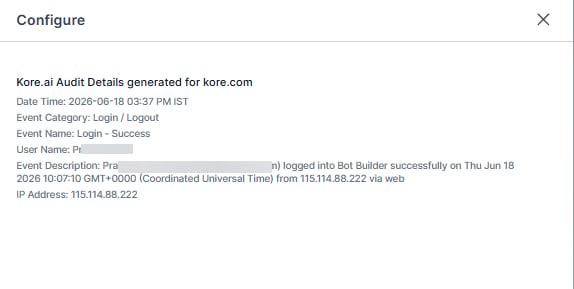
The Audit Report contains system and user events for several Kore.ai products. To drill down further than Event Categories, use the Search for Description field, which lets you add one more criterion to the filter. To get XO Platform data, search for App Builder” exactly; the Search field is case-sensitive. For more complex filtering, we recommend exporting the report and using a spreadsheet editor.
Audit Report Details
The audit report is categorized by event category and event name. The following table lists these categories and a brief description of what even qualifies against each category.Viewing Chat History
You can view Chat History for all deployed apps from the App Chat History section of the Admin Console. Select a specific chat to display the chat conversation or history. You can jump to the specific user’s previous and next conversation sessions if available.App Chat History
The following list describes the columns displayed in the admin console table.About the Action Bar
This section describes the controls on the Action bar on the Chat History page.Using the Time Zone Field
The time against the chat history would be displayed in the Time Zone selected. By default, it’s set to Local. You can change it using the Change link and then selecting the appropriate zone.Using the Search Field
The list of entries in an admin console table can be very large, depending on the size of your company, for example, a list of users. To find one or more specific users or groups, enter at least three characters in the Search field to begin find-as-you-type. The number of search terms in a search query is unlimited; however, no more than the first 20 characters of each search term are used to return search results.
- 7 Days.
- 24 hours – default setting.
- Last 90 Days.
- The Apps you want to track, you can select multiple apps.
- Conversation types can be either one or both of the following:
- interactive sessions: conversations that include one or more messages from the user.
- non-interactive sessions: conversations that don’t include any message from the user.
- Channel of interaction
- Language of interaction
Chat History Details
Chat History provides visibility into the user information with the inclusion of the following functionality:- User Profile: Provides a 360-degree view of the user along with their usage metrics.
- User Conversation Sessions: Lists out all the sessions of the user in the given period, with the selected utterance section expanded.
- Trace ID: A unique ID assigned to each incoming message. The ID is also included in all the logs maintained by the Platform. To see the associated Trace ID for an incoming message, hover over the message, click the Info icon, and then click the Message Id to view the Trace ID.
The Trace ID is retained in the logs for 30 days. Once the Trace ID is expired, you see a tooltip message as
Trace Id: Trace records for this message aren't available.