> ## Documentation Index
> Fetch the complete documentation index at: https://koreai-ai-for-work-dev.mintlify.site/llms.txt
> Use this file to discover all available pages before exploring further.
# Manage OCR Models
> Configure Docling and Azure Doc Intelligence engines for the Doc Intelligence Node, including deployment, resource allocation, and connection management.
Configure the document-processing engines that power the Doc Intelligence Node. Supported engines—**Docling** and **Azure Doc Intelligence**—enable text extraction, layout understanding, and structured data output.
Each engine must be configured on this page before it appears as an option in the Doc Intelligence Node.
## Docling
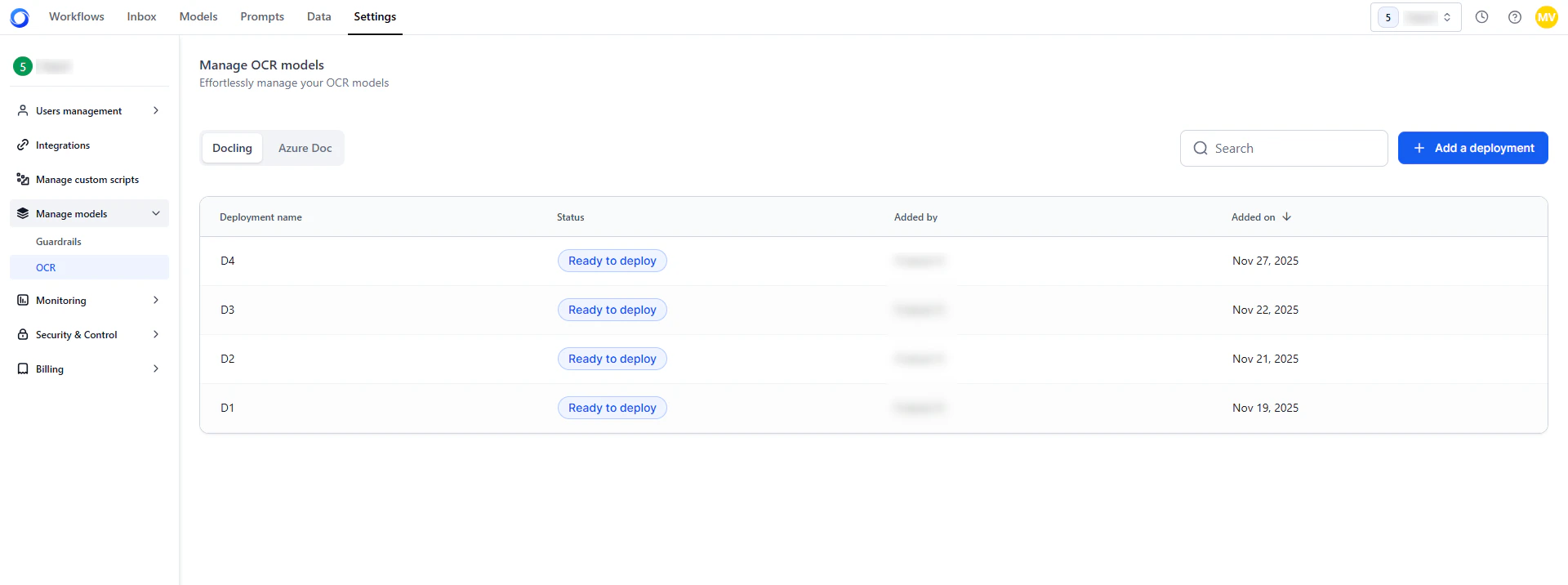
Docling provides AI-powered document extraction for text, layout, and structured data. You can create multiple deployments.
### Deploy a model
1. Go to **Settings → Manage Models → OCR**.
2. Click **Deploy a Model**.
3. Enter a unique deployment name and an optional description.
4. Select a language. English (`en`) is selected by default. You can add one additional language to improve model performance.
5. Configure resource allocation:
* Minimum and maximum replicas.
* Auto-scaling threshold.
* Hardware type.
6. Review the configuration, accept the terms and conditions, and click **Deploy**.
Once deployment completes, the model appears in the **Deployed** list and is available in the Doc Intelligence Node.
 ### Manage deployments
Click any deployment row to open its details across three panels:
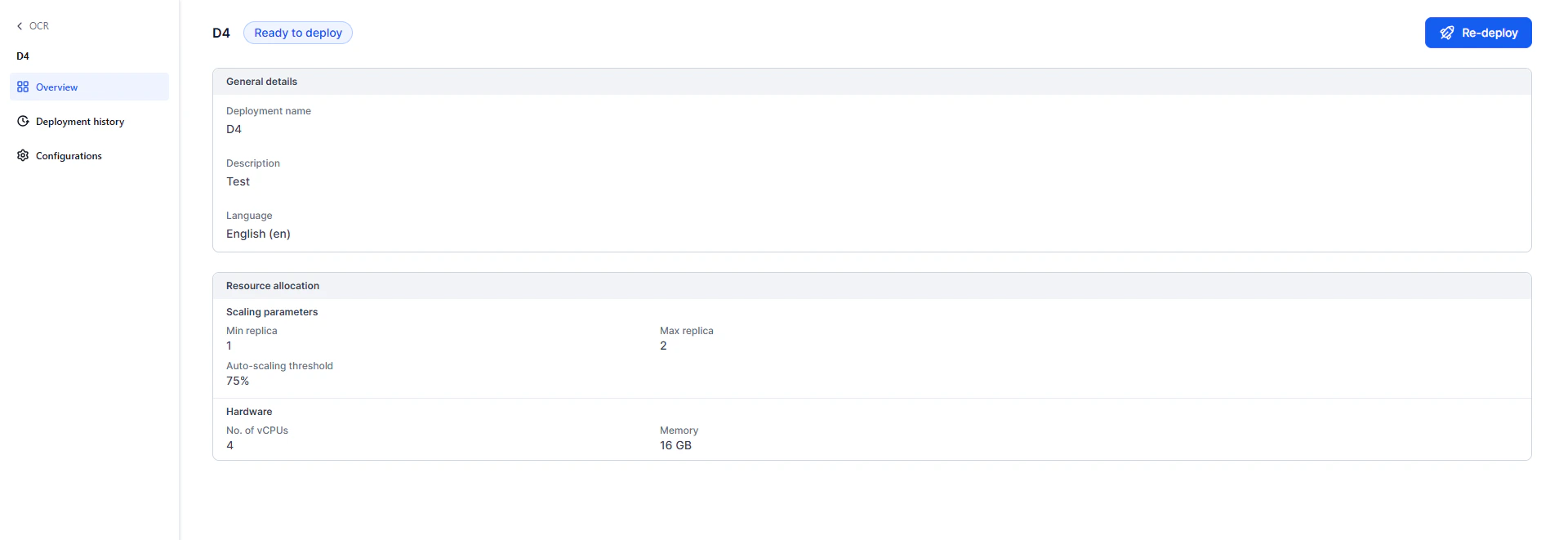
**Overview** — Shows deployment status and configuration: name, language, scaling parameters, and hardware resources.
### Manage deployments
Click any deployment row to open its details across three panels:
**Overview** — Shows deployment status and configuration: name, language, scaling parameters, and hardware resources.
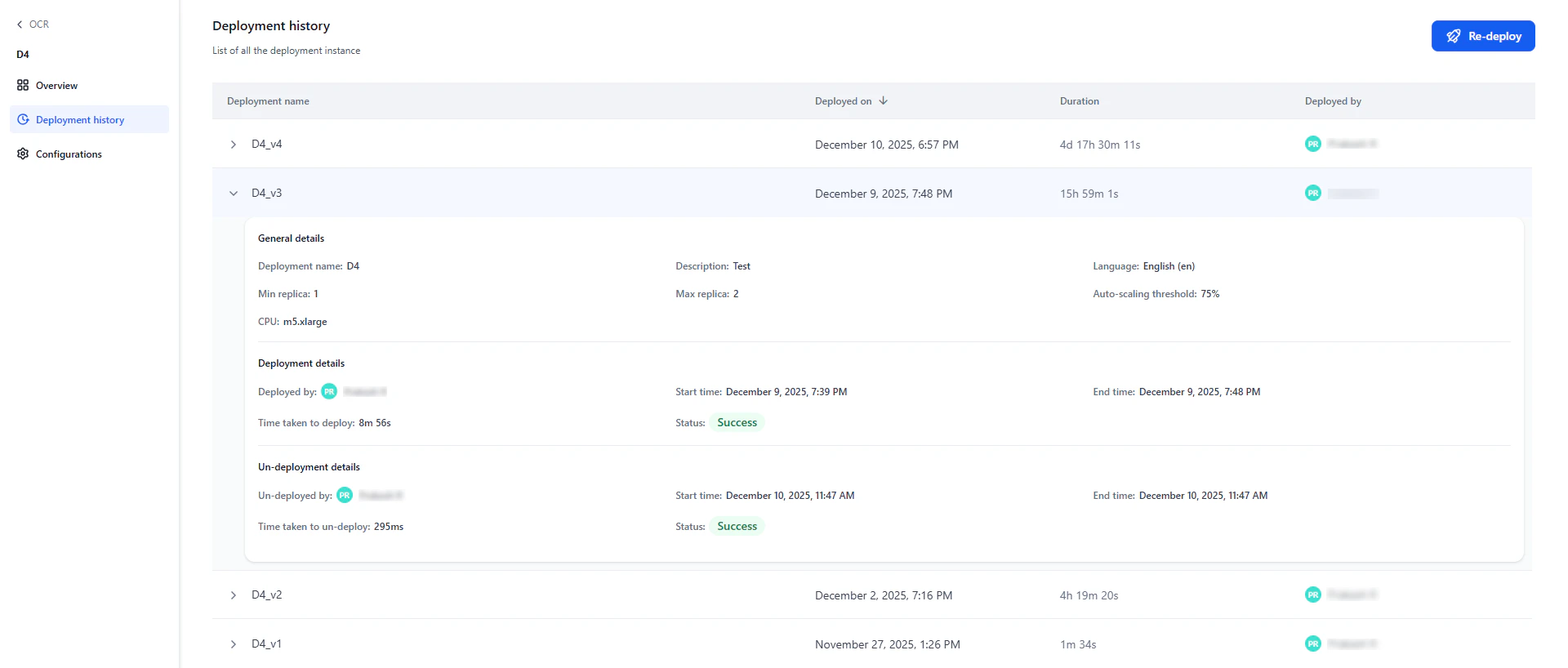
 **Deployment history** — Lists all past and current deployment versions with status, timestamps, and ownership. Expand an entry to view lifecycle details such as deployment and undeployment events.
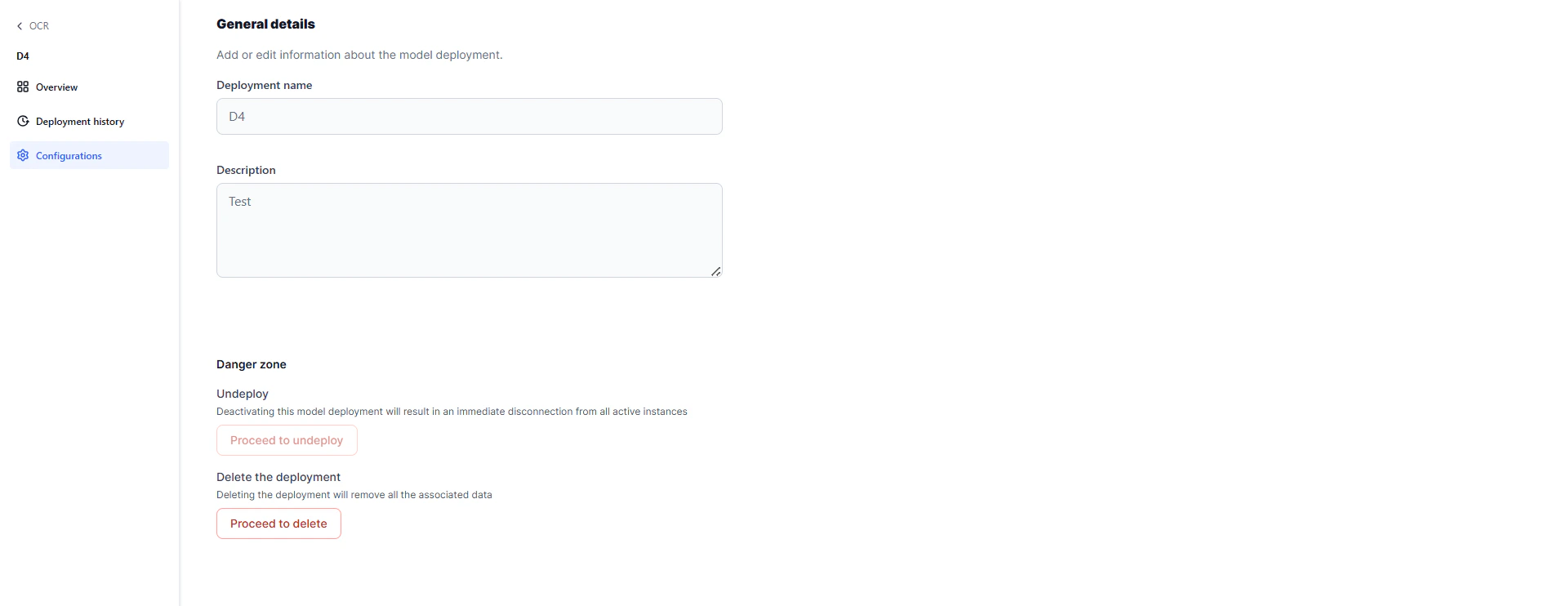
 **Configurations** — Manage the deployment lifecycle:
* **Undeploy**: Deactivates the model. Once undeployed, it is unavailable to workflows.
* **Delete**: Removes the configuration. Available only after the deployment is undeployed.
**Configurations** — Manage the deployment lifecycle:
* **Undeploy**: Deactivates the model. Once undeployed, it is unavailable to workflows.
* **Delete**: Removes the configuration. Available only after the deployment is undeployed.
 ## Azure Doc Intelligence
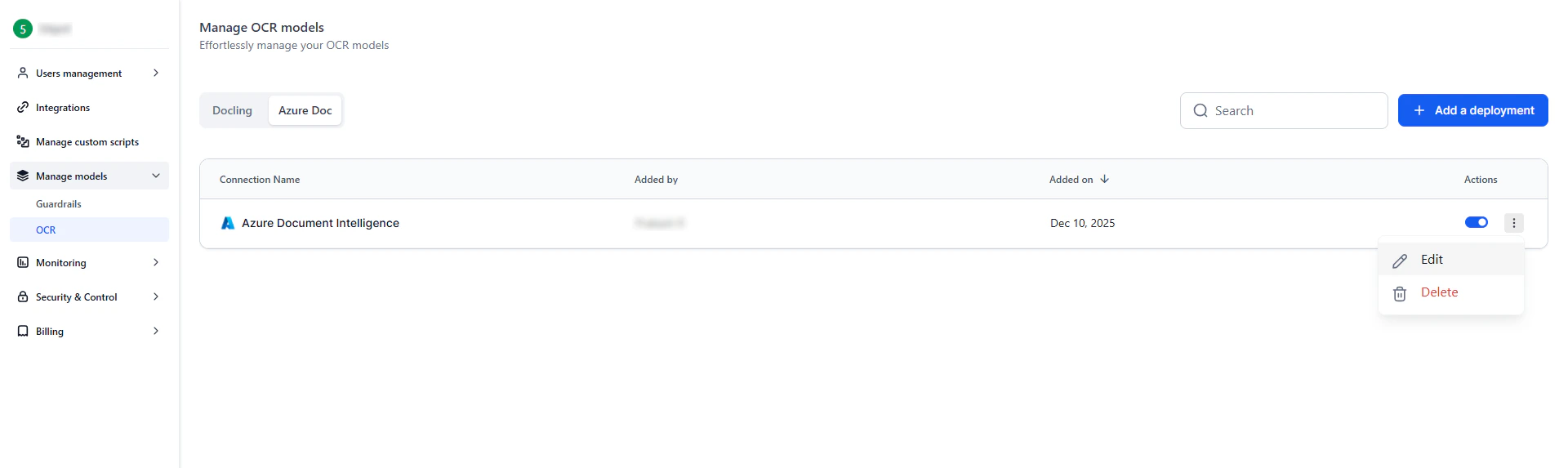
Connect external Azure document-processing models for use in the Doc Intelligence Node. You can add and manage multiple Azure connections.
### Add a connection
1. Go to **Settings → Manage Models → OCR → Azure doc**.
2. Click **Add a Connection**.
3. Enter the required details:
* **Connection Name** (must be unique).
* **Base URL**.
* **API Key**.
4. The system validates the API key and checks for duplicate names.
5. After validation, click **Save**.
A confirmation message appears, and the connection is added to the list.
### Manage connections
From the connection list:
* **Enable or disable**: Toggle the switch next to a connection.
* **Delete**: Click the delete icon and confirm to permanently remove the connection.
## Azure Doc Intelligence
Connect external Azure document-processing models for use in the Doc Intelligence Node. You can add and manage multiple Azure connections.
### Add a connection
1. Go to **Settings → Manage Models → OCR → Azure doc**.
2. Click **Add a Connection**.
3. Enter the required details:
* **Connection Name** (must be unique).
* **Base URL**.
* **API Key**.
4. The system validates the API key and checks for duplicate names.
5. After validation, click **Save**.
A confirmation message appears, and the connection is added to the list.
### Manage connections
From the connection list:
* **Enable or disable**: Toggle the switch next to a connection.
* **Delete**: Click the delete icon and confirm to permanently remove the connection.